Adding cloud functions to Process Orchestration steps
Cloud functions enable you to define and execute authenticated API calls to any external web services directly from Process Orchestrationsteps. This allows you to collect relevant data from external services and inject it back into your orchestration.
To use cloud functions in Process Orchestration, you will have to establish a connection between your Process Orchestration step and a dedicated cloud server. Make sure you have your connection details handy, or check with your system admin for them. For the list of required settings, see the detailed steps below.
Create a Process Orchestration step. See Editing process steps.
In the process step editor, select the Cloud function tab.
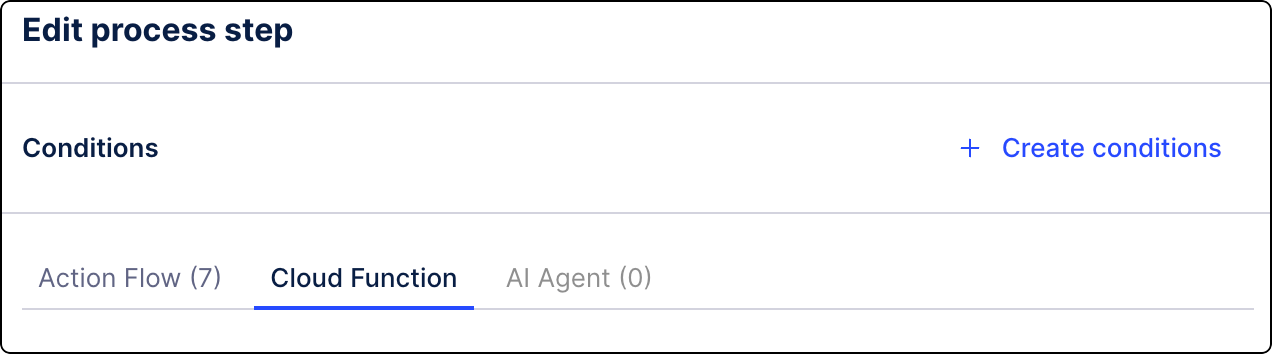
Click Configure cloud function.
Give the cloud function a name.
To provide the connection details, from the dropdown menu, select the cloud provider. Select from the following connection types:
Note
If you want to connect to an API or external web service that is publicly accessible or does not require authentication to be called, skip this step and go straight to Step 5: Execution settings.
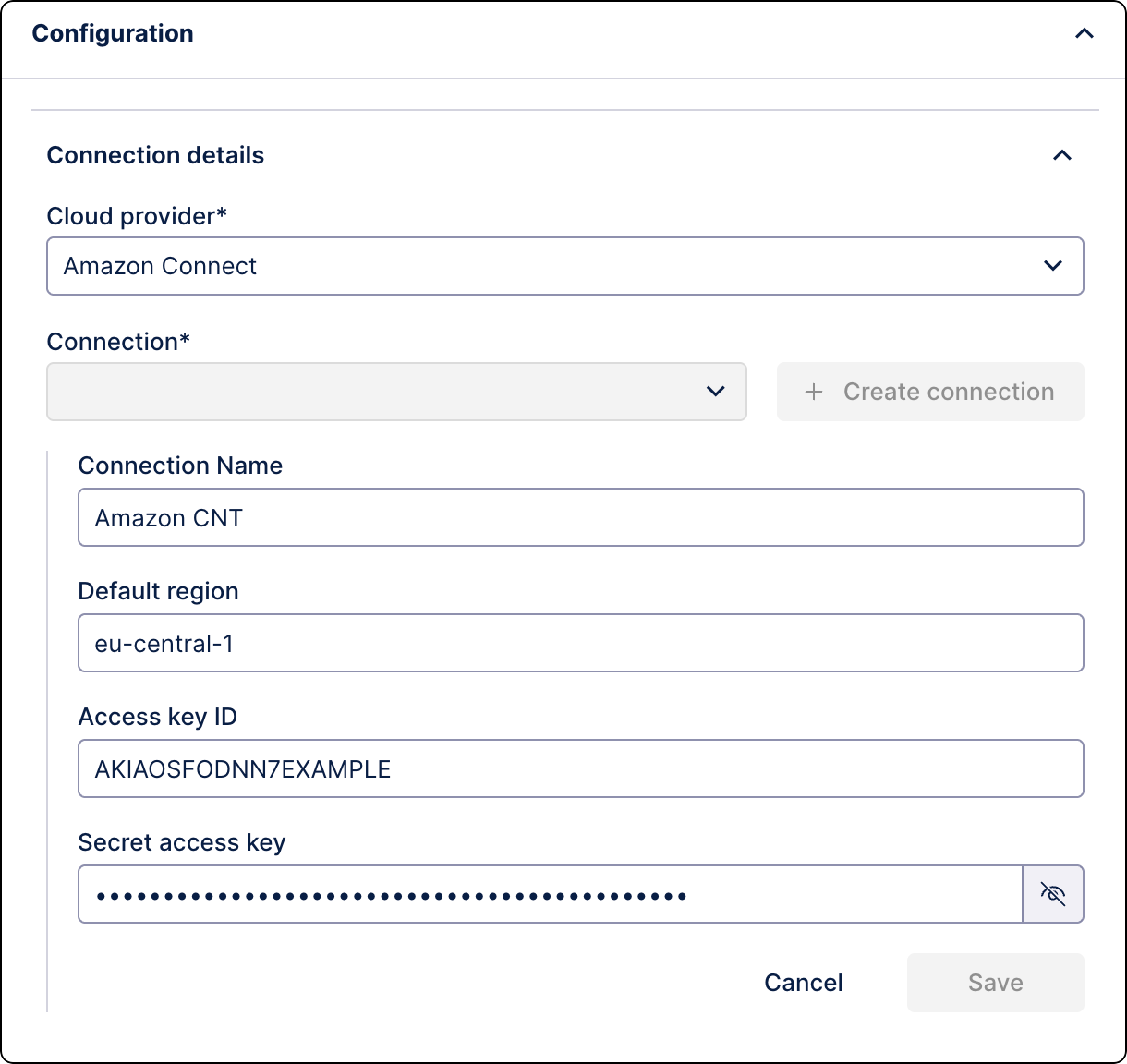
Amazon Connect - this is a preconfigured integration for which you only need to provide your connection information. You should be able to find the following information in your AWS Management Console:
Setting
Description
Example
Connection name
Label for the connection.
Amazon CNTDefault region
Geographic area AWS tools and services will use by default when you don't explicitly specify one.
eu-central-1Access key ID
System user's ID in AWS.
AKIAIOSFODNN7EXAMPLESecret access key
Password associated with the Access Key ID.
Custom - connect to a cloud provider of your choice. Provide the following information:
Setting
Descritpion
Example
Connection name
Label for the connection.
My custom connectionBase URL
Address of the cloud server you want to reach.
Required format:
https://<your-domain>https://api.example.comAuthentication type
API key
Location - location where to attach the API key in the outgoing request. Possible values:
Header,Query.HeaderName - label that your cloud server will be looking for.
x-api-keyValue - unique password or token.
79402633-8f0a-4c8d-b3e1-72f88b532f1bOAuth 2.0
Client ID - unique public identifier for your client.
f9b8c2d-1a2b-4c3d-9e8f-7g6h5i4j3k2lClient secret - authorization password or token.
Scopes - specific permissions you want your application to have when connecting to the cloud server. Check your server provider’s documentation for the exact list of scopes and their format.
If you use OAuth Client created in Celonis Platforms, go to Admin & Settings and check the scopes set for the OAuth Client you want to use. Copy these scopes here using their names as listed in OAuth scopes.
If you use OAuth Clients created outside Celonis Platform, check your server provider’s documentation for the exact list of scopes and their format.
intelligence.conversations:write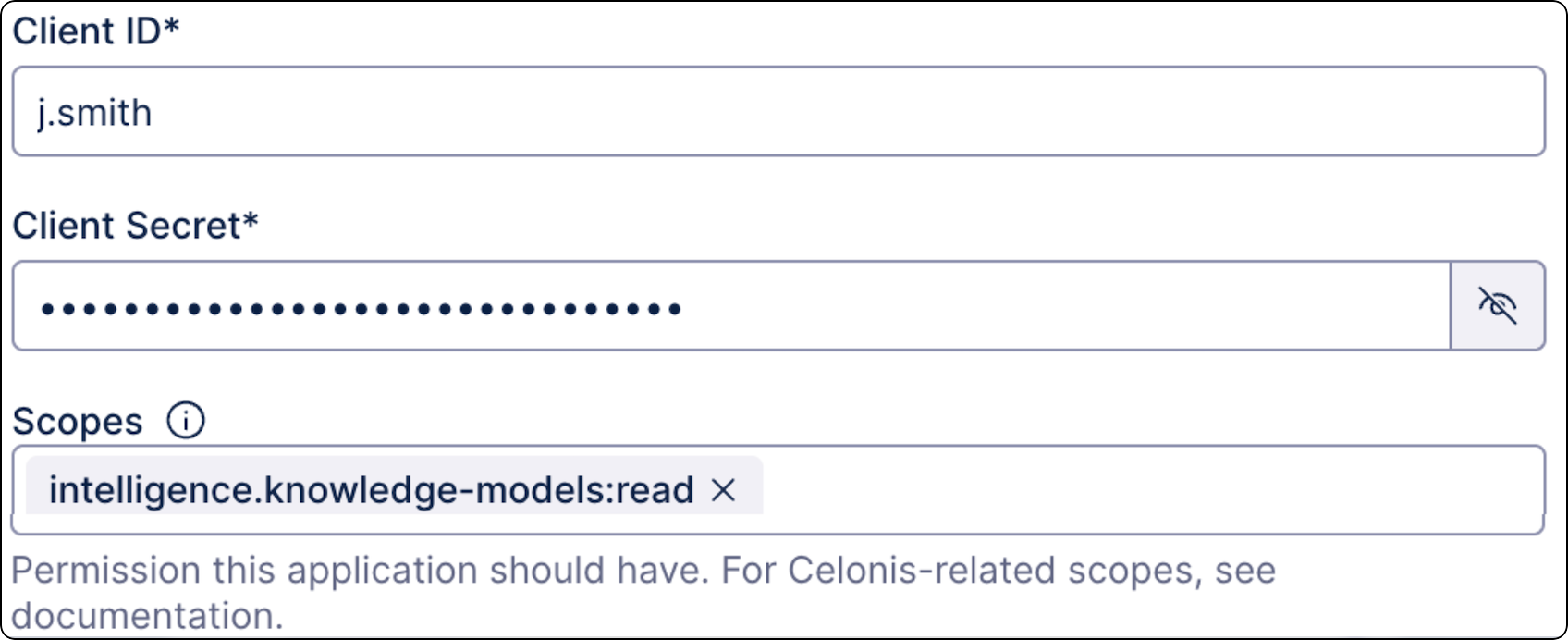
Token URL - web address of the Authorization Server where your application sends the Client ID and Secret to exchange them for an Access Token.
https://team-name.celonis.cloud/api/external/oauth2/tokenRefresh URL - web address of the Authorization Server where your application sends requests for a new Access Token without needing to re-authenticate with the Client Secret.
https://team-name.celonis.cloud/api/external/oauth2/refresh
Define Execution settings using the HTTPS request builder. Enter the following values:
Setting
Description
Example
Method
Action to perform on a specific resource identified by a URL. The most commonly used HTTP request methods are: GET, POST, PUT, DELETE,
POSTURI
Path of the API endpoint you’re calling. URI is relative to the base URL defined earlier.
This field only accepts CEL expressions. Required format:
"/your-endpoint". See CEL expressions.You use context variables from other steps in this field. To see values available for mapping, you must run the Process Orchestration test first.
Note
If you're connecting to an API or a publicly available service without a preconfigured connection, make sure the URI field contains the full URL. For example:
"https://api.example.com/v1/charges""/v1/charges"Query parameters
Key-value pairs that allow you to filter or sort data.
This field only accepts CEL expressions. Required format is:
"key""value". See CEL expressions.You use context variables from other steps in this field. To see values available for mapping, you must run the Process Orchestration test first.
Key:
"environment"Value:
"production"Body
Data payload sent with the request in JSON format.
{
  "customer_name": "John Doe",
  "priority": "High",
  "is_active": true
}
Headers
Metadata sent along with the request.
This field only accepts CEL expressions. Required format is:
"key""value". See CEL expressions.You use context variables from other steps in this field. To see values available for mapping, you must run the Process Orchestration test first.
Key:
"Content-Type"Value:
"application/json"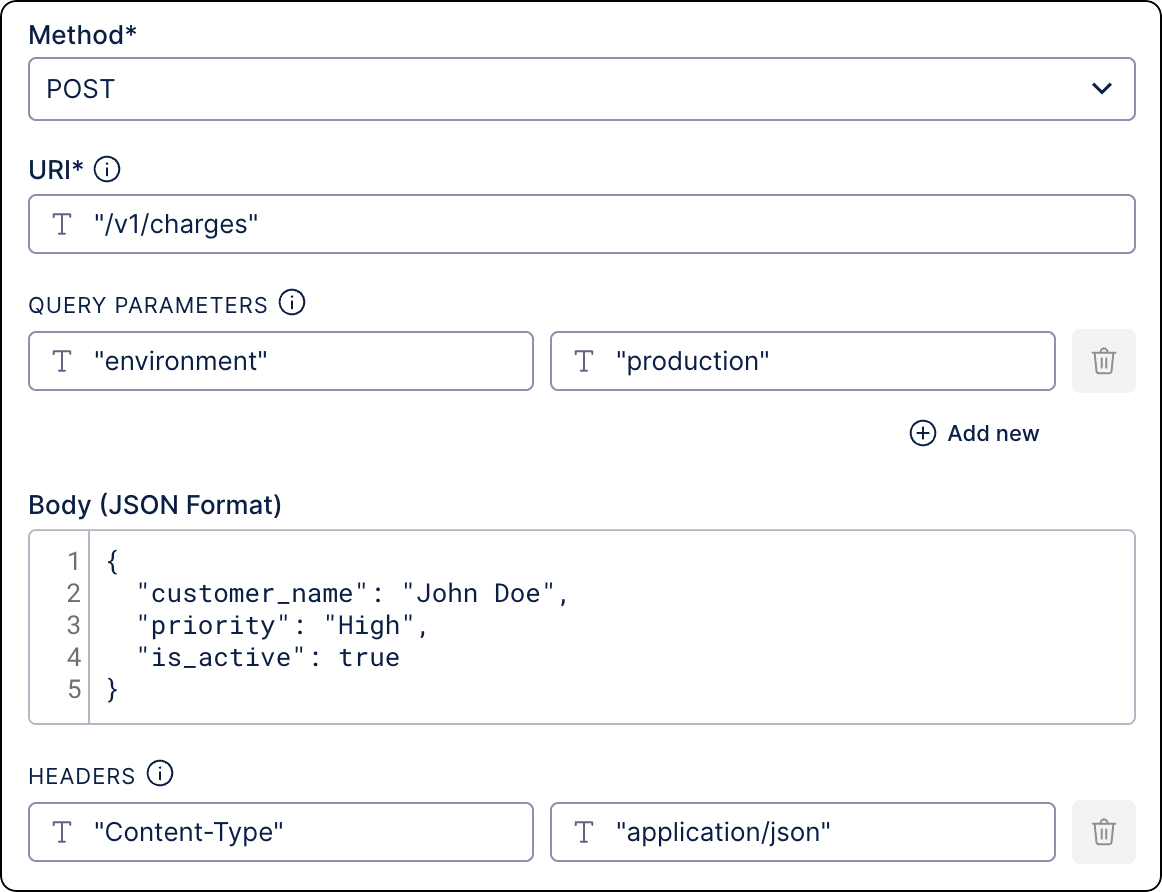
Select a completion event. Select an existing event or create a new one.
Completion events log details about the current step to provide content to the next steps in orchestration. Subsequent steps use this data to determine when the previous step has completed so they can begin execution.
Your step is created. Continue building your process. We advise testing it before deployment. See Testing Process Orchestration.