Order Management Starter Kit: Benchmarking extension
In Celonis Platform, Benchmarking allows you to measure the performance of your business against your industry peers using data-driven insights. This allows you to identify areas for improvement, uncover bottlenecks, and prioritize the best solutions to achieve the best performance. Benchmarking is based on anonymous data gathered across industries from the opted-in Benchmarking Community.
Note
Benchmarking is currently available as a Private Preview only
If you would like to use this feature, create a Support ticket at Celonis Support.
For more information about our Private Preview releases, including the level of Support offered with them, see: Feature release types
Before you begin
Make sure Celonis Support has created a new data connection between your Data Pool and Benchmarking Library as part of the Private Preview enablement.
Setting up the Benchmarking extension
Create a custom object from the imported table with the following attributes (most attributes will appear by default when selecting “import from table”):
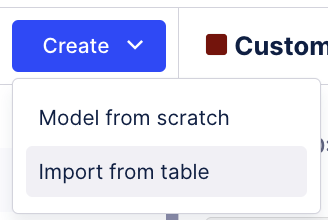
Name: OrderManagementBenchmark
Attributes
ID (We will create later in the transformations)
KPI
Industry
Mean
IqrMean
Percentile25
Median
Percentile75
Unit
Trend
Go into the transformation that is created. It should have the following SQL:
SELECT
	"KPI" || '::' || "Industry" AS "ID",
	"KPI" AS "KPI",
	"Industry" AS "Industry",
	"Mean" AS "Mean",
	"IqrMean" AS "IqrMean",
	"25th Percentile" AS "Percentile25",
	"Median" AS "Median",
	"75th Percentile" AS "Percentile75",
	"Unit" AS "Unit",
	"Trend" AS "Trend"
FROM "Sheet1"
Create a new perspective with the custom object:
Tip
The Benchmarks object doesn't need to be connected to any other object.
Extend or create a new perspective.
Add the
OrderManagementBenchmarkobject and save.
Publish Objects & Events.
We suggest that you start with publishing to test before you publish to production.
Run the transformations and reload the perspective. Run
ocpm-data-jobUse test:ocpm-data-job and the test:perspective if changes were only published to development
Download the Order Management Starter Kit Benchmarking Extension package from the Marketplace:
Search for “Order Management Starter Kit Benchmarking” in the Marketplace.
Click Get it now.
Select a space.
Use the “Copy To” function to move the following views and Knowledge Model to the existing Starter Kit Package:
Benchmarking View (View)
All Benchmarks (View)
Benchmarking KM (Knowledge Model)
Link the Benchmarking Knowledge Model to the existing Knowledge Model in your Starter Kit.
Go to the data model variable in the Benchmarking Knowledge Mmodel and create a new data model variable that links to the newly created Benchmarking perspective.