Google Calendar
With Google Calendar modules in Celonis platform, you can manage events and calendars in your Google Calendar account.
To use the Google Calendar modules, you must have a Google account. You can create an account at accounts.google.com.
Refer to the Google Calendar API documentation for a list of available endpoints.
To establish the connection in Celonis platform:
Log in to your Celonis platform account, andadd a Google Calendar module to your Action Flow, and click Create a Connection.
(optional) In the Connection name field, enter a name for the connection.
(optional): Switch on the Show advanced settings and enter your Google Cloud Platform Project client credentials. See the Create and configure a Google Cloud Platform project for Google Calendar section below.
Click Sign in with Google and select your Google account.
If prompted, authenticate your account and confirm access.
You have successfully established the connection. You can now edit your Action Flow and add more Google Calendar modules.
Note
You may receive a connection error if your Google account has multiple APIs enabled in Google Cloud Platform. If so, create a new Google Cloud Platform Project and try to establish the connection again. See the Create and configure a Google Cloud Platform project for Google Calendar section below for more information.
To connect to Celonis platform using your own client credentials, you can create and configure a project in the Google Cloud Platform.
To create a Google Cloud Platform project:
Log in to Google Cloud Platform using your Google credentials.
On the welcome page, click Create or select a project > New project. If you already have a project, proceed to the step 5.
Enter a Project name and select the Location for your project.
Click Create.
In the top menu, check if your new project is selected in the Select a project dropdown. If not, select the project you just created.
Note
To create a new project or work in the existing one, you need to have the serviceusage.services.enable permission. If you don’t have this permission, ask the Google Cloud Platform Project Owner or Project IAM Admin to grant it to you.
To enable the required API:
Open the left navigation menu and go to APIs & Services > Library.
Search for the following API: Google Calendar API.
Click Google Calendar API, then click Enable. If you see the Manage button instead of the Enable button, you can proceed to the next step: the API is already enabled.
To configure your OAuth consent screen:
In the left sidebar, click Google Auth Platform.
Note
If you don't see Google Auth Platform in the left sidebar, click View all products at the top of it, then pin Google Auth Platform to the sidebar.
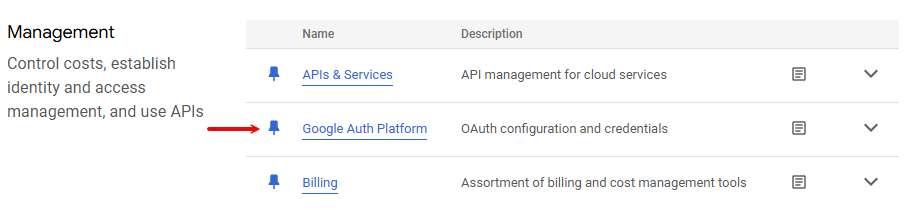
Click Get Started.
In the Overview section, under App information, enter Make as the app name and provide your Gmail address. Click Next.
Under Audience, select External. Click Next.
For more information regarding user types, refer to Google's Exceptions to verification requirements documentation.
Under Contact Information, enter your Gmail address. Click Next.
Under Finish, agree to the Google User Data Policy.
Click Continue > Create.
Click Create OAuth Client.

In the Branding section, under Authorized domains, add
make.comandintegromat.com. Click Save.Optional: In the Audience section, add your Gmail address on the Test users page, then click Save and continue if you want the project to remain in the Testing publishing status. Read the note below to learn more about the publishing status.
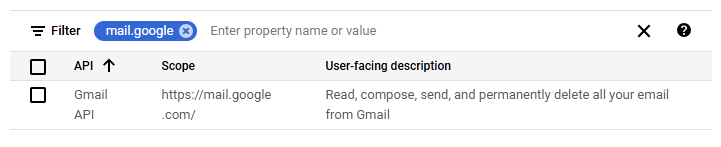
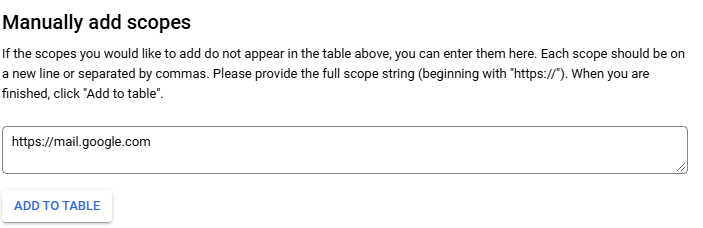
In the Data Access section, click Add or remove scopes, add the following scope:
https://www.googleapis.com/auth/calendarYou can add scopes using:
A table with filters:
A window to manually enter scopes:
Click Update.
Click Save.
Note
Publishing Status
Testing: If you keep your project in the Testing status, you will be required to reauthorize your connection in Celonis platform every week. To avoid weekly reauthorization, update the project status to In production.
In production: If you update your project to the In production status, you will not be required to reauthorize the connection weekly. To update your project's status, go to the Google Auth Platform, the Audience section, and click Publish app. If you see the notice Needs verification, you can choose whether to go through the Google verification process for the app or to connect to your unverified app. Currently connecting to unverified apps works in Celonis platform, but we cannot guarantee the Google will allow connections to unverified apps for an indefinite period.
For more information regarding the publishing status, refer to the Publishing status section of Google's Setting up your OAuth consent screen help.
To create your client credentials:
In Google Auth Platform, click Clients.
Click + Create Client.
In the Application type dropdown, select Web application.
Update the Name of your OAuth client. This will help you identify it in the platform.
In the Authorized redirect URIs section, click +Add URI and enter the following redirect URI:
https://www.integromat.com/oauth/cb/google/.Click Create.
Click the OAuth 2.0 Client you created, copy your Client ID and Client secret values, and store them in a safe place.
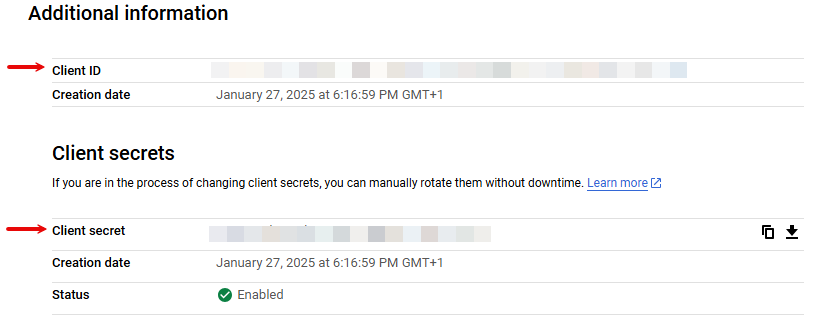
You will use these values in the Client ID and Client Secret fields in Celonis platform.
After connecting the app, you can perform the following actions:
Watch Events
Search Events
Get an Event
Create an Event
Note: For the Send notifications about the event creation field, the None option should only be used for migration use cases.
For the Recurrence field, DTSTART and DTEND lines are not allowed in this field; event start and end times are specified in the start and end fields. This field is omitted for single events or instances of recurring events.
For adding Google Drive file attachments, use the same format as in
alternateLinkproperty of the Files resource in the Drive API.Duplicate an Event
Update an Event
To update an existing Google Calendar event, you must provide the module with the following values:
Calendar ID - ID of the Google Calendar instance for which you want to update an event. You can find the ID in the Integrate calendar section of your Google Calendar settings.
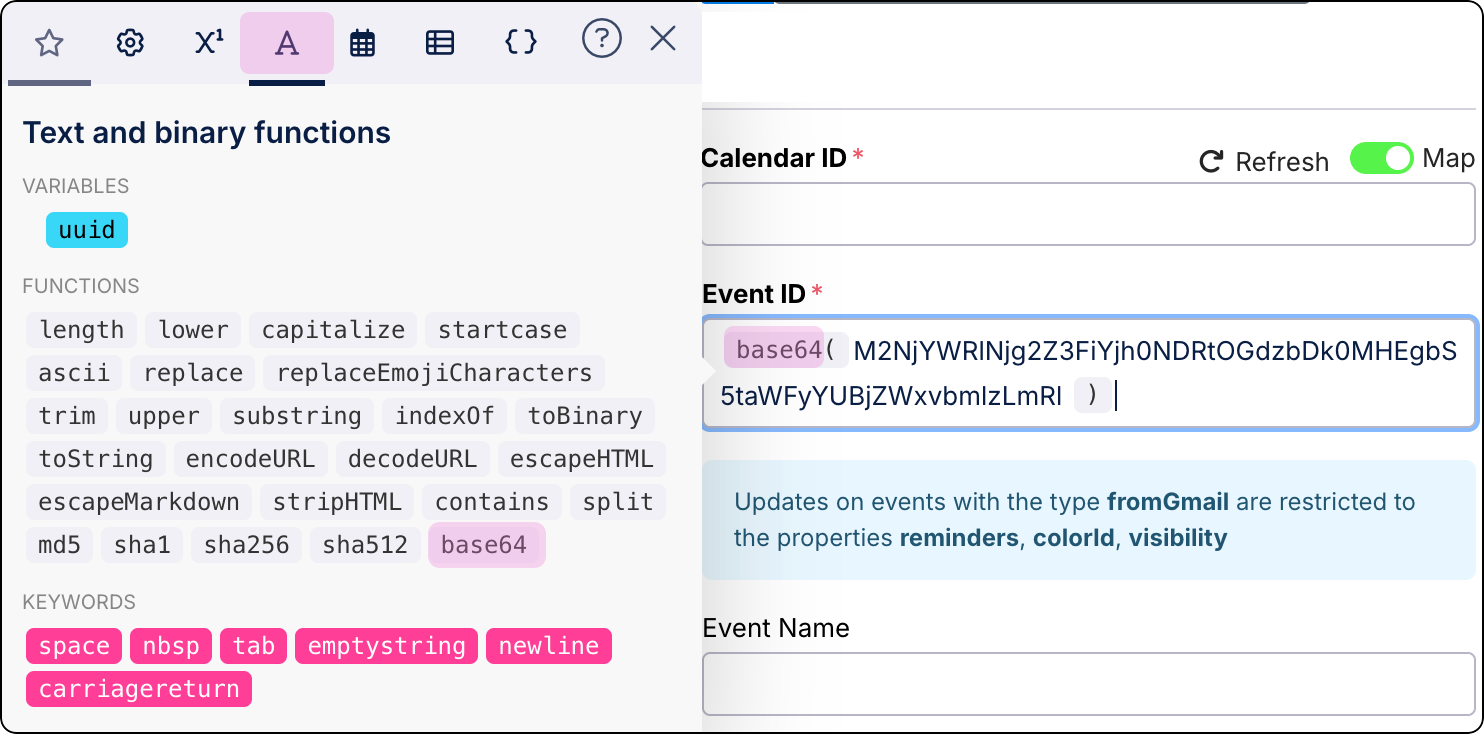
Event ID - ID of the Google Calendar event you want to update. You can find it in the URL of your event: https://calendar.google.com/calendar/u/1/r/eventedit/M2NjYWRlNjg2Z3FiYjh0NDRtOGdzbDk0MHEgbS5taWFyYUBjZWxvbmlzLmRl.
Note
Event ID must be provided in the Base64 encoding. Use the text and binary functions of the Even ID field to add the Base64 coding.
Delete an Event
List Calendars
Get a Calendar
Create a Calendar
Update a Calendar
Delete a Calendar
Clear a Calendar
List Access Control Rules
Get an Access Control Rule
Create an Access Control Rule
Update an Access Control Rule
Delete an Access Control Rule
Make an API Call
Get Free/Busy Information