JDBC Extractor
Note
Starting with JDBC Extractor version 4.28.0 (2026-03-31), Java 25 is recommended.
The JDBC Extractor is the underlying protocol used by Celonis Platform extractors for Direct and Uplink (on-premise) connections to extract data from databases. This page provides an overview of the JDBC Extractor.
Tip
You can find a complete list of all native Celonis database extractors in the Databases. You can find a list of which connection types they support on Supported database types.
Direct connections
Direct connections are established when the Celonis Platform connects across the public internet directly to your database endpoint using the JDBC Extractor, which is pre-loaded with the necessary database driver based on your configured source.
Direct connections are normally used for cloud-hosted databases (such as Azure SQL, Databricks, and Databricks) with the database port accessible to the Celonis Cloud IP ranges. In addition to the basic connection options in the Celonis Platform, the JDBC Extractor also enables you to extend the connection behavior via JDBC strings. For more information on using JDBC strings, see Custom JDBC connection strings.
You can find the complete list of databases that support Direct connections in Supported database types.
Note
Direct connections do not require an on-premise JDBC Extractor. If connecting via a Direct connection, you can simply locate your database in the Supported database types list, select the link for the database, and follow the instructions on that page.
Uplink connections
Upcoming Java 25 Requirement for OPCs and OPEs
Starting April 2026, upgrading to the latest On-Premise Client (OPC) or On-Premise Extractor (OPE) will require Java 25. Current installations will remain unaffected (non-breaking change) unless you choose to update to the newest OPC or OPE versions. We will provide finalized Java requirements once the release versions are confirmed.
While no immediate action is required, we recommend planning your Java environment updates now to ensure a smooth transition.
When you cannot grant the Celonis Platform direct access to your on-premises or private cloud database, you can extract data via an Uplink connection. This requires installing the on-premise Celonis JDBC Extractor within your local network, ideally on a dedicated server.
For Uplink connections, the role of the on-premise JDBC Extractor is to act as an uplink agent that continuously polls and fetches job requests from the Celonis Platform (on average every 7-8 seconds), and then submits execution information to your database via SQL queries. Once the data is retrieved from the database, the JDBC Extractor fetches it and sends it back to the Celonis Platform. As such, the connection between the database and the Celonis Platform is always made by the JDBC Extractor. This means that your database is never directly exposed to the public internet when data is extracted to the Celonis Platform.
In addition to the basic connection options in the Celonis Platform, the JDBC Extractor also enables you to extend the connection behavior via JDBC strings. For more information on using JDBC strings, see Custom JDBC connection strings.
Important
For all Uplink connections, you must install, and update as needed, the on-premise JDBC Extractor within your local network. This requirement applies whether you are using a native database connector provided by Celonis or a custom JDBC driver.
For a full list of native Uplink connectors, see Supported database types.
For information on the integration steps, see Connecting using a native Uplink connection.
For system requirements for the extractor server, see Prerequisites.
Custom JDBC drivers
If you need to connect to a database that Celonis does not natively support Uplink connections for, or you require a specific vendor-provided version, you can supply your own custom JDBC driver. This is particularity helpful in cases when your IT policy mandates the use of a specific driver version provided directly by your database vendor.
Note
Custom JDBC drivers require the Celonis JDBC Extractor to access local .jar files. Consequently, this method is only supported via Uplink connections with an on-premise JDBC Extractor installed in your network.
Additionally, you are responsible for obtaining the correct .jar file from your database provider and placing it in the designated directory of your on-premises JDBC Extractor.
For information on the integration steps to connect to your database using a custom JDBC driver, see Connecting using a custom JDBC driver with an Uplink connection.
While the Celonis Platform provides native connection options for many common databases, certain environments require more granular control. Depending on your security requirements or database type, you can customize your connection using custom JDBC strings defining how the connection behaves.
Custom JDBC connection strings are especially helpful in cases such as:
Enabling SSL/TLS encryption for data in transit.
Configuring certificate validation policies.
Tip
If your database does not natively support certificate validation parameters within the JDBC string, you can use the Advanced Setting > Validate Certificate toggle in the extractor configuration to enforce or bypass this check.
Pointing the connection to local
.jks(Java KeyStore) files or specific CA certificates.Setting specific timeout values or fetch sizes.
To use custom JDBC connection strings, choose the Custom JDBC Connection String option during extractor configuration.
Tip
For extractors natively supported, refer to the specific extractor's documentation page for custom JDBC string formats and configuration steps.
When connecting your database to the Celonis Platform, the following security specifications apply:
Communication protocol: The JDBC extractor server connects to the Celonis Platform for data extraction (full load or delta load) using HTTPS encrypted via TLS 1.2 over port 443.
Encryption protocol: The TLS 1.2 protocol is used for encryption.
Encryption in transit: This is primarily handled by the JDBC driver issued from the database provider. For further information, refer to the official documentation of your database provider.
Data pseudonymization: Pseudonymization is handled by the extractor before the data is written to parquet files and inserted into the Celonis Platform.
Direct connections: This happens when the files are sent to the cloud.
Uplinked connections: This happens on-premise on the extractor server.
Credential storage: Username and password information is converted to a byte array and securely encrypted before it is stored in Celonis database.
Celonis only provides fixes for the latest version of the on-premise JDBC extractor. If you are not running the latest JDBC extractor version, and you raise a support ticket, we'll check whether the issue still exists in the latest version. If it does, we’ll fix it in that version. In any case, you'll need to upgrade to the latest version to get the fix.
Tip
To stay informed about the latest updates, see the JDBC Extractor change history.
Older versions of the JDBC extractor won't stop working, and you can continue using them until you need support, at which time you'll need to upgrade to get the bug fixes. We recommend you update the JDBC Extractor at least every quarter, even if you don't experience any issues, to get the latest capabilities and any fixes for security vulnerabilities.
In the Admin & Settings > Download Portal > JDBC (Database) Extractor section, you can find the release date, package name, and the version of the latest on-premise JDBC Extractor package as part of the archive name, which is in this format:
<YYYY-MM-DD>-<package-name>-<major version>.<minor version>.<patch version>.zip
For example:
2024-03-06-dockerized-package-jdbc-2.92.1.zip
Where the release date is 2024-03-06 (March 06, 2024), the package name is dockerized-package-jdbc, and the version is 2.92.1.
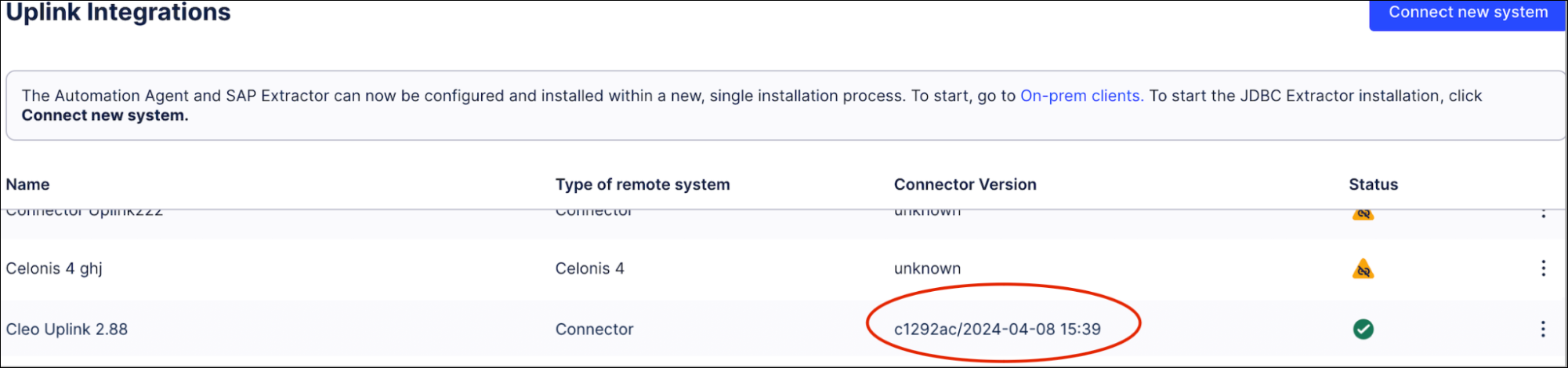
You can confirm the release date of JDBC extractors used in Uplink connections by going to Admin & Settings > Uplink Integrations. For example, in the image below, the release date 2024-04-08 is shown in the Connector Version field for the Cleo Uplink connector.
If you have any questions or need help, contact your Celonis point of contact or Support.