SAP Solution Manager Connector
The SAP Solution Manager Connector service is a tool that performs the data synchronization between the Celonis Process Management and SAP Solution Manager applications. The synchronization is possible in both directions: from SAP Solution Manager to Celonis Process Management and from Celonis Process Management to SAP Solution Manager. However, it not bidirectional and it follows certain synchronization rules. Although the service itself can run independently, it has to be configured in Celonis Process Management in order to be used.
Synchronize processes for SAP Solution Manager to Celonis Process Management
It is possible to synchronize process structure from SAP Solution Manager to Celonis Process Management. Users are able to select a SAP Solution Manager scope, and synchronize it to Celonis Process Management. When synchronizing scope, some library elements that are connected to the structure or diagram elements will also be synchronized. It is possible to do a synchronization of user processes that are created in SAP Solution Manager and also the best practice template processes.
Synchronize Library elements from SAP Solution Manager to Celonis Process Management
SAP Solution Manager library elements such as Logical Component Groups, Process Step Originals, Executable and Documents can be synchronized to Celonis Process Management. This kind of synchronization is independent from the Scope synchronization, so one can choose wether to synchronize Processes, Library elements or both.
Synchronize Celonis Process Management process to SAP Solution Manager
SAP Solution Manager connector can synchronize Celonis Process Management process structure to SAP Solution Manager. Unlike the scope synchronization from SAP Solution Manager, it is only possible to synchronize a single Celonis Process Management subprocess with its hierarchy in one synchronization. Users can synchronize subprocesses manually or it can be synchronized on every release in Celonis Process Management.
Document synchronization
It is possible to synchronize document from SAP Solution Manager to Celonis Process Management and from Celonis Process Management to SAP Solution Manager. More details about the document synchronization can be found here.
Before you begin, ensure you have completed the following steps or meet the requirements listed below:
You must have at least the Architect role in Celonis Process Management to use the SAP Solution Manager Connector
The recommendation is to use interface following the synchronization process that contains of four steps:
Synchronize the SAP Best Practice template processes from SAP Solution Manager to Celonis Process Management
Copy processes to specific processes in Celonis Process Management
Edit processes to best suit your needs
Synchronize modified processes back to SAP Solution Manager
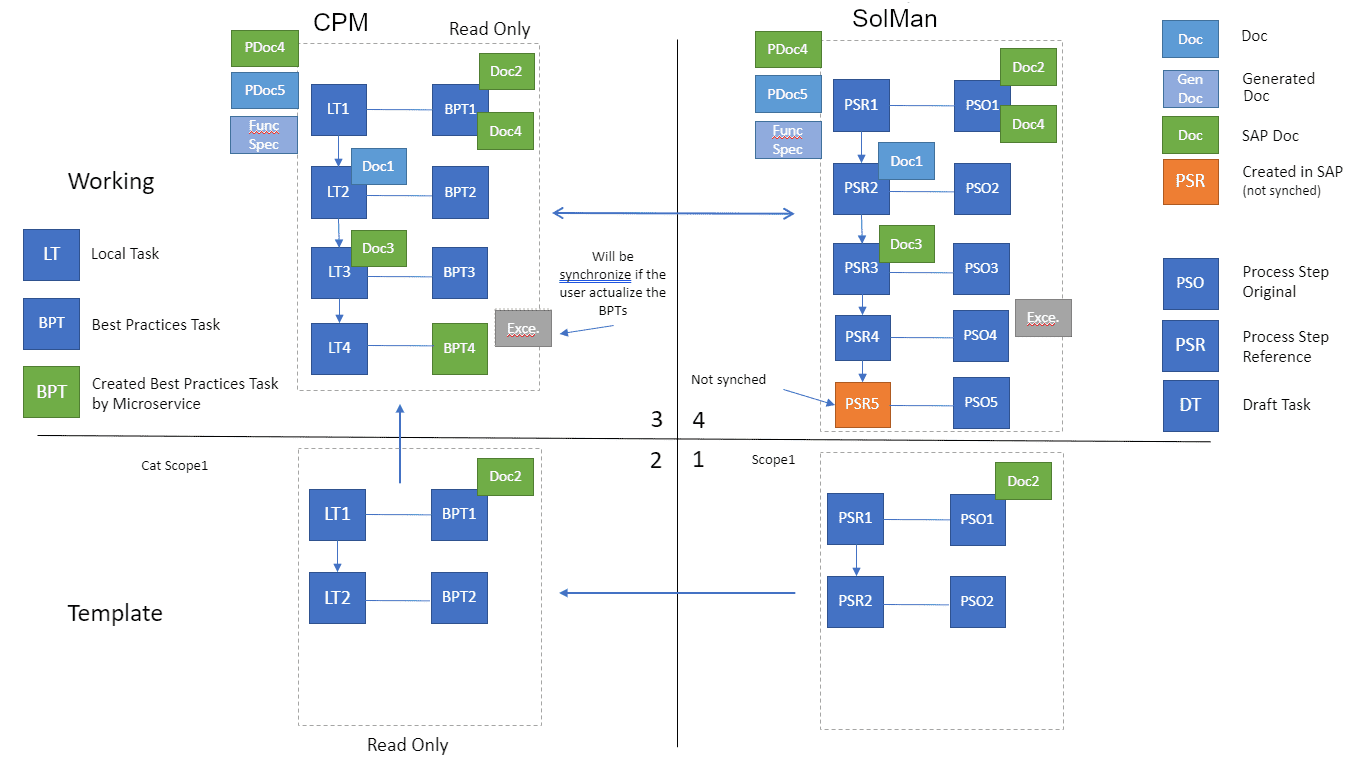
The picture below represents the whole process in four steps:
1. Synchronize the SAP Best Practice template processes from SAP Solution Manager to Celonis Process Management
The first step is to synchronize processes from SAP Solution Manager to Celonis Process Management. You can synchronize either a small scope or the full process structure. These elements are read-only in Celonis Process Management. The main idea is that these processes serve as a template, so the user can edit them in Celonis Process Management and adjust to the actual company processes.
2. Copy processes to specific processes in Celonis Process Management
The second step is to copy the processes in Celonis Process Management from the SAP Best Practice package group to the dedicated companies processes. By copying these elements to the new processes, these elements become available for editing in Celonis Process Management.
3. Edit the processes to best suit your needs
Once you have your processes copied in to Celonis Process Management, you can now change them as needed. You can use Celonis Process Management to add new elements, edit the current ones, or remove some elements. You can use the library elements from SAP Solution Manager that can also be synchronized to Celonis Process Management, or you can add new elements that are created in Celonis Process Management. By doing so, you both adjust SAP Solution Manager processes and create your own process based on the SAP ones.
4. Synchronize modified processes back to SAP Solution Manager
Finally, when processes are edited and ready to be used, you can synchronize it back to SAP Solution Manager. If configured, this synchronization can occur on process release in Celonis Process Management or an architect can synchronize it manually.
The user has to have the architect rights to be able to use the Solution Manager connector.
Under the Processes facet, in the architecture view there is an SAP menu bar item.
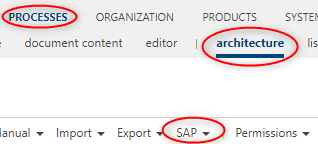
Under this item, there are three relevant menu items for the SAP Solution Manager Connector:
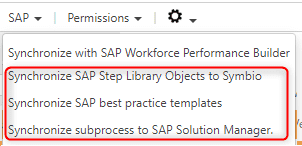
Synchronize SAP Step Library Objects to Celonis Process Management
This option is used to synchronize all SAP Solution Manager branch library objects (Process Step Originals, Executables, Roles, Documents) to Celonis Process Management. When you select this option, a dialog will display:
Figure 9.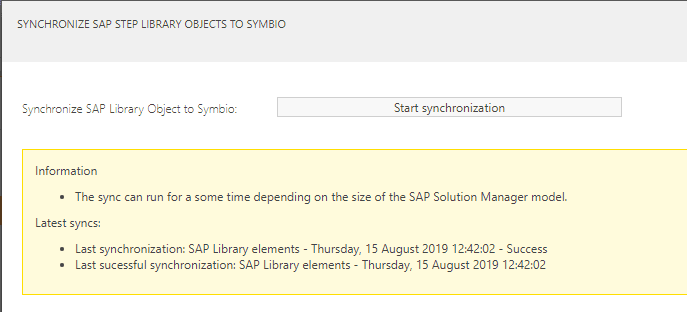
In this dialog, you can start the synchronization process for the library object, as well as the following information:
Last synchronization: Time of the latest SAP Solution Library object synchronization and the result of the synchronization process.
Last successful synchronization: Time of the latest successful synchronization of the SAP Solution Library objects.
If you do not close the window after synchronization has started, a message with the synchronization result will display once the process has finished.
If synchronization is already in progress, a message will display and you will not be able to synchronize until the previous process is completed.
Initial import of SAP process structure
This option is used to synchronize the non best practice SAP Solution Manager processes to Celonis Process Management. Along with the process structure, library elements that are connected to the objects in the process structure will also be synchronized. These processes would be in version 1.0 Released, but a user is able to create a new version and edit the processes.
When you click this option, a dialog will display. In this dialog, you must choose a scope that you want to synchronize. You should choose the Solution Manager scope which contains your non best practice processes. Once you have selected the scope you wish to synchronize, you can start the synchronization process.
There is also the following additional information:
Last synchronization: The name of the scope - Time of the latest latest successful synchronization of processes - Result of the synchronization process.
Last successful synchronization: The name of the scope - Time of the latest successful synchronization of processes.
If you do not close the window after synchronization has started, a message with the synchronization result will display once the process has finished.
If synchronization is already in progress, a message will display and you will not be able to synchronize until the previous process is completed.
Synchronize SAP practice templates
This option is used to synchronize the SAP Solution Manager processes to Celonis Process Management. Along with the process structure, library elements that are connected to the objects in the process structure will also be synchronized. When you click the button, a dialog will display:
Figure 10.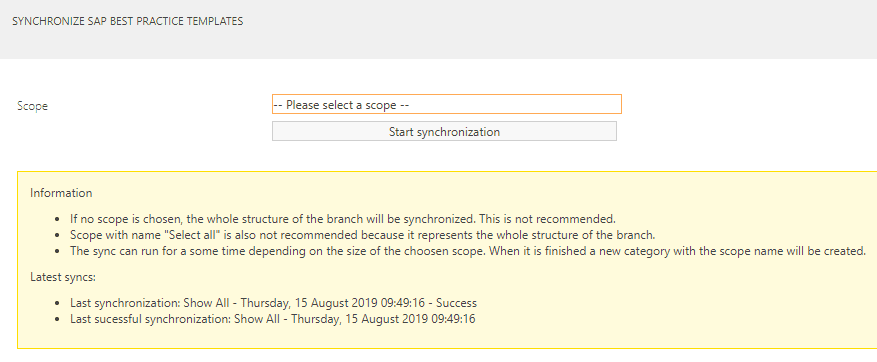
In this dialog, you must choose a scope that you want to synchronize. If you want to synchronize everything you can use the predefined Scoped named “Show all”. Once you have selected the Scope you wish to synchronize, you can start the synchronization process.
There is also some additional information:
Last synchronization: The name of the Scope - Time of the latest successful synchronization of processes - Result of the synchronization process.
Last successful synchronization: The name of the Scope - Time of the latest successful synchronization of processes.
If you do not close the window after synchronization has started, a message with the synchronization result will appear once the process has finished.
If synchronization is already in progress, a message will appear and you will not be able to synchronize until the previous process is completed.
Synchronize subprocess to SAP Solution Manager
This option is used to synchronize sub process from Celonis Process Management to SAP Solution Manager. It is important to select a sub process you want to synchronize and then click on the Synchronize sub process to SAP Solution Manager button.
Figure 11.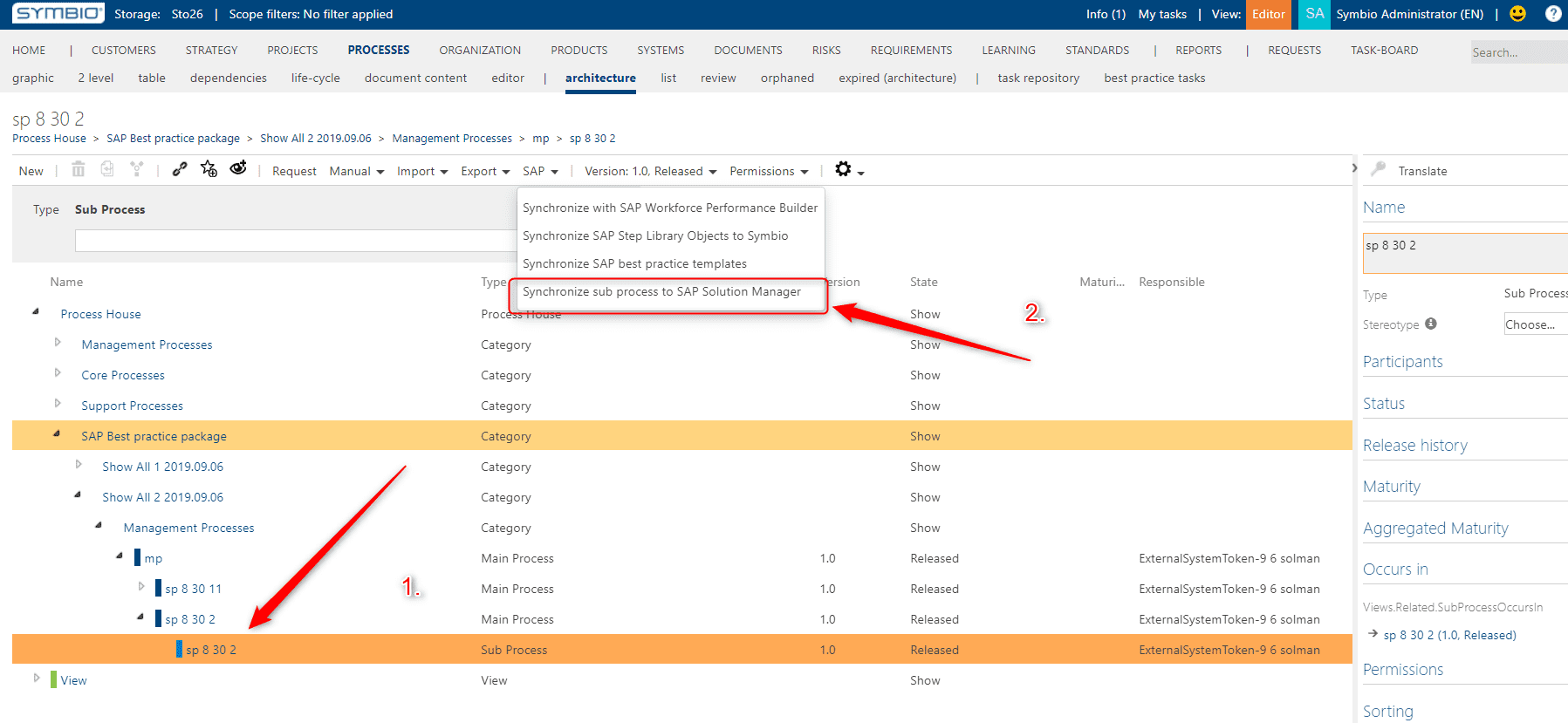
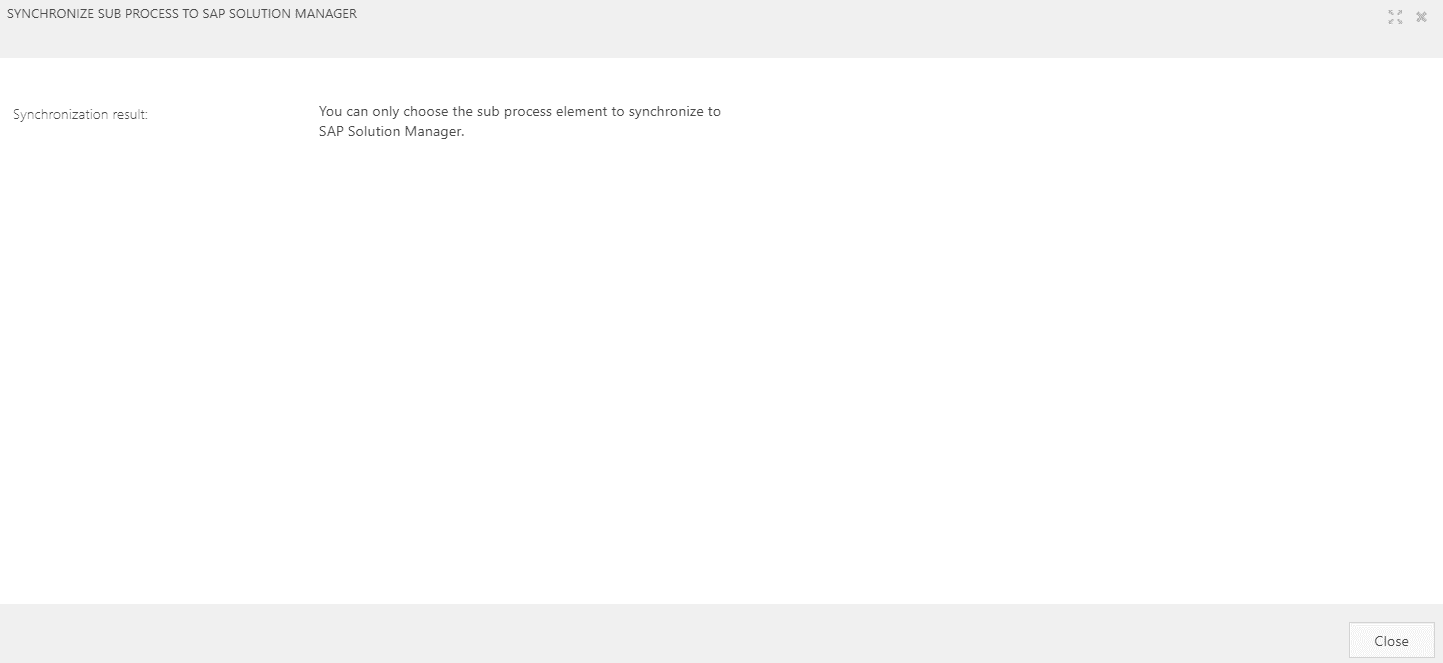
If you select another element that is not a sub process, you will get the following message:
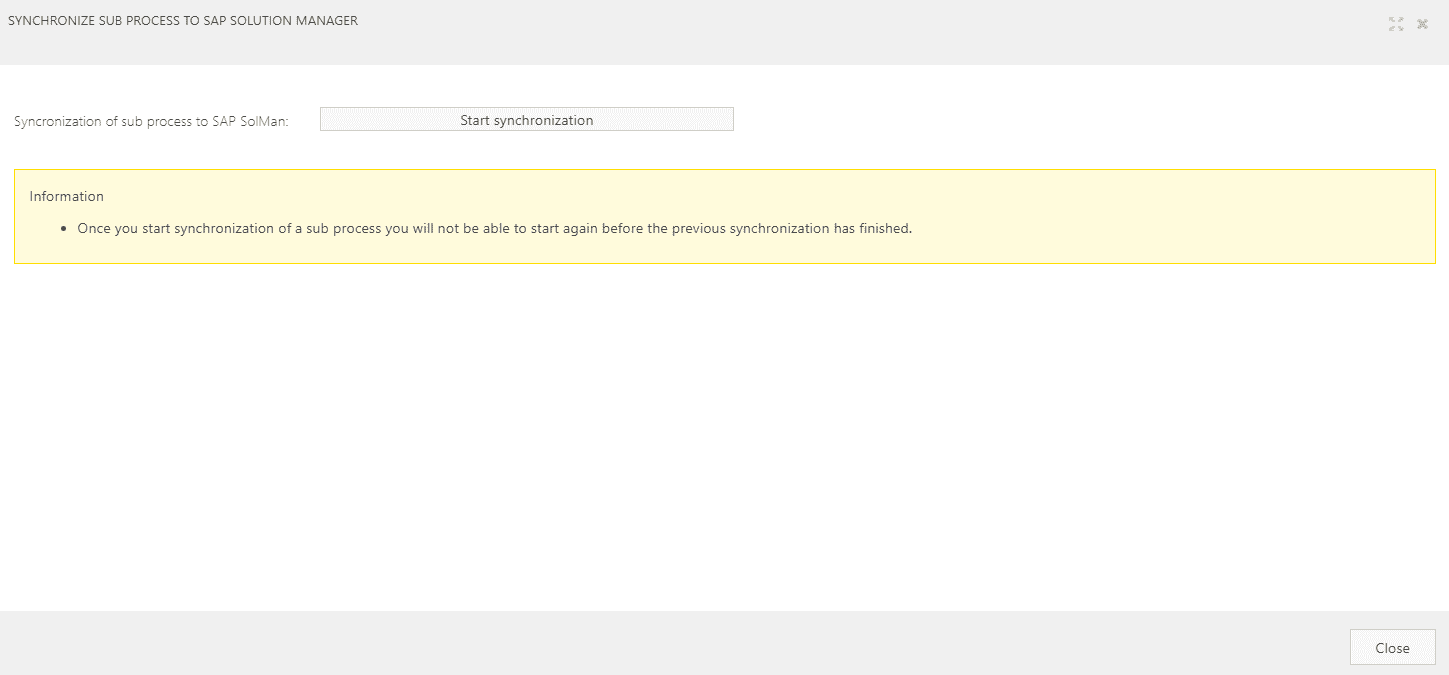
When you click the Start synchronization button, the synchronization is started and the button will be hidden.
When the synchronization is finished you will get the following message:
Figure 12.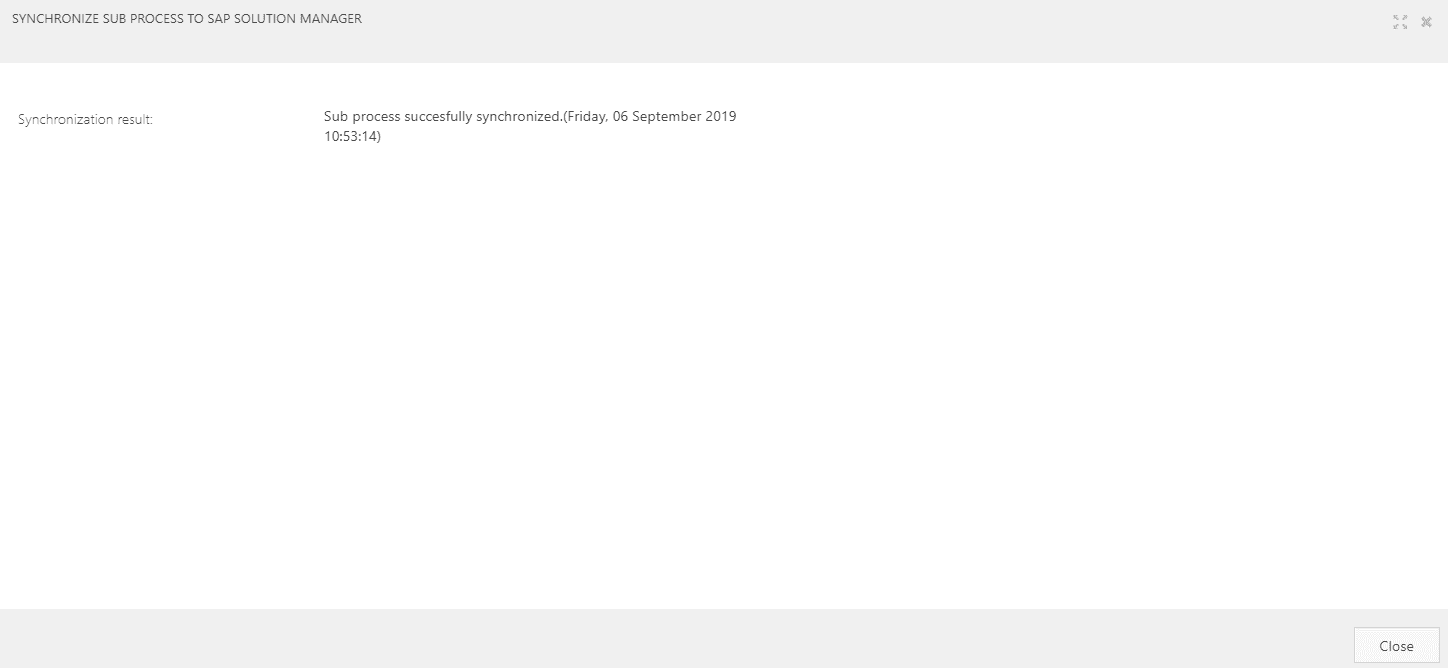
If you start a synchronization of a sub process, you will not be able to start a new one until the first synchronization is finished. The following message will display:
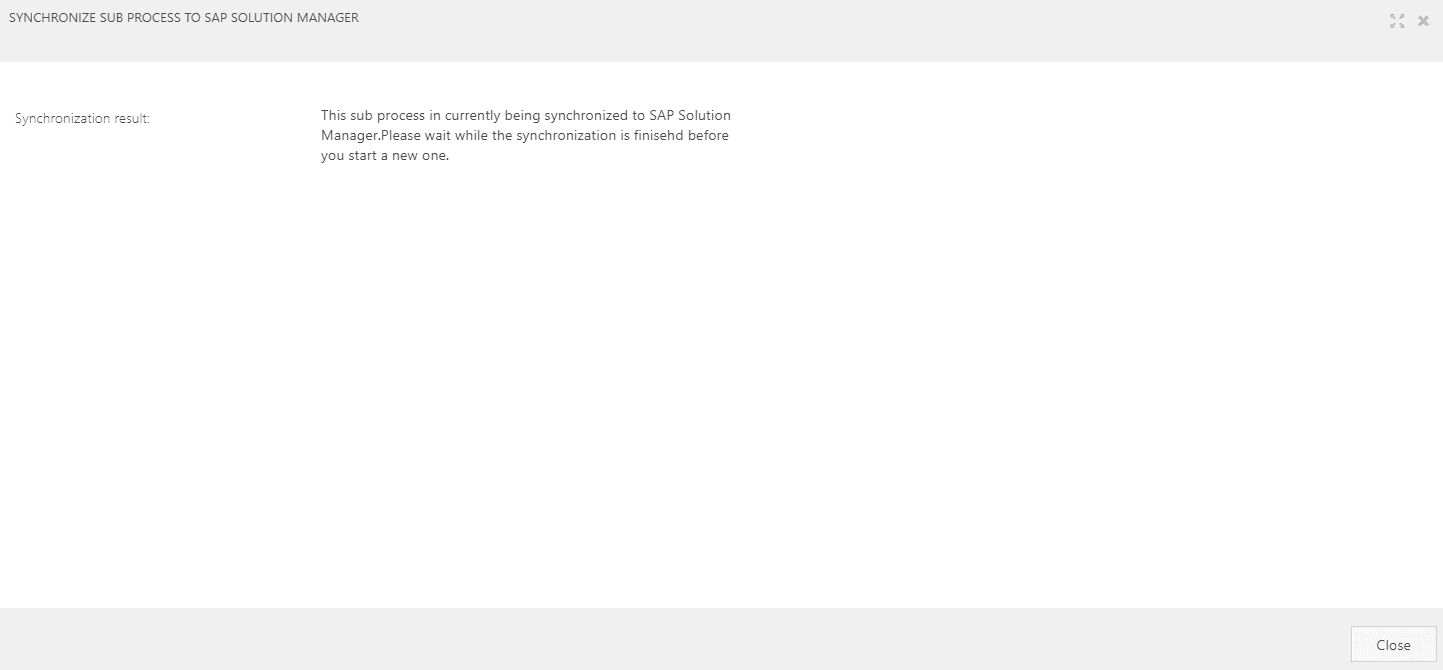
If in the process of synchronization there is an error, a message will display:
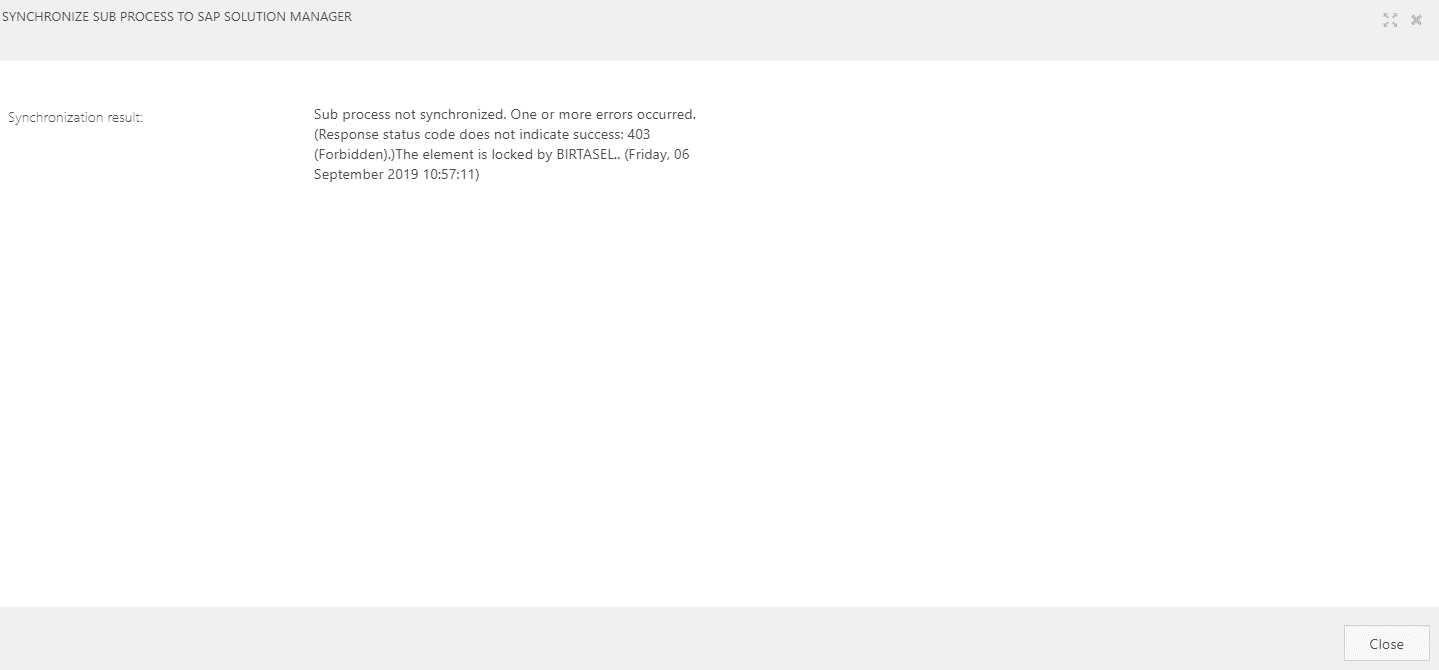
Also the messages about the synchronization status will be written in the details of the sub process (if it is not released):
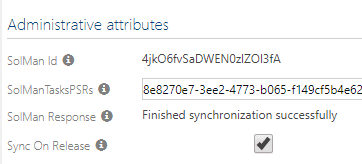
When you release a sub process and the attribute called Sync to SAP Solution Manager is checked, then after the release the sub process will be synchronized to SAP Solution Manager automatically.