Creating an OCDM version
Create an Object-Centric Data Model (OCDM) version to generate an immutable, timestamped copy of active data assets. Versioning captures a definitive snapshot of your object types and event types before deployment, ensuring stable governance when adjusting KPI calculations for operational processes like Accounts Payable or Order-to-Cash.
For the video overview of these features:
To create an OCDM version:
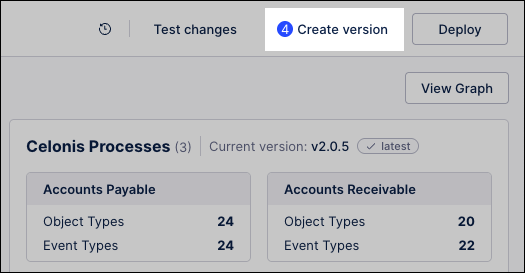
From your data model dashboard, click Create version. The interface displays the total number of modified assets since the last version.
Configure your version parameters:
Include / exclude assets: Toggle specific data objects. For example, filter and select only the newly added vendor tables if you are updating an Accounts Payable model.
Version number format: Enter a version number using the
MAJOR.MINOR.PATCHsyntax. For example, enter2.1.0if you are adding a minor tracking event to an existing Order-to-Cash process.Summary of changes: Enter a clear description of your adjustments. For example, enter
Added baseline routing to isolate Accounts Payable bottlenecksso your team understands what is included without auditing every asset.Open deployment after creating the version: Select this checkbox to bypass the repository screen and go straight to live data pool staging.
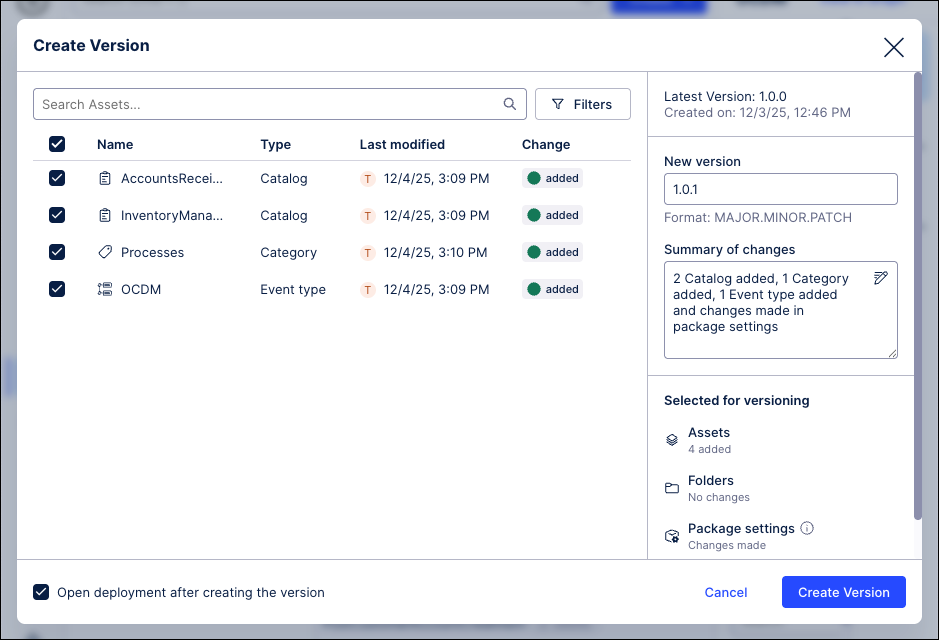
Click Create Version.
Celonis generates the immutable snapshot and lists it in your Package History log.
Optional: If you selected the deployment option, continue to the steps outlined in Deploying an OCDM version.
An object-centric data model moves through three distinct lifecycle states. Understanding these states ensures consistent governance across your data ecosystem:
Model state | Operational definition | Visibility and impact |
|---|---|---|
Draft | The active working environment where engineers modify objects, attributes, and event configurations. | Visible only to data developers; has no impact on active data pool executions or end-user dashboards. |
Version | An immutable, timestamped, and semantically numbered snapshot of the draft assets at a specific point in time. | Stored in the Package History repository; functions as a permanent restore point or deployable asset. |
Deployed version | A specific version activated within a designated target data pool to execute live data transformations. | Powers downstream analytics. Depending on the target, it drives either isolated validation or production reporting. |
Specify a version number using the three-part identifier: MAJOR.MINOR.PATCH (for example, 1.0.0).
Major: A breaking change in the OCDM.
Minor: Minor adjustments to object types or event types that modify metadata properties without altering the core semantic architecture.
Patch: Very small changes, such as bug fixes, that may go unnoticed to your end-users. Examples include an update to the calculation of an event or changes in titles.
For example: 4.3.5 would be the fourth major version, the third minor release of that version, and the fifth patch of that release.
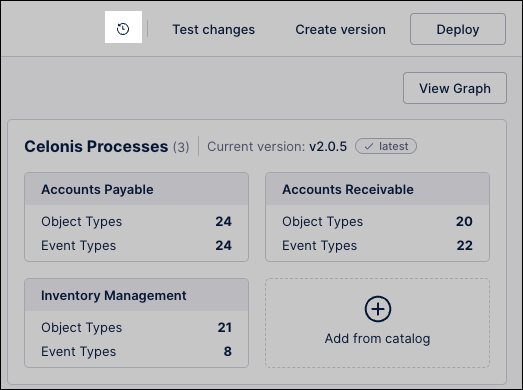
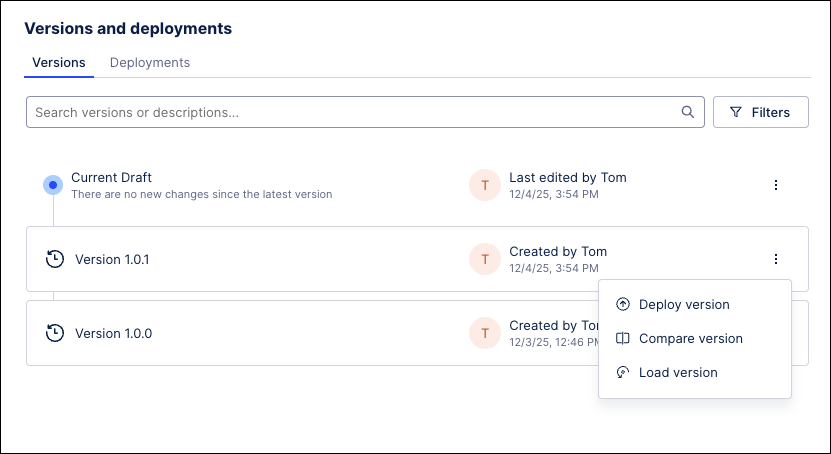
Manage existing OCDM versions and deployments by clicking Package History:
In the Package History area, you then have the following management options:
Versions: Each OCDM version has the following options:
Deploy version: Make this version available in the respective environment in the data pool. See: ???.
Compare version: Run a 1:1 comparison between available versions of this OCDM, showing you the differences between them.
Load version: Open a draft version of this OCDM, giving you the ability to make changes from the timestamped version you've selected.
Deployments: Each deployed OCDM version has the following options:
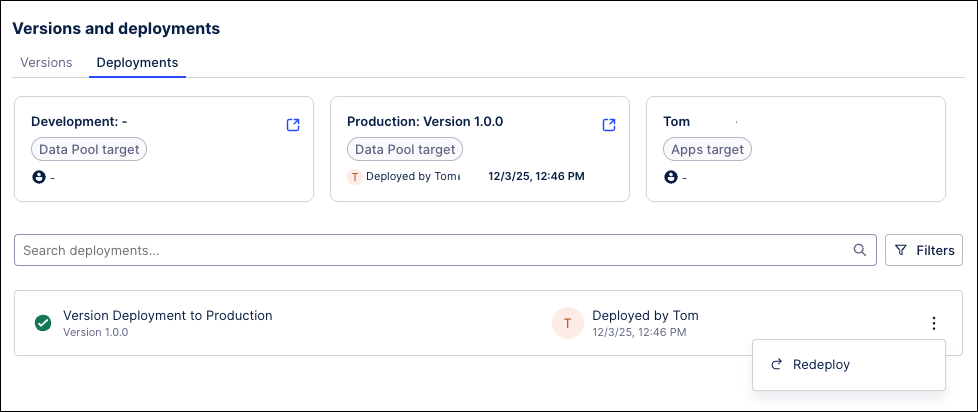
Re-deploy version: Choose a previously deployed version of the package to re-deploy to production. This feature is useful when you have incorrectly deployed a version or want to fall back to a previous one.
Open deployed version in Development / Production: Click Go to deployed target to open the deployed version of this OCDM.