Adding Process Copilot to Process Orchestration steps
You can use Process Copilot capabilities directly in Process Orchestration steps. Process Copilot is a Studio asset that allows you to interact conversationally with your Celonis data: asking questions, building graphs, looking for insights, or viewing process flows. You can analyze your data by asking natural language questions or using the predefined prompts to get your response in a variety of formats.
For more information, see Process Copilots.
Add and publish a Process Copilot in your Studio package. See Creating Process CopilotsCreating Process Copilots.
Create a Process Orchestration step. See Editing process steps.
In the process step editor, select the AI Agent tab.
From the list of available agents, select your Process Copilot instance.
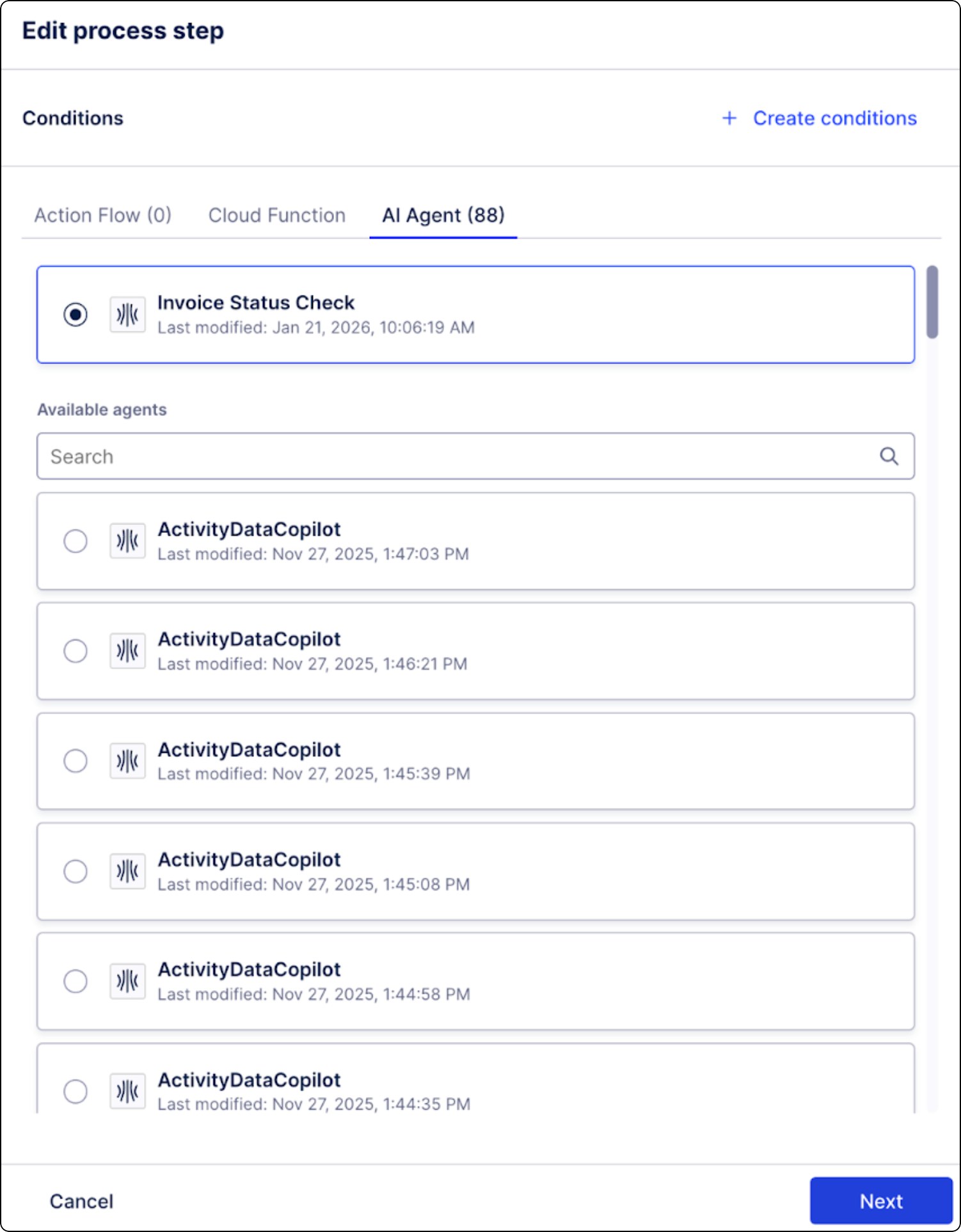
Click Next.
Give your Process Copilot step a name.
In the Message field, enter the text of the message you want to send to Process Copilot you previously selected.
The text in the message field needs to be enclosed in double quotes.
You can use variables in the message. Use the ‘+’ symbol to connect the variable to the string text.
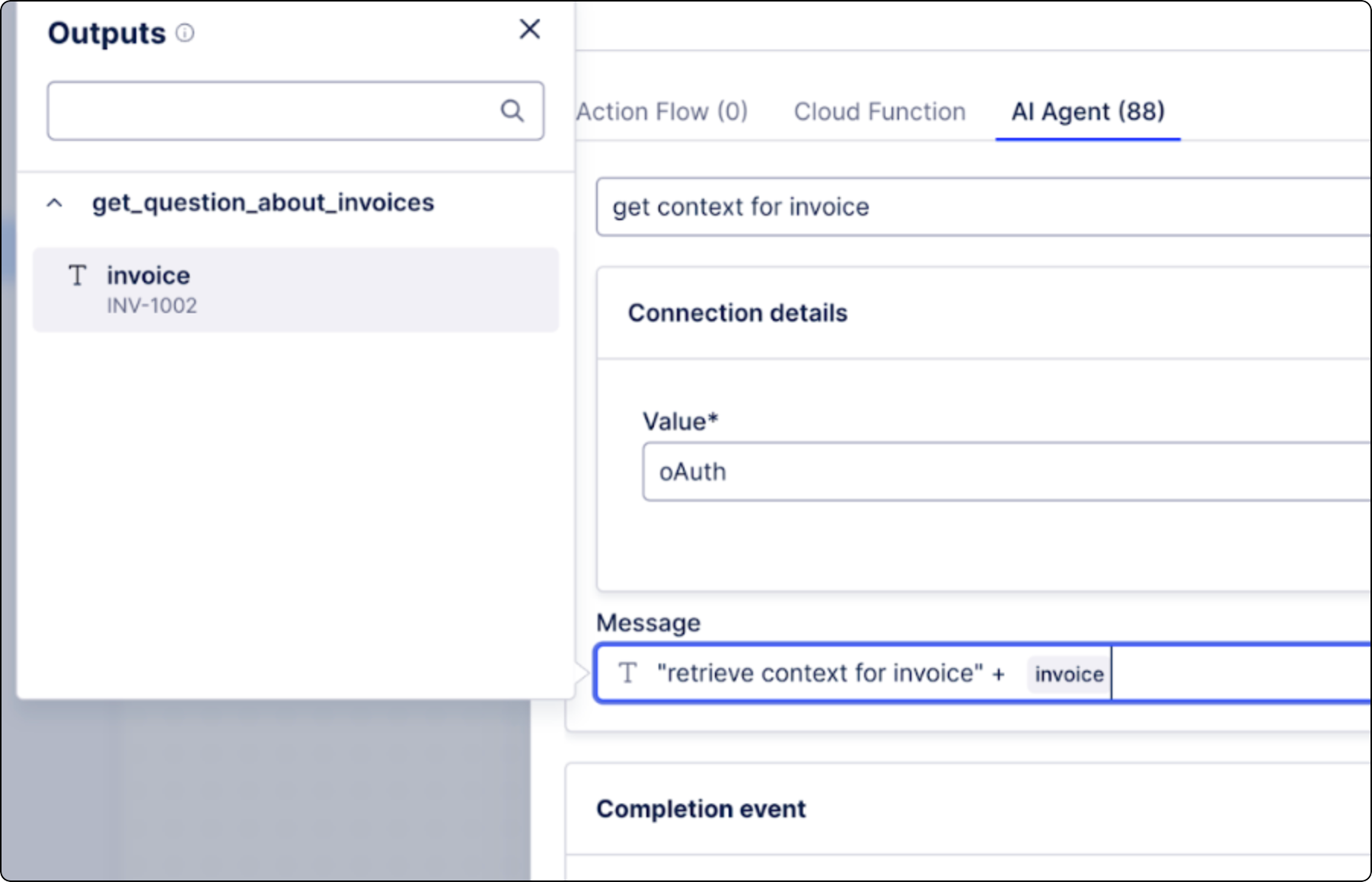
If you’ve never tested this Process Orchestration instance, you may not see variables yet. Variables appear after the first test run.
Select a completion event. Select an existing event or create a new one.
Completion events log details about the current step to provide content to next steps. Subsequent steps use this data to determine when the previous step has completed so they can begin execution.
Click Save.
You’ve added a Process Copilot to your Process Orchestration step. We recommend testing your Process Orchestration after this change. See Testing Process Orchestration.