Installing and configuring the Gamification app
The Gamification app for the Celonis Platform is a strategic tool designed to drive platform adoption and user engagement by rewarding specific activities with points. By tracking behaviors such as daily logins, feature usage, and login streaks, the app transforms platform interaction into a competitive and rewarding experience.
Before installing and configuring the Gamification app, complete the following:
Define your scope: Decide who will be participating in the gamification experience.
Target audience: Will this be a global rollout for the entire company, or limited to specific teams (e.g., sales, logistics, or power users)?
Privacy and data transparency: It’s important to understand what data is being used. You can reassure stakeholders with these points:
Data residency: All data stays within your Celonis environment; nothing is sent to external servers.
What is tracked? The app only looks at login history, app usage, and user/group mappings.
Admin visibility: Admins can monitor this activity via the platform adoption dashboard.
Application key: Create an Application Key with relevant team-level permissions. See: Application keys
To power the Gamification App, you must first establish a connection via the Monitoring Platform Adoption connector. This allows the system to pull the initial dataset required for tracking user activity.
1. Choosing your connection method
While two methods are available, OAuth 2.0 is the recommended standard for security and ease of use:
Option A (Recommended): Follow the Installing the Platform Adoption Monitor App guide to set up an OAuth 2.0 connection.
Option B (AppKey): If using an Application Key, ensure it was created with the correct permissions as defined in the Before you begin section.
2. Configuring the data pool
Once the connector is installed, it will appear as a new Data Pool containing the necessary extractor configurations and transformations.
Click Data Integration and open the newly created data pool.
Click Data Connections and open the connection named Platform Adoptio.
Update the configuration: Enter your specific Team Environment URL and the AppKey you generated earlier.
Validate: Click Test Connection to ensure the link between Celonis and the adoption data is active.
3. Extracting the initial dataset
With the connection verified, you must now pull the baseline data:
Open the Data Jobs within your Data Pool.
Execute the following two jobs in order:
Member Details
Platform Adoption and Login History
If the jobs fail, revisit your App Key permissions to ensure it has "Read" access to the required platform metadata.
Once the initial data has been extracted, you must configure the Data Model to transform raw logs into actionable gamification metrics. This stage involves setting up parameters to define the application's start date, creating the tables that will store user points, and establishing the relationships between user activity and reward logic.
To set up your data model:
Define the Application Start Date: You must set a baseline date to determine when the app should begin calculating points.
Navigate to your Data Pool Parameters.
Create a new parameter named
GamificationStartDate.Set the Type to
Dateand provide a default value (e.g., the date you intend to launch the gamification program).
Configure the "Gamification" Data Job: This job transforms raw activity logs into user points. This must be a GLOBAL data job. Do not write transformations directly into the data source scope.
Add a new Global Data Job named "Gamification" and include the following three transformations in this specific order:
Name
Description
Transformation
Create Tables : Points Allocation & Assignments
PointsAllocation : Table to log user’s points.
Assignments : Table to map challenges against users.
Note: This should be disabled after first run
DROP TABLE IF EXISTS PointsAllocation;
CREATE TABLE IF NOT EXISTS PointsAllocation (
ID IDENTITY(1,1),
UserID varchar(200),
"AllocatedOn" Timestamp,
AllocatedPoints integer,
AssignmentID integer,
-- PackageKey varchar(100),
Comment varchar(250),
_CELONIS_CHANGE_DATE timestamp
);


DROP TABLE IF EXISTS Assignments;
CREATE TABLE IF NOT EXISTS Assignments (
ID IDENTITY(1,1),
AssignmentName varchar(500),
UserEmail varchar(100),
Description varchar(1000),
IsAutomated BOOLEAN,
-- R = Recurring, O = Onetime
Frequency varchar(100),
ExpectedPoints integer,
DueDate timestamp,
PackageKey varchar(100),
_CELONIS_CHANGE_DATE timestamp
);


-- Create a unique list of assignments created via automation
CREATE OR REPLACE VIEW AssignmentList AS
SELECT
DISTINCT
"Assignments"."AssignmentName",
"Assignments"."IsAutomated",
"Assignments"."Frequency",
"Assignments"."Description",
"Assignments"."ExpectedPoints",
"Assignments"."DueDate",
"Assignments"."PackageKey"
FROM "Assignments";
Create Default Challenges
Creates default challenges for all users part of the team
-- Default assignments will always be assigned to all users. Limit this by adding a where clause if required.


INSERT INTO Assignments (AssignmentName,UserEmail,Description,Frequency,IsAutomated,ExpectedPoints,DueDate,PackageKey,_CELONIS_CHANGE_DATE)
SELECT
'Daily Login',
"User_List"."email",
'Points for daily logging in',
'R',
1,
5,
NULL,
NULL,
CURRENT_TIMESTAMP
FROM <%=DATASOURCE:PLATFORM_ADOPTION%>."User_List"
LEFT JOIN (SELECT UserEmail,"AssignmentName" FROM "Assignments" WHERE AssignmentName='Daily Login') a ON "a"."UserEmail" = "User_List"."email"
WHERE "a"."UserEmail" IS NULL


UNION ALL


SELECT
'Login Streak',
"User_List"."email",
'Logging in for 4 consecutive working days',
'R',
1,
50,
NULL,
NULL,
CURRENT_TIMESTAMP
FROM <%=DATASOURCE:PLATFORM_ADOPTION%>."User_List"
LEFT JOIN (SELECT UserEmail,"AssignmentName" FROM "Assignments" WHERE AssignmentName='Login Streak') a ON "a"."UserEmail" = "User_List"."email"
WHERE "a"."UserEmail" IS NULL


UNION ALL


SELECT
'Using Package',
"User_List"."email",
'Using packages you have access to at least once a month',
'R',
1,
10,
NULL,
NULL,
CURRENT_TIMESTAMP
FROM <%=DATASOURCE:PLATFORM_ADOPTION%>."User_List"
LEFT JOIN (SELECT UserEmail,"AssignmentName" FROM "Assignments" WHERE AssignmentName='Using Package') a ON "a"."UserEmail" = "User_List"."email"
WHERE "a"."UserEmail" IS NULL


UNION ALL


SELECT
'Share Insights',
"User_List"."email",
'What seems natural to you can be a real game changer for others. Share your perspective!',
'R',
1,
150,
NULL,
NULL,
CURRENT_TIMESTAMP
FROM <%=DATASOURCE:PLATFORM_ADOPTION%>."User_List"
LEFT JOIN (SELECT UserEmail,"AssignmentName" FROM "Assignments" WHERE AssignmentName='Share Insights') a ON "a"."UserEmail" = "User_List"."email"
WHERE "a"."UserEmail" IS NULL
Award Daily Points
Transformations to award points based on Daily Login, Login Streak & Usage of Apps.
Note : Add a new transformation parameter “GamificationStartDate” linked with the data pool parameter.
------------------------------- Mission : Daily login -------------------------------
-- Check when was the last time they were awarded point for logging in.
INSERT INTO "PointsAllocation" (UserID,AllocatedOn,AllocatedPoints,AssignmentID,Comment)
WITH LastPointsAllocatedForLogin AS
(select "PointsAllocation"."UserID" email,max("PointsAllocation"."AllocatedOn") LastAllocation
from PointsAllocation
where "PointsAllocation"."Comment" LIKE 'Logging in on %'
group by "PointsAllocation"."UserID")
-- Find what day they logged in & # of times per day. assign points as per last allocation & start date. 5 points per login. 40 points per day at max.
(select lh.email,
-- CURRENT_TIMESTAMP,
CAST(lh."timestamp" AS DATE),
LEAST(count(*) * 5.0,40.0) points_earned,
Assignments.ID,
CONCAT('Logging in on ',CAST(CAST(lh."timestamp" AS DATE) AS VARCHAR)) days_logged_in
-- count(*) total_logins,
from <%=DATASOURCE:PLATFORM_ADOPTION%>."login_history" lh
left join LastPointsAllocatedForLogin using(email)
left join "Assignments" on "Assignments"."UserEmail" = lh.email AND "Assignments"."AssignmentName" = 'Daily Login'
where "lh"."authenticationEventType" LIKE '%LOGIN%'
AND
CAST(lh."timestamp" AS DATE) > CAST(COALESCE(LastAllocation,<%=GamificationStartDate%>) AS TIMESTAMP)
AND Assignments.ID IS NOT NULL
group by lh.email,CAST(lh."timestamp" AS DATE),Assignments.ID);


-- select <%=GamificationStartDate%>


------------------------------- Mission : Use all boards once a month -------------------------------


INSERT INTO "PointsAllocation" (UserID,AllocatedOn,AllocatedPoints,AssignmentID,Comment)
WITH PointsAllocatedForLoginLastMonth AS
(select "PointsAllocation"."UserID" email,"PointsAllocation"."Comment",max("PointsAllocation"."AllocatedOn") LastAllocation
from PointsAllocation
where "PointsAllocation"."Comment" LIKE 'Using Boards%'
group by "PointsAllocation"."UserID","PointsAllocation"."Comment")
select
app_usage."user$email",
-- CURRENT_TIMESTAMP,
app_usage."timestamp",
LEAST(count(distinct "asset$name") * 10.0, 100) points_earned,
Assignments.ID,
'Using ' || count(distinct "asset$name") || ' Board(s)' usages
-- CAST(app_usage."timestamp" AS DATE) days_logged_in,
-- count(distinct "asset$name") total_used,


from <%=DATASOURCE:PLATFORM_ADOPTION%>."user_adoption_apps" app_usage
left join PointsAllocatedForLoginLastMonth pa on (pa.email = app_usage."user$email")
left join "Assignments" on "Assignments"."UserEmail" = pa.email AND "Assignments"."AssignmentName" = 'Using Package'
where
TIMESTAMPADD (MONTH, 1, (CAST(COALESCE(LastAllocation,<%=GamificationStartDate%>) AS TIMESTAMP))) = CAST(CURRENT_TIMESTAMP AS DATE)
AND
CAST(app_usage."timestamp" AS DATE) > CAST(COALESCE(LastAllocation,<%=GamificationStartDate%>) AS TIMESTAMP)
AND Assignments.ID IS NOT NULL
group by app_usage."user$email",app_usage."timestamp",Assignments.ID;


-- 15 boards in total
-- 100 points if used all of them - 10 per board, limit 100 pts max
-- 10 per board anyway


------------------------------- Mission : Login Streak (4 WD) -------------------------------


INSERT INTO "PointsAllocation" (UserID,AllocatedOn,AllocatedPoints,AssignmentID,Comment)
-- Check when users were last awarded
WITH PointsAllocatedForConsecutive AS
(select "PointsAllocation"."UserID" as email,"PointsAllocation"."Comment",max("PointsAllocation"."AllocatedOn") LastAllocation
from PointsAllocation
where "PointsAllocation"."Comment" LIKE 'Login Streak%'
group by "PointsAllocation"."UserID","PointsAllocation"."Comment"),
LoginDays AS (
   SELECT DISTINCT lh.email as UserID, CAST("timestamp" AS DATE) AS LoginDate,
   DAYOFWEEK_ISO("timestamp") dow
   FROM <%=DATASOURCE:PLATFORM_ADOPTION%>."login_history" lh
   LEFT JOIN PointsAllocatedForConsecutive pa using(email)
   WHERE
   "lh"."authenticationEventType" LIKE '%LOGIN%' AND
   -- Only check for login streak if not awarded previously
   pa.LastAllocation IS NULL AND
   -- Filter to check for login streak since start date
   CAST("timestamp" AS DATE) > CAST(<%=GamificationStartDate%> AS TIMESTAMP)
   -- Filter for weekday logins
   AND DAYOFWEEK_ISO("timestamp") BETWEEN 1 AND 5
   order by CAST("timestamp" AS DATE) desc
),
-- Check for last 3 logins for each row
ConsecutiveWorkingDays AS (
 select
 *,
 LAG(LoginDate, 1) OVER
      (PARTITION BY UserID ORDER BY LoginDate) AS Last1LoginDate,
 LAG(LoginDate, 2) OVER
      (PARTITION BY UserID ORDER BY LoginDate) AS Last2LoginDate,
 LAG(LoginDate, 3) OVER
      (PARTITION BY UserID ORDER BY LoginDate) AS Last3LoginDate
 FROM LoginDays
),
-- Check if the difference is 0d for last 4 logins
FindDifferences AS (
select
UserID,
LoginDate,
CASE WHEN DATEDIFF(day,LoginDate,Last1LoginDate) = -3 AND DAYOFWEEK_ISO(LoginDate)=1 AND DAYOFWEEK_ISO(Last1LoginDate)=5 THEN -1
ELSE DATEDIFF(day,LoginDate,Last1LoginDate) END diff1,
Last1LoginDate,
CASE WHEN DATEDIFF(day,Last1LoginDate,Last2LoginDate) = -3 AND DAYOFWEEK_ISO(Last1LoginDate)=1 AND DAYOFWEEK_ISO(Last2LoginDate)=5 THEN -1
ELSE DATEDIFF(day,Last1LoginDate,Last2LoginDate) END diff2,
Last2LoginDate,
CASE WHEN DATEDIFF(day,Last2LoginDate,Last3LoginDate) = -3 AND DAYOFWEEK_ISO(Last2LoginDate)=1 AND DAYOFWEEK_ISO(Last3LoginDate)=5 THEN -1
ELSE DATEDIFF(day,Last2LoginDate,Last3LoginDate) END diff3,
Last3LoginDate
from ConsecutiveWorkingDays
order by 1,2
)
-- Award points
select UserID,
LoginDate ts,
50 pts,
"Assignments".ID assignment,
'Login Streak maintained for 4 days between ' || CAST(CAST(Last3LoginDate AS DATE) AS VARCHAR) || ' and ' || CAST(CAST(LoginDate AS DATE) AS VARCHAR) comm
from FindDifferences
left join "Assignments" on "Assignments"."UserEmail" = UserID AND "Assignments"."AssignmentName" = 'Login Streak'
where diff1+diff2+diff3 = -3
AND Assignments.ID IS NOT NULL
Build the Data Model relationships: Create a new Data Model and link the tables using the following schema to ensure the app can aggregate points correctly:
Dimension Table
PK
FK
Fact Table
User_List
ID
ID
Group_List
User_List
email
EmailUser
Assignments
AssignmentList
AssignmentName
AssignmentName
Assignments
Assignments
ID
UserEmail
AssignmentID
UserID
PointsAllocation
The end result should be as shown here (Ensure you set up an identifier for each table as per the primary key mentioned in the above table):
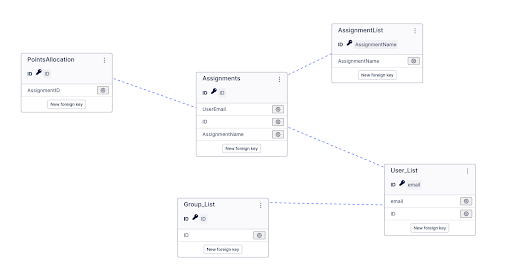
Because the SQL script contains CREATE TABLE statements, you must follow this specific initialization sequence to avoid overwriting your data in the future.
Initialize tables: In your "Gamification" Data Job, run the transformation
Create Tables: Points Allocation & Assignmentsonly once. This creates the physical storage for your points.Disable the Initialization: Immediately Disable or remove the
Create Tablestransformation from the job.If left enabled, every subsequent run will drop the existing tables and delete all previously earned user points.
Execute logic: Run the remaining transformations in the "Gamification" Data Job (e.g., Create Default Challenges and Award Daily Points) to populate the tables with data.
Final Load: Go to your Data Model and click Load Data Model to make the data available for the application.
Once the data model is loaded, perform these final steps to go live:
Link the Knowledge Model: Assign the Data Model variable to the Knowledge Model (KM) at the package level. This ensures the frontend components can "see" the data you just processed.
Automate Point Calculations: To keep the leaderboards up to date, schedule the “Gamification” Data Job to run Daily (typically during off-peak hours). This will automatically calculate new points for logins and streaks every 24 hours.
Verify permissions: Ensure the Application Key used for this process has the following permissions:
Read Access: To the "Monitoring Platform Adoption" Data Pool.
Write Access: To the "Gamification" Global Data Job to allow for table updates.
For advanced automations (like manual point overrides or custom assignments), OAuth-based App Keys are not supported. Use a Basic Auth-based App Key for these steps:
Grant Access: Provide the Application Key with "Package Access" and "Edit" permissions for the Gamification package.
Update Skills: Open the following Skills and swap in your new Application Key:
Add Assignment
Allocate Points
Update Action Flows: Save the Application Key within the following Action Flows:
Trigger Manual Allocation
Add New Assignment
Trigger Submission