Migrating bookmarked filters to Views
You can migrate bookmarked filters from your Analysis to a View. You can select whether you migrate all bookmarked filters or only bookmarked filters that have been shared with you. You must have admin or analyst edit user permissions to migrate bookmarked filters.
The bookmark type and owner are respected during migration so if a bookmarked filter is shared in the Analysis, it will also be shared with the same users when migrated to Views.
To migrate your bookmarked filters:
Open the Analysis in edit mode.
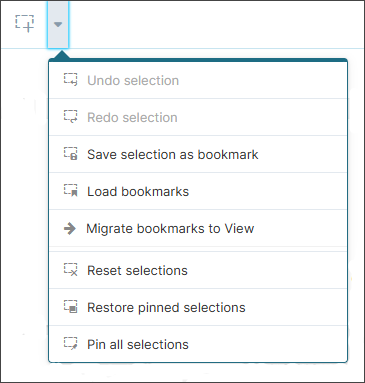
Select Other options > Migrate bookmarks to Views.
The Bookmark tooling modal appears.
In the Bookmark tooling modal, select the View you want to migrate your bookmarks to in the Target View field.

Important
If you select a View that uses a different Data Model to your Analysis, a warning message displays. You will still be able to start the migration but bookmarks may be broken if the Data Model data doesn't match.
Select whether you want to migrate all bookmarks or shared bookmarks only.
Select Migrate.
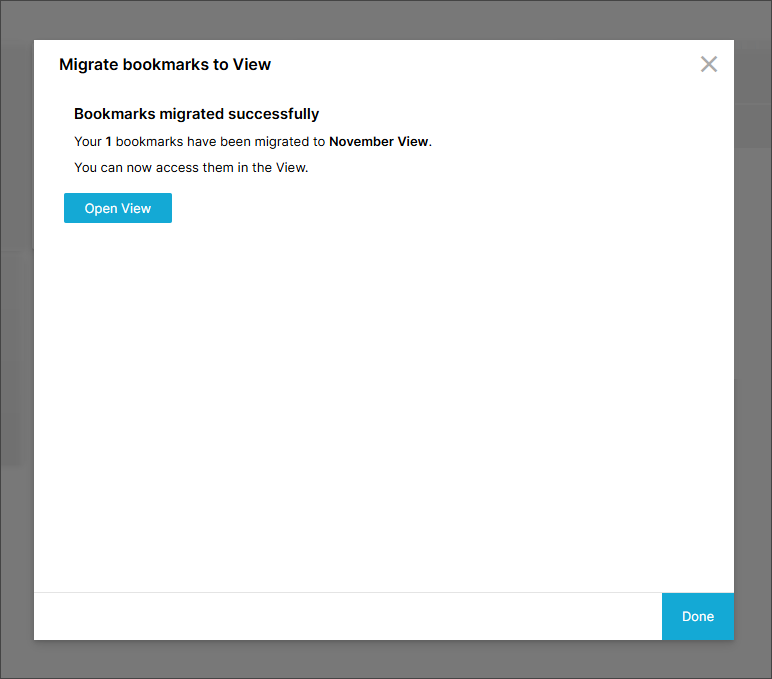
A success or failure message displays.