Creating custom events from scratch
Define custom event types in your object-centric data model to capture unique business activities outside standard Celonis catalogs. While the Celonis Object-Centric Data Model (OCDM) provides an extensive catalog of standard event types for common core processes (like Order-to-Cash or Procurement), unique or highly customized source systems often generate specific activities that fall outside these standards.
Creating a custom event allows you to manually model the exact schema shell you need. This is particularly useful when:
You are mapping a completely bespoke in-house application or a niche industry vertical.
You need to capture a specific operational milestone (e.g.,
Quality Gate PassedorDrone Delivery Dispatched) that does not exist in standard templates.You want complete control over custom event attributes before writing the underlying data transformations.
To create custom events from scratch using the Objects and Events dashboard:
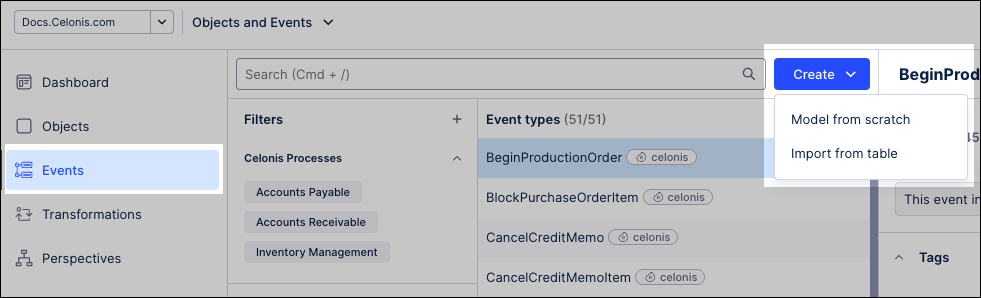
Click Events.
Click Create - Model from scratch.
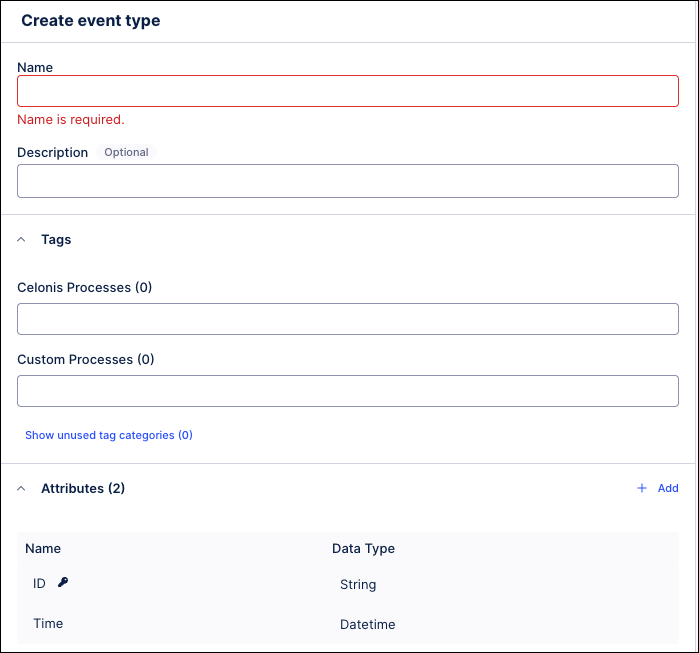
Configure the event type:
Name: Enter a unique name up to 40 alphanumeric characters. Do not use spaces or special characters.
Color: Select a display color for the event type within the model graph view.
Description: Optional. Enter an internal description visible exclusively in the table view.
Tags: Use tags to organize, categorize, and filter object types and event types within your object-centric data model. Tags alter management layouts and navigation without changing underlying data.
Celonis processes: Choose from existing tags used as part of Celonis provided processes.
Custom processes: Enter text to create a new tag, or select an existing one.
Attributes: Configure events attributes to define the properties of an event, choose data types, and enable filtering, grouping, and analysis of your events.
You can choose from the following attribute types: Boolean, datetime, floating point, long integer, and string.
Click Save.
Next step: Deploy the custom event to the development environment to expose it to your data transformations and analysis tools.
Custom object types and event types can be extended over time by adding attributes and relationships, including links to existing Celonis objects and events. Object and event extensions are available after publishing in the current environment. A production deployment is only required if the analysis runs in production.
To extend or edit an existing object or event:
From the dashboard, click Objects / Events.
Select the object or event you want to extend, opening the configuration panel.
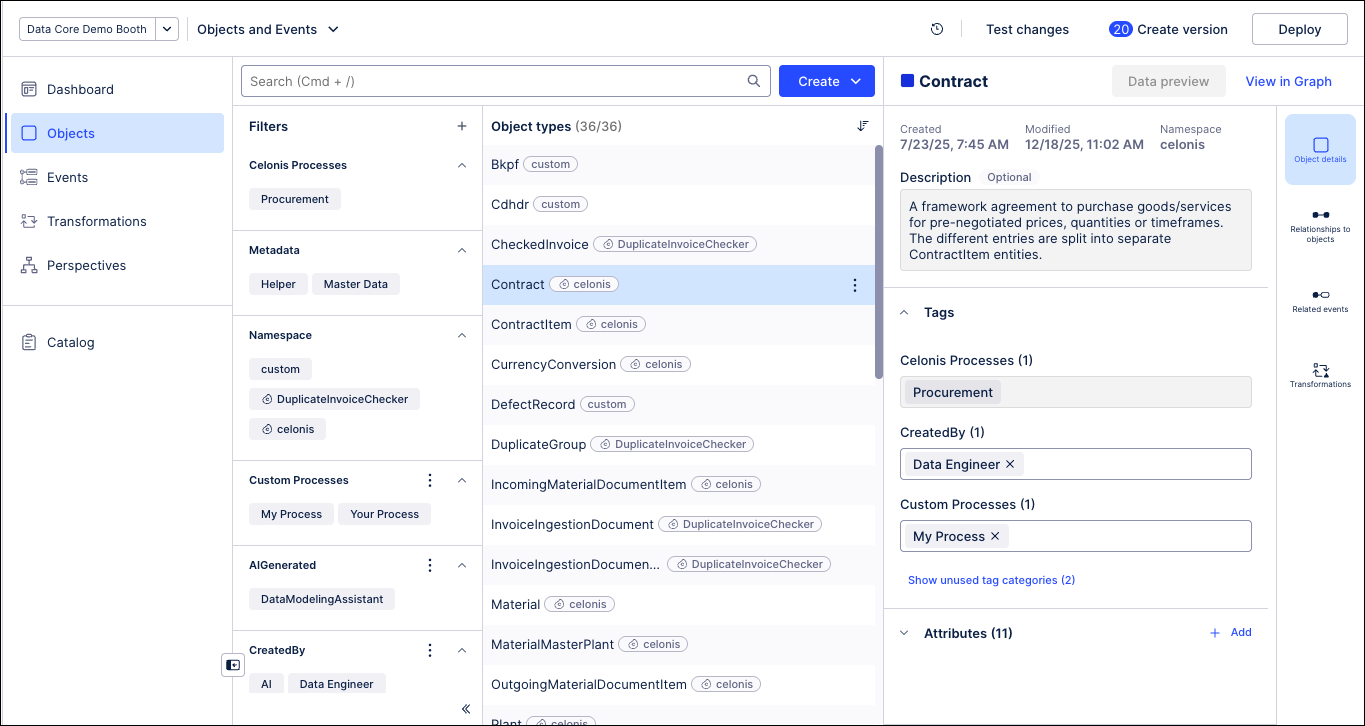
Make the necessary updates to the object or event, using the information provided in the above procedures.
Click Save.
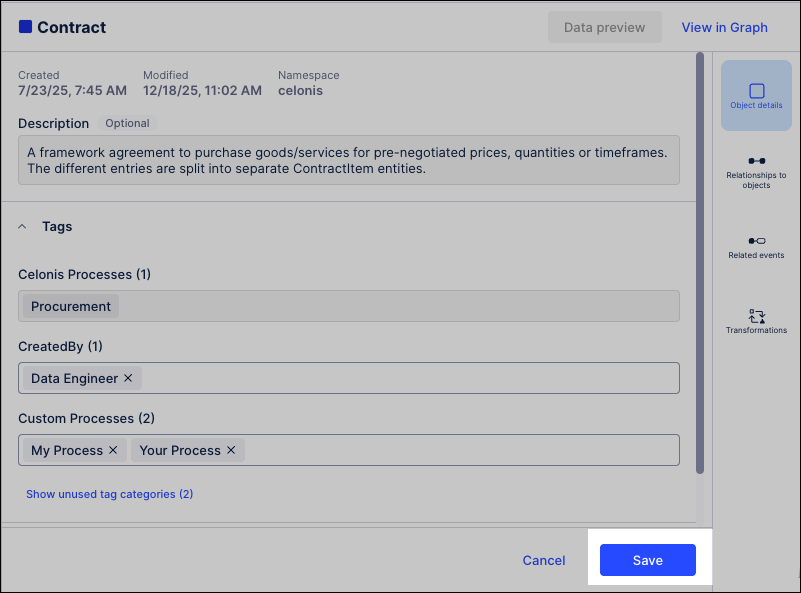
Optional: If the object or event extension is required in your production environment, click Deploy.
For more information about versioning and deployment, see: Versioning and deploying OCDM.