Creating Forms inbox
Forms inbox allows you to view all Forms assigned to you with their status in a single place.
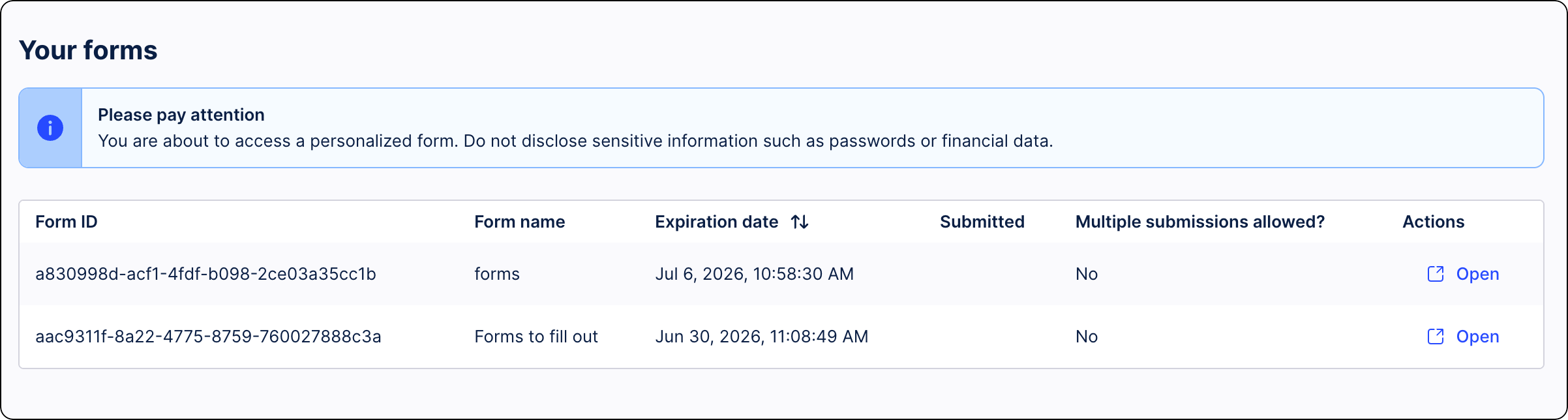
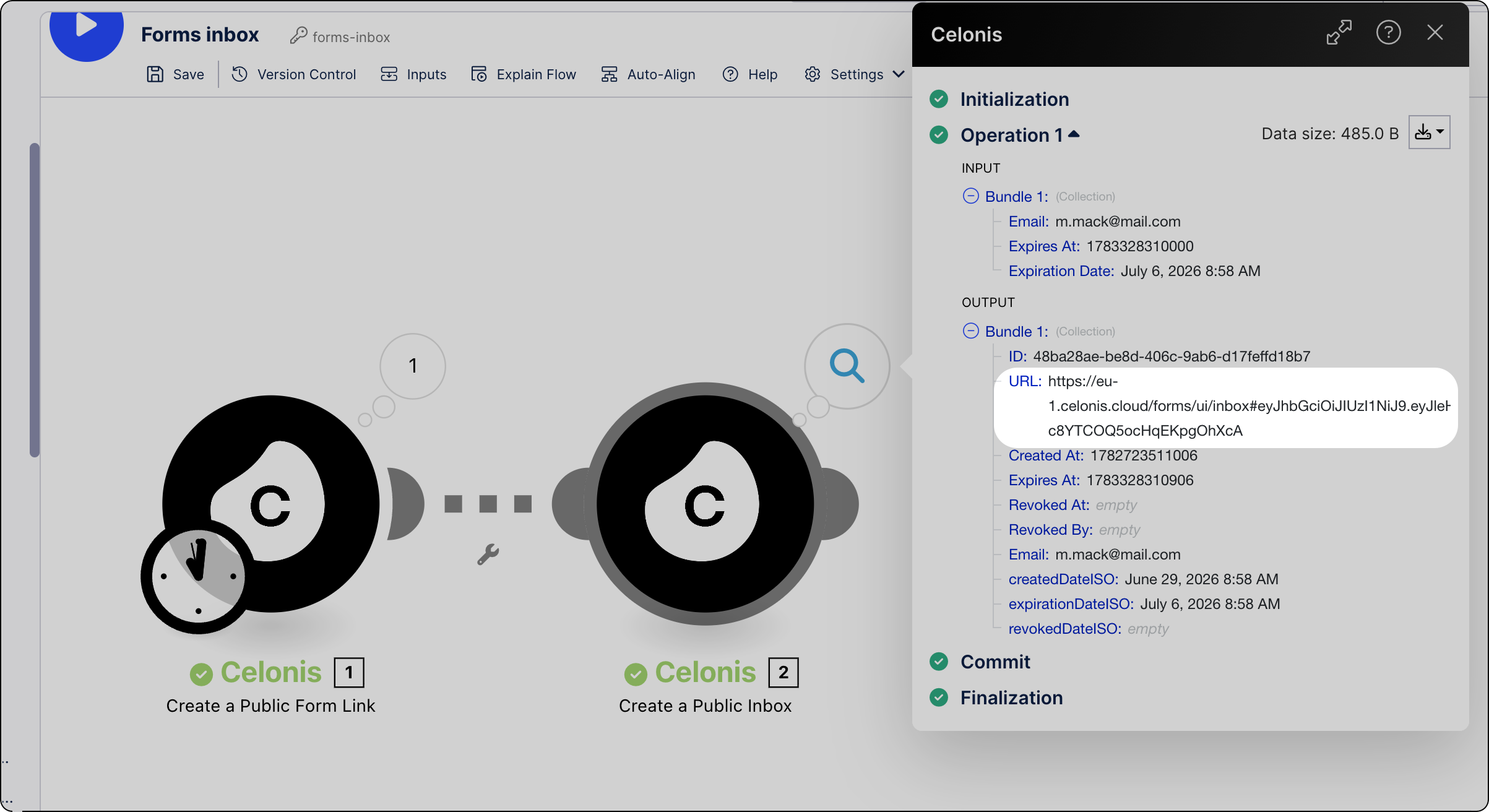
To create a Forms inbox, you must create an Action Flow with the following modules:
Create Public Form Link - creates a shareable link for one or multiple forms so that they can be easily accessed and submitted through a web browser.
Create a Public Inbox - using information from the Create Public Form Link module, creates an inbox that shows all Forms issues for a specified user.
Creating Forms inbox
To create a Forms inbox:
In Studio, go to your package and click New asset > Action Flow.
Click Add module and from the list select Celonis > Create a Public Form Link.
Configure your new module.
Select Forms for which you want to generate a shareable link.
Select assignees to whom you want to send the Form.
For detailed information on how to configure this module, see Create Public Form Link.
Click Add module and from the list select Celonis > Create a Public Inbox.
Configure the Create a Public Inbox module.
Enter the email address of a user for which you want to create the inbox.
Note
If you want to create Forms inboxes for multiple users, you must add a dedicated Create a Public Inbox module separately for each user.
For detailed information on how to configure this module, see Create a Public Inbox (Action Flow).
Click Save.
Run the Action Flow.
From the output of the Create a Public Inbox module, copy the URL. This is the address of your Forms inbox.
Paste the URL into your browser. After logging in with your email address, you can see the Forms inbox. From here, you can view all Forms assigned to you, check their status, and open any Form to review or submit it.