Handling asset-to-asset dependencies in Studio
Studio packages often include multiple assets that are connected and rely on each other. Because of these dependencies, actions made to one asset, such as publishing, copying, or deleting it, can have a direct impact on other assets that reference it. For instance, deleting a Knowledge Model could break the Views that rely on it.
To help you manage these relationships, Studio offers features that allow you to:
View dependencies between assets so you can see which items are linked.
Highlight potential impacts before you make changes, reducing the risk of unintended errors.
Maintain a clear view of your package structure.
Limitation with Action Flows
Dependencies coming FROM an Action Flow are not visible yet. However, dependencies TO an Action Flow can be seen.
To view your Studio asset dependencies:
Click Studio.
Open the Studio space containing the package.
Open the package containing the assets you want to view the dependencies of.
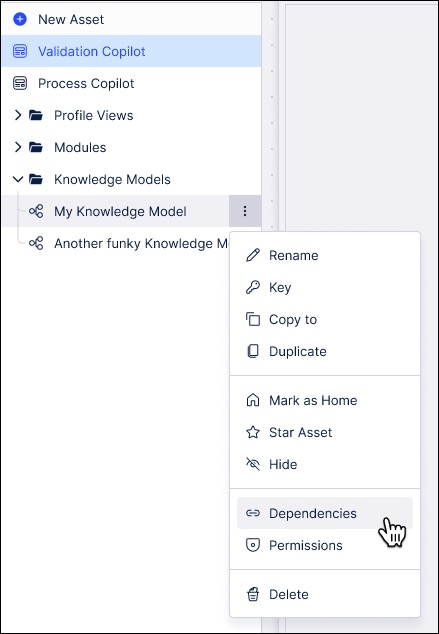
For each asset, click Options - Dependencies.
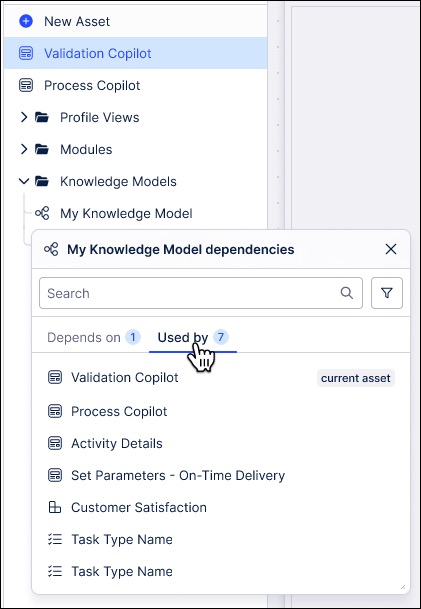
You can then use this menu to open the linked assets:
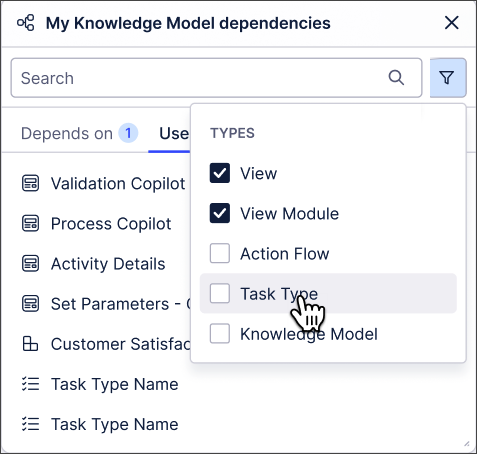
You can also filter dependencies by asset type:
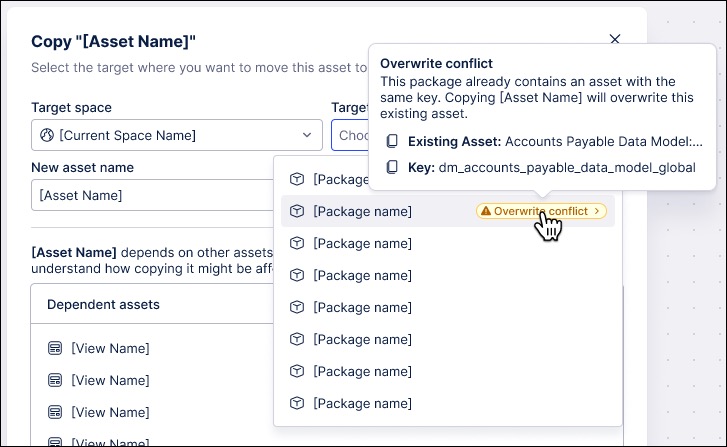
When managing an existing asset with a dependency, you're prompted in the following ways:
Copying an asset: The asset you’re copying may have dependencies. You can choose to copy them along with the asset or skip them. This helps prevent broken references in the new package.
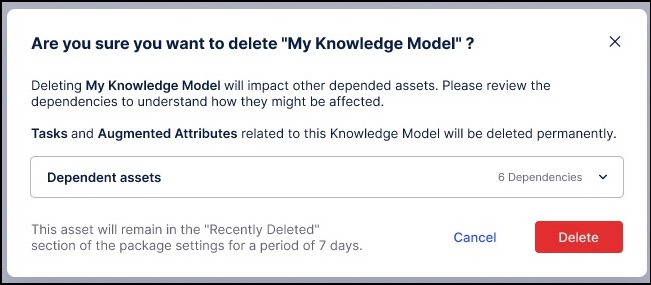
Deleting an asset: Deleting an asset that other assets rely on can cause problems. Before moving an asset to the Trash, a warning lists all dependent assets, allowing you to review the dependencies and assess the risk before confirming deletion.
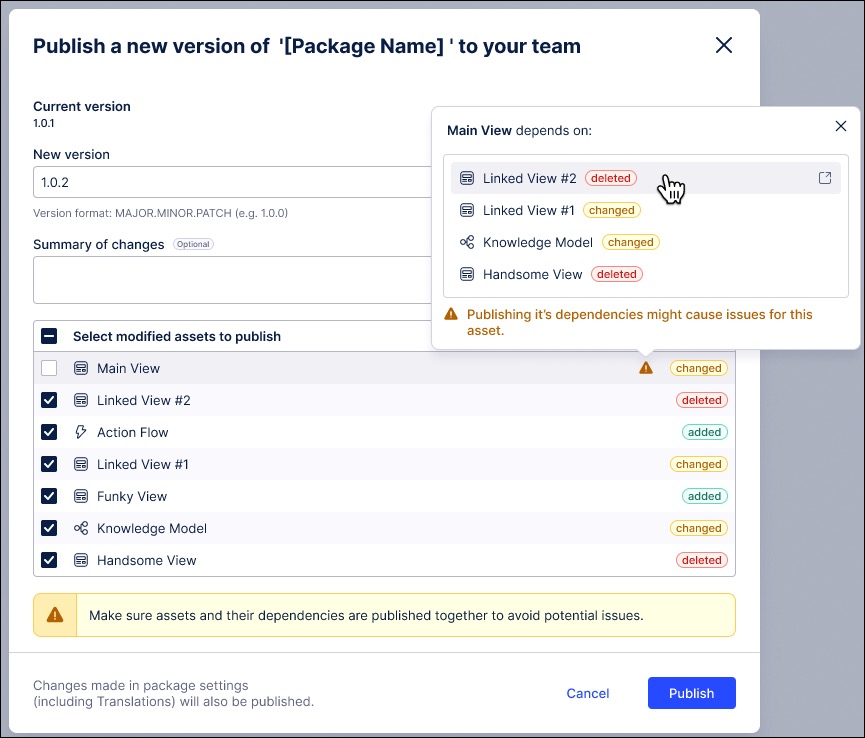
When deploying content, it is critical that an asset's dependencies are also deployed if they have been changed. For instance, if a View is deployed with a new KPI, but the Knowledge Model containing that KPI is not also deployed, the View will be broken for app users.
To prevent this, when selecting a specific asset for deployment, the system automatically identifies and guides you to include all of its necessary dependencies. This ensures that interdependent assets are published together, preventing critical errors in your applications.
To learn more about deploying your content, see: Versioning and deploying packages