Permission levels explained
Celonis Process Management supports several permission levels. Some of them are available as features that need to be activated separately.
Before you begin, ensure you have completed the following steps or meet the requirements listed below:
You must have the Administrator role to activate these features
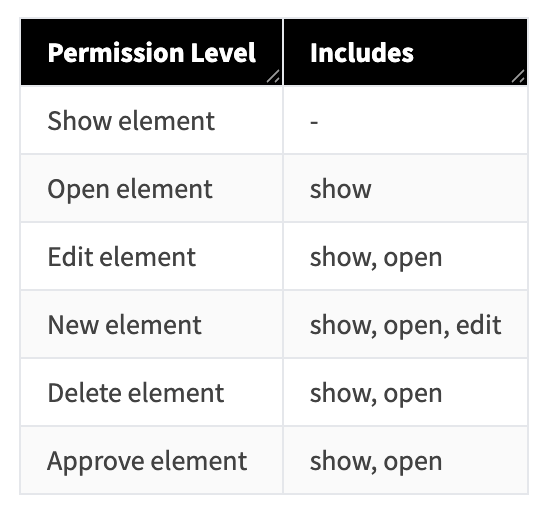
Show element: This controls whether an element is visible to a user or not. The element will be shown as a symbol and/or by name if this permission level is granted.
Open element: This controls whether an element can be viewed in detail or not. The element’s content, e.g. properties, diagram content, etc., can be viewed if this permission level is granted.
Edit element: If this permission level is granted, a user can not only view but also edit an already existing element’s content, e.g. properties, diagram content, etc.
New element: If this permission level is granted, a user can create new elements.
Delete element: If this permission level is granted, a user can delete existing elements.
Approve element: If this permission level is granted, a user can approve changes to an element.
These permission levels are context-sensitive, e.g. you need to be able to switch into Editor mode (which means you need to have at least the Editor role) utilize granted Edit/New/Delete/Approve permissions, and they only affect non-architectural elements.
To affect architectural elements you either need to be at least assigned to the Architect role, or have the feature Permissions for architectures activated and appropriate permission levels assigned (see below).
Included Permissions
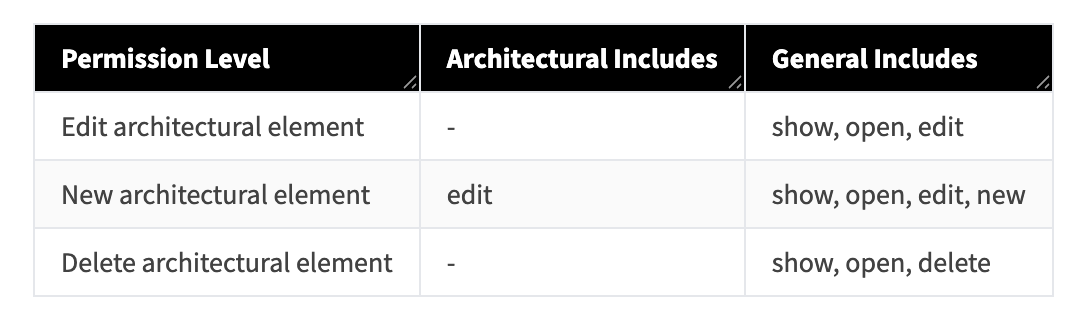
These permissions affect architectural elements, e.g. Process House, Sub Categories, Main Processes, Risk Domains, etc.
Edit architectural element: If this permission level is granted, a user can not only view but also edit an already existing architectural element’s content, e.g. properties, diagram content, etc.
New architectural element: If this permission level is granted, a user can create new architectural elements.
Delete architectural element: If this permission level is granted, a user can delete existing architectural elements.
Included Permissions
Go to the Admin area in Celonis Process Management and click Features
Select Permissions for architectures and set it to Activated.
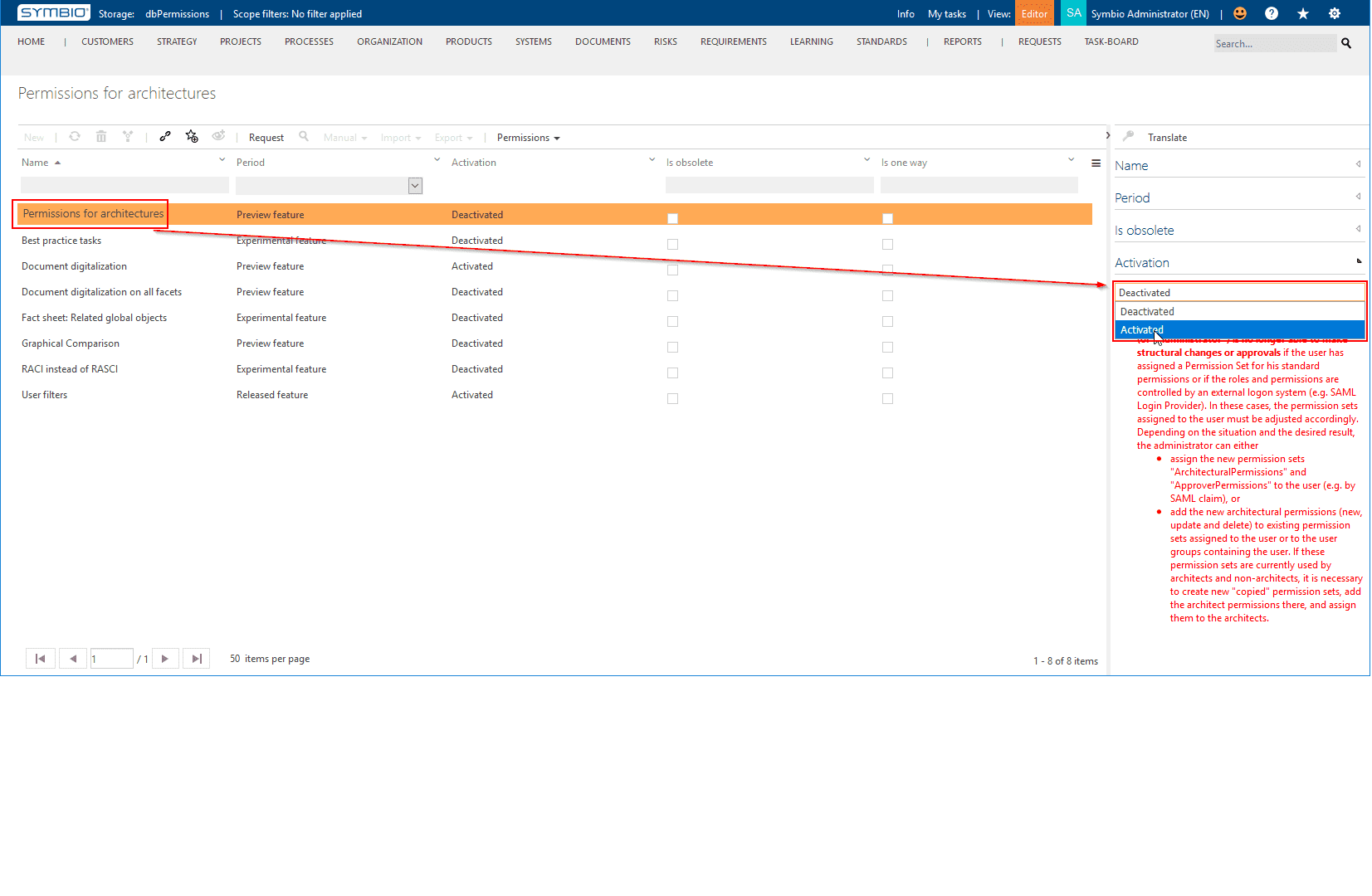
Please note the consequences of activating this feature; read the explanation under “Activation” carefully.