Adding Action Flows to Process Orchestration
Action Flows in Celonis Platform are automated workflows built from a series of modules that define how data should be transferred and transformed between apps and services. You can use Action Flows as building blocks for Process Orchestration steps.
Adding Action Flows to Process Orchestration
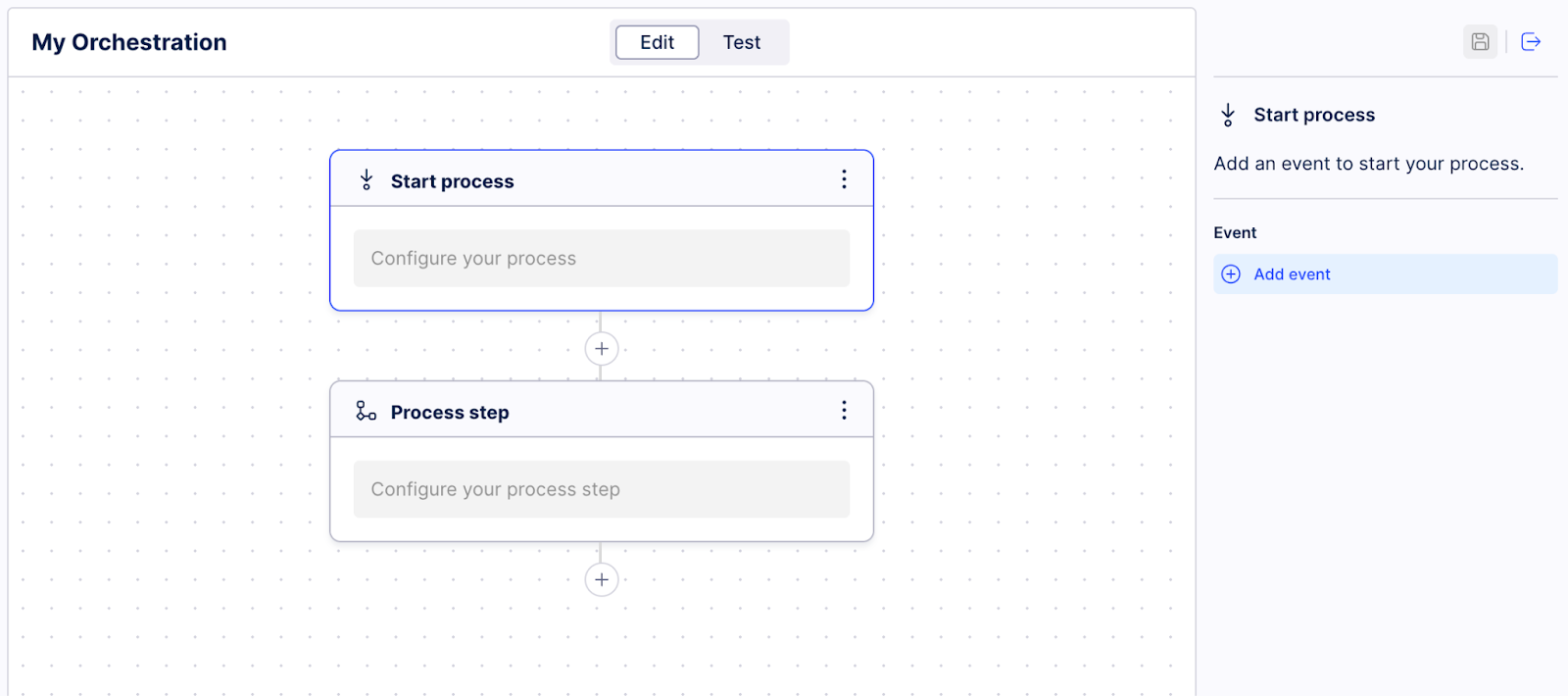
In Studio, go to your Process Orchestration and click Edit.
If you haven’t created one yet, see Creating Orchestration Engine overview.
In your Process Orchestration, click the plus icon and select Process step.
From the process step panel on the right, select Add event.
The edit process step screen opens. Here’s where you can view all Action Flows compatible with your Process Orchestration. You can directly access the individual Action Flows to make changes, activate them, or check their status.
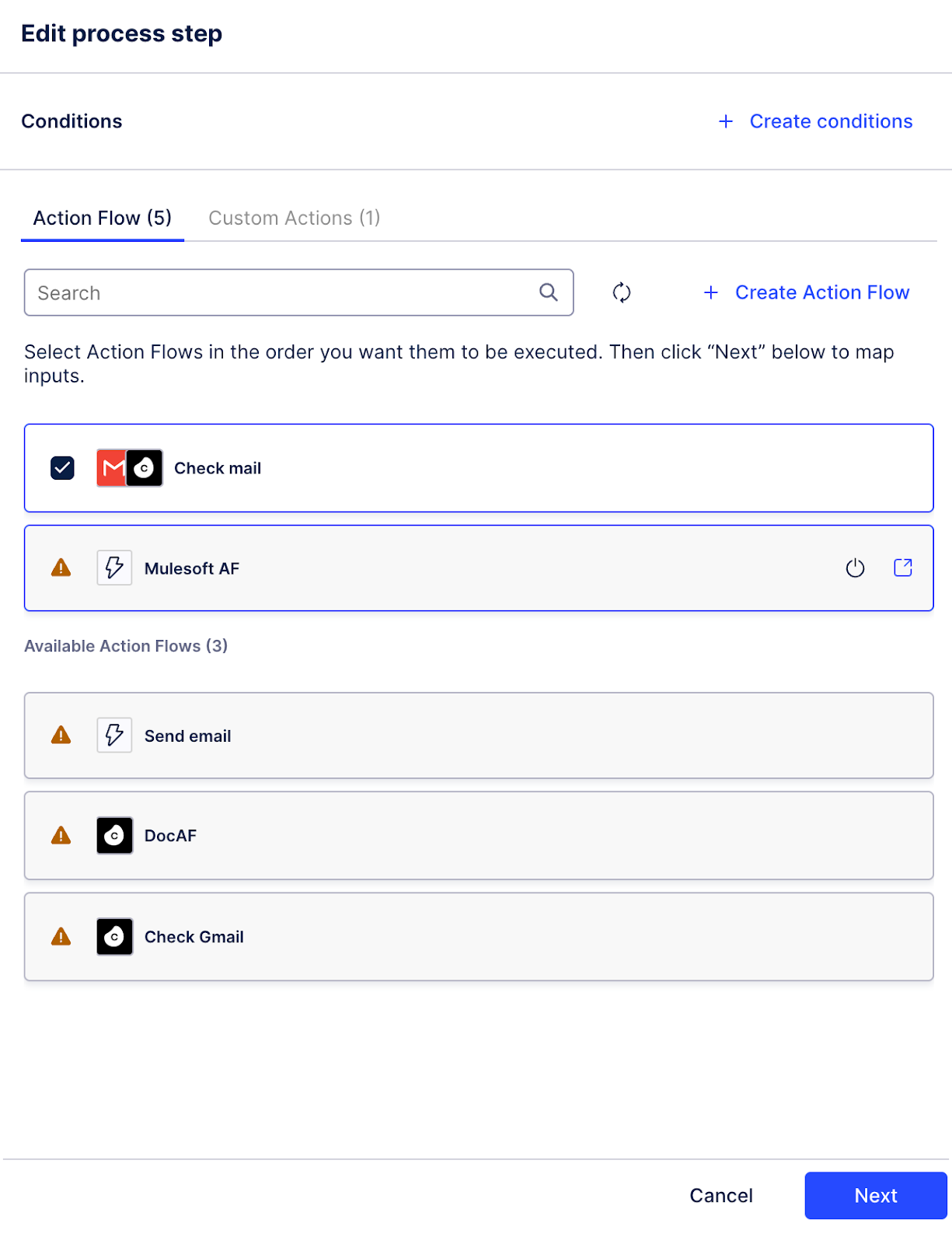
Select from existing Action Flows, or create a new one:
To create a new Action Flow:
Select Create Action Flow.
Give the Action Flow a name and description.
Select Create.
Your Action Flow is created with the following predefined settings to make it immediately available for use in Process Orchestration:
set to on-demand
contains the dpInstanceId input
contains the Completion Event module
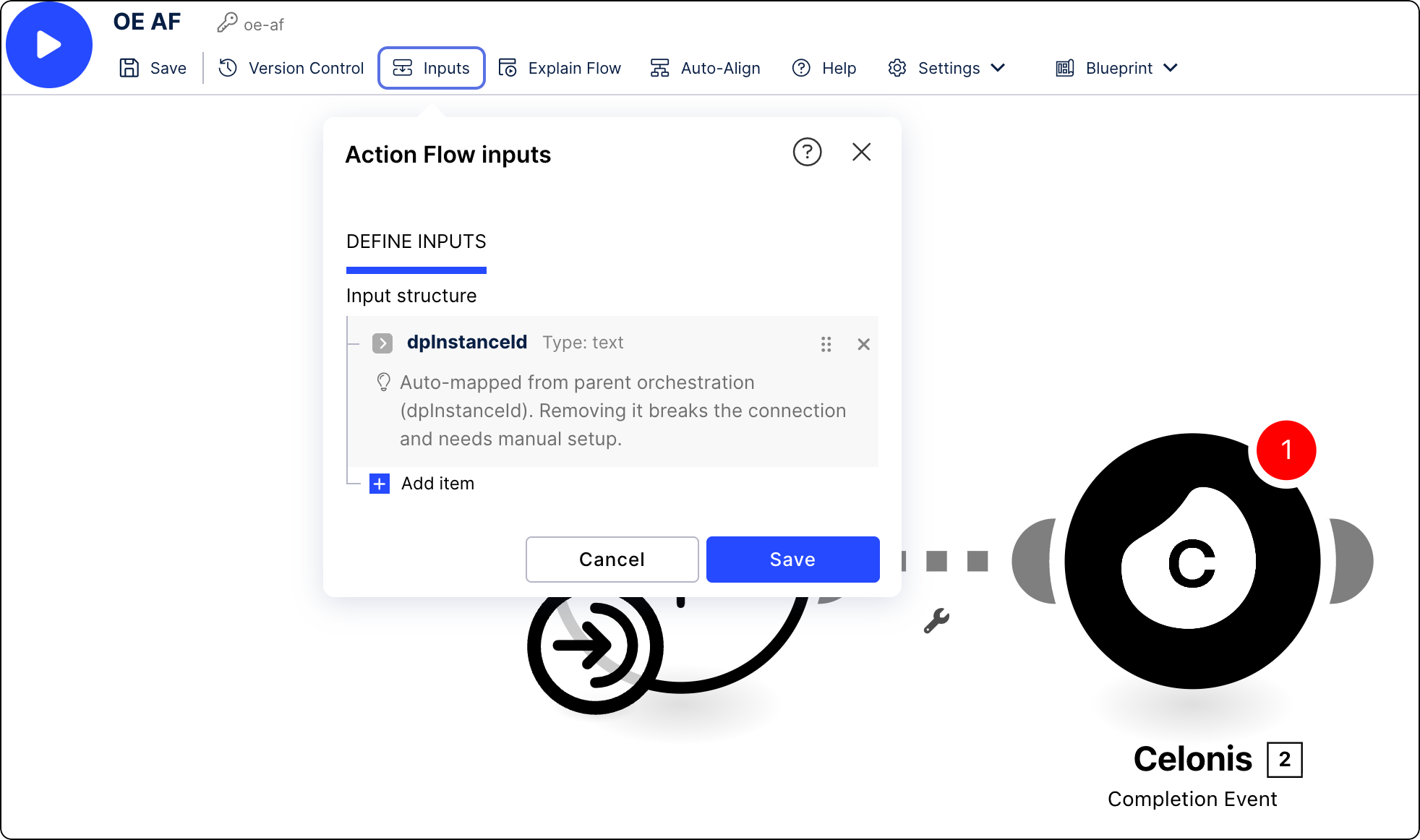
has a custom OAuth 2.0 client created that the Action Flow can use for connection
Go to your Action Flow - publish it and make it active.
Go back to your Process Orchestration and from the list of available Action Flows, select the one you've just created.
Tip
If you can't see your Action Flow on the list, refresh the edit process step view.
Select Next.
To add an existing Action Flow:
From the list of available Action Flows, select the one you want to use as a process step.
When adding or editing a step, you can see a list of all Action Flows available for a given Process Orchestration. You can directly access the individual Action Flows to make changes, activate them, or check their status.
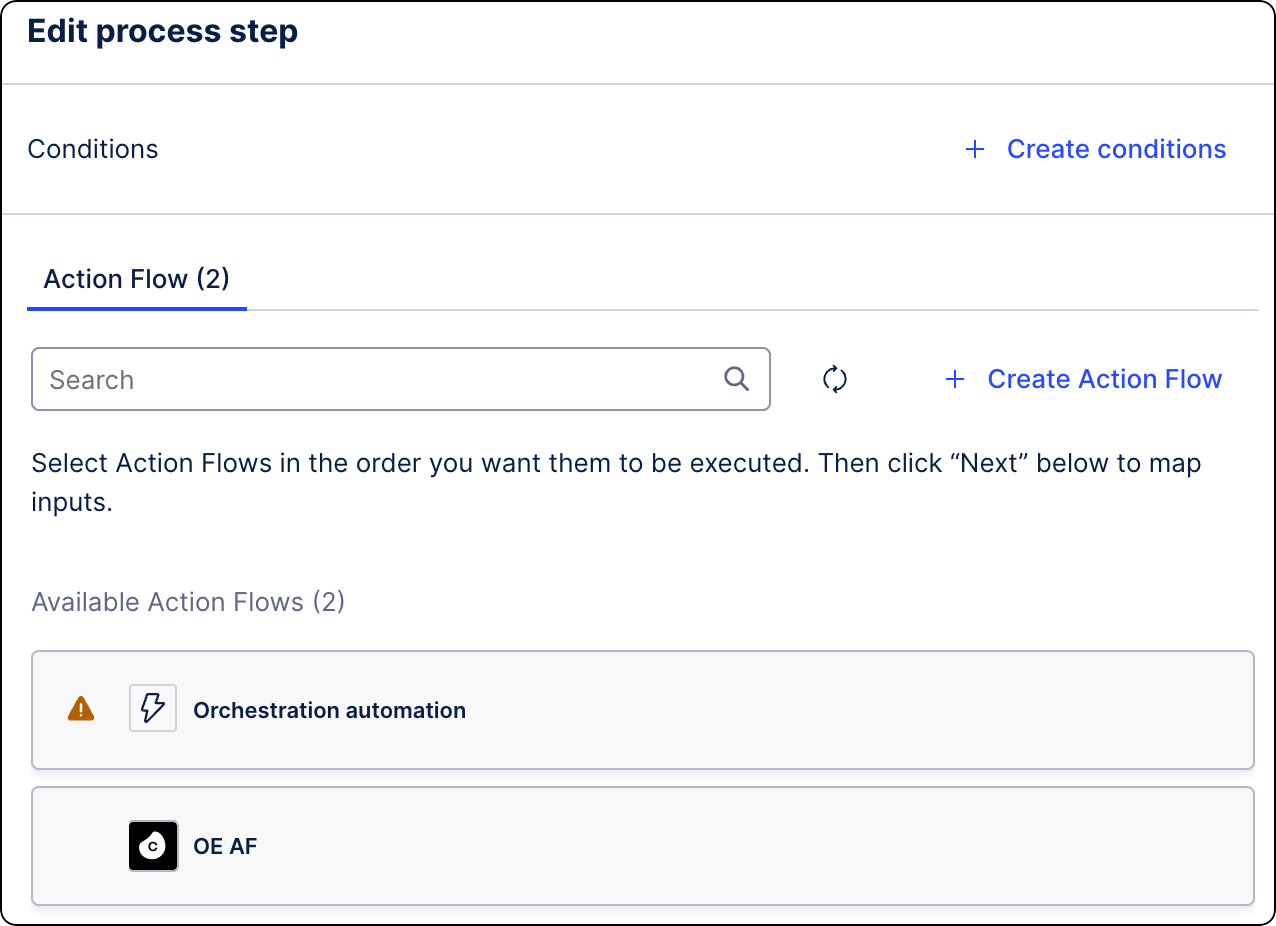
Click Next.
Action Flows created this way are immediately available for use within Process Orchestration. We advise to test your setup before deploying it. See Testing Process Orchestration.