Paid Late Due To Payment Block Report
This Action Flow identifies and reports on invoices paid late specifically due to payment blocks. By providing visibility into high-value late payments and aggregated trends, it enables teams to address process bottlenecks, reduce late fees, and improve overall Cost Avoidance and Paid Late KPIs.
This workflow automates the monitoring of late payments by extracting data from your Standard Accounts Payable Data Model. It categorizes invoices by Company Code and delivers a prioritized report directly to stakeholders' inboxes.
Initialization: Sets global variables including the reporting timeframe (e.g., Monthly), preferred currency, and late payment buffers.
Data segregation: Loops through defined sets of Company Codes to ensure recipients receive data relevant to their specific business units.
Invoice extraction: Queries the Data Model to identify blocked invoices that exceeded the late payment buffer.
Data processing: Aggregates results into arrays.
Sorts invoices by value to highlight the highest financial impact.
Slices data to show the Top 5 critical rows.
Reporting: Routes the processed data to specific recipients via email, providing both granular invoice details and high-level aggregate measures (total count and value).
 |
Before configuring this Action Flow, you need access to a data model that includes accounts payable information.
See: Modeling your data.
For this Action Flow, only the modules listed below require configuration:
In this module you can define the running schedule by clicking on the clock icon and setting the following variables necessary for the Action Flow:
Timeframe: Enter your time period of interest, e.g. MONTH or CALENDAR_WEEK
Currency: Enter the currency for the calculations, e.g. EUR or USD
Late Payment Buffer: Enter the buffer (in days) for what is considered a Late Payment, e.g. 5
App Link: Enter the link to your App that is going to be referred to in the body of the email, e.g.https://ap-operational-app-template.eu-3.celonis.cloud/package-manager/ui/studio/ui/assets/63ee65dc-ecb4-4ed3-8327-4e603197c7a0
In this module, you can define the sets that will be used for aggregating your Invoices or KPIs.
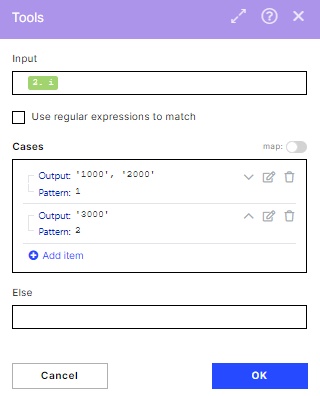 |
In the image, you can see two different outputs. In the first iteration, this module will output ‘1000’,’2000’ which means the KPIs will be calculated for invoices belonging to these Company Codes. In the second iteration they will be calculated for invoices belonging to Company Code ‘3000’.
You can add as many rules as you want, including havingOutputswith more than one Company Code (e.g. if your country is composed of Company Codes A and B, you can add a rule like Pattern = 3, Output = ‘A’,’B’.). You will also need to increase the maximum number of iterations in the 2.Loop module for each new rule you add.
In order to get the Invoice details, you have to set up the Celonis Query Data Model. See Query Data.
Note
You don't have to change any fields or filters.
In this module, you can set up the filters that will be applied when displaying the data in the email. In our example, we will be passing information regarding the iteration that contained Company Code 1000 (and ‘2000’ since the list also contained a second Company Code) for the next module of the AF.
You can add as many routing paths as you would like. In the case you want the same recipient to receive the information about two different lists of Company Codes (defined in module3.Map Loop and Company Codes) you will need to set up 2 routes, one for each list.
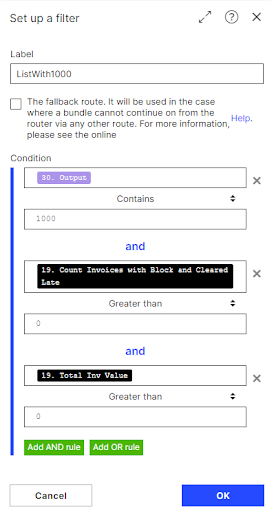 |
You need to set your desired Company Code value in the first condition, such as:
Condition 1: “30.Output contains 1000”
Conditions 2 and 3 do not require changes.
In this module, you need to configure the email connection and define the recipient(s) of the email. Change the following settings:
Connection: Connect to your mail account and grant Celonis permission to read and write emails.
To: Define the recipient you want to send the emails to, e.g. johndoe@domain.com