Troubleshooting JDBC database connections
Troubleshoot and fix JDBC connection failures using log files, network diagnostics (Telnet/DBeaver), and SSL certificate configuration.
To check the status of your Uplink Integration:
Note
Your on-premise JDBC Extractor must be running to return  (successful) in the Status column. See Running JDBC extractor for instructions to start your on-premise JDBC Extractor.
In the Celonis Platform, navigate to Admin & Setting > Uplink Integrations.
Locate your uplink in the list, and verify the status is successful, shown by a
in the Status column.
If the status is  (unlinked), the sections on this page may be helpful in resolving your issues.
You can access logs in two ways:
Locally: You can access the log files locally in the extractor’s installation directory. The default filename is
jdbc_connector.log.Within Celonis Platform: You can also access the log file via the connection context menu in the Celonis Platform:
Navigate to your data connection list.
Open the context menu (⋮) for the extractor connection, and select Extractor Logs.
Tip
You can also filter the logs by a specific date range before downloading.
Overriding folder used by JDBC Extractor for storage
You can temporarily override the location the JDBC Extractor stores file, such as for troubleshooting, by modifying the configuration or the launch command used to start the extractor.
Windows:
The Windows service is installed according to the metadata that is defined in the file
CelonisJdbcExtractor.xml, which is located in the extractor folder. You can modify the command line arguments there and override the directory which is by default%BASE%\temp.Linux:
You need to modify the command that launches the extractor service. When running the command, you must explicitly override the
tempfolder. For example:java -Djava.io.tmpdir="/define/your/directory" -Xmx8g -jar connector-jdbc.jar
If the connection between your database and the Celonis Platform is unsuccessful, we recommend using Telnet to test whether the required network ports are open:
Ensure that Telnet is enabled by pressing the Windows key + R to open the Run dialog box.
In the dialog box, enter the below and then click OK.
pkgmgr /iu:"TelnetClient"
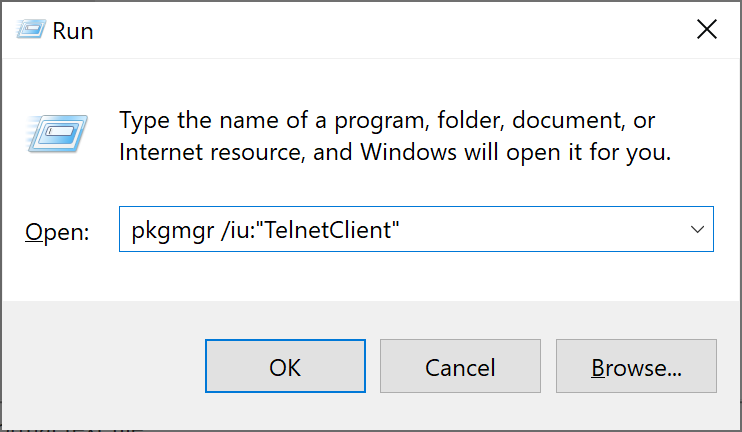
When enabled, open the Run dialog box again and enter:
cmd
In the Command Prompt, enter telnet <IP address>443, replacing <P address> with the IP address of your Celonis Platform team's cluster and check the results as described below.
Then, enter telnet <team domain> 443 ,replacing <team domain>; with yourteam.yourrealm.celonis.cloud and check the results as described below.
If you see a blank cursor, the port is open and not the root cause of a connection issue.
If you see an error using the IP address, reach out to your network administrator and ensure port 443 is open in the firewall.
If you see an error using the team domain but no error using the IP address, the IP address is not resolved. Reach out to the network administrator to ensure that your firewall is not blocking the DNS request before it can be resolved (potentially because the current setup only allows for IP access).
To exclude root causes, use DBeaver and follow these steps on your extractor server:
Select Database - New Connection.
Select the database connection type for the database you want to connect with Celonis and then click Next.
Select Yes to download/install the driver for the selected database.
Enter the parameters required to connect with your database.
Select Next.
Select Test Connection.
If the connection test is not successful, that indicates that the connection issue's root cause is not associated with the Celonis extractor.
If you run the JDBC Extractor as a Windows service, and it always fails immediately, where you can only see the log files ending with the wrapper, the most likely cause is your Java configuration.
Ensure your server meets all requirements on Prerequisites.
Tip
Pay special attention to your Java version. If it meets the requirements, ensure the environment variables PATH and JAVA_HOME are set on a system level and not only on a user level. If they were only set at the user level, after updating them on the system level, restart your server so it is applied to the system user as well.
If your extractor status is "unlinked" and you see errors in your extractor log such as:
2019-09-24 23:55:27.060 INFO 25627 --- [uplink-thread-0] c.celonis.uplink.manager.UplinkManager : Uplink could not connect: I/O error on POST request for "https://team.eu-1.celonis.cloud/uplink/api/public/uplink": PKIX path building failed: sun.security.provider.certpath.SunCertPathBuilderException: unable to find valid certification path to requested target; nested exception is javax.net.ssl.SSLHandshakeException: PKIX path building failed: sun.security.provider.certpath.SunCertPathBuilderException: unable to find valid certification path to requested target --EOM--
There are a couple of possible causes but the first one outlined below is by far the most likely:
Your network overrides the standard certificates with its own when communicating with Celonis Platform:
Ask your network administrators whether a proxy server overrides the certificates, and request the root CA and intermediate certificate files. Alternatively, you can access the Celonis Platform in a browser from the extractor server and export the certificates from there.
Follow the instructions in the Importing certificates section below to import them.
Your Java package may not come with the root and intermediate CA certificates necessary to communicate with the Celonis Platform over HTTPS.
Visit https://letsencrypt.org/certificates/ and download the active root certificate, as well as one of the active and backup intermediate certificates. Save them somewhere accessible by the extractor server.
Follow the instructions in the Importing certificates section below to import them.
Importing the certificates
From the command line on the extractor server, execute the following commands as an administrator and then restart the extractor:
keytool -v -cacerts -storepass changeit -importcert -alias cel_root.pem -file ~/path/to/root_cert_file
keytool -v -cacerts -storepass changeit -importcert -alias cel_inter.pem -file ~/path/to/intermediate_cert_file
Note
If the 'keytool' command cannot be found, first change directory to '/path/to/java/bin'
'changeit' is java's default keystore password, please use your own if you have changed it
The following JDBC string connection parameters are not supported due to security reasons:
Important
If you are using any of the following parameters in your JDBC string, you must remove them for the connection to be successful.
- AUTO_DESERIALIZE("autoDeserialize"),
- ALLOW_URL_IN_LOCAL_IN_FILE("allowUrlInLocalInfile"),
- ALLOW_LOAD_LOCAL_IN_FILE("allowLoadLocalInfile"),
- ALLOW_PUBLIC_KEY_RETRIEVAL("allowPublicKeyRetrieval"),
- EXPOSE_METADATA("exposeMetadata"),
- STATEMENT_INTERCEPTORS("statementInterceptors"),
- QUERY_INTERCEPTORS("queryInterceptors"),
- DETECT_CUSTOM_COLLATIONS("detectCustomCollations"),

//IBM DB2 driver properties according to <add this link - https://www.ibm.com/support/pages/node/7010029>
- TRACE_FILE("traceFile"),
- CLIENT_REROUTE_SERVER_LIST_JNDI_NAME("clientRerouteServerListJNDIName"),
- PLUGIN_CLASS_NAME("pluginClassName");When configuring a JDBC connection, you might experience the following error messages:
Database type | Error | Recommended solution |
|---|---|---|
All | Error retrieving metadata (SyntaxErrorException, illegal zero-length identifier) | Validate your connection configuration, esp. the application-local.yml file. |
All | Java.net.BindException: Address already in use | Another application is already running on the same port as the Extractor. Disable listening on the port to resolve the issue. |
All | java.lang.NoClassDefFoundError: Could not initialize class oracle.jdbc.OracleDriver | Download the JDBC driver yourself and add it to the startup script. |
All | DatabaseApplication has been compiled by a more recent version of the Java Runtime (class file version 55.0) | Java Runtime on Extractor server is outdated. Update Java Runtime to a version ≥ 55 or update JDK to a version≥ 11. |
All | Error loading resource (unsupported type for column) | Reach out to Support, ideally providing the connector logs which can be found in your local JDBC Extractor Package folder. |
All | Uplink could not connect: 'I/O error on POST request for "https://teamdomain.cluster.celonis.cloud/uplink/api/public/uplink": PKIX path building failed: sun.security.provider.certpath.SunCertPathBuilderException: unable to find valid certification path to requested target; nested exception is javax.net.ssl.SSLHandshakeException: PKIX path building failed: sun.security.provider.certpath.SunCertPathBuilderException: unable to find valid certification path to requested target', waiting 13000ms before retrying --EOM-- | See: Fixing "unable to find valid certification path" errors. |
All | Uplink could not connect (UnknownHostException) | UnknownHostException means that the name resolution failed. This could be a typo in the hostname or a problem in the DNS server. |
All | java.lang.UnsatisfiedLinkError: /tmp/snappy-1.1.7-d52747f8-f5a0-471a-a468-826b186cff94-libsnappyjava.so: /tmp/snappy-1.1.7-d52747f8-f5a0-471a-a468-826b186cff94-libsnappyjava.so: failed to map segment from shared object: Operation not permitted. | The extractor does not have permission to write to the /tmp/ directory. Make sure that these permissions are ensured |
All | Unable to find valid certification path to requested target | There are two potential root causes:
See: Fixing "unable to find valid certification path" errors. |
All | Uplink could not connect: 'I/O error on POST request for "https://teamdomain.cluster.celonis.cloud/uplink/api/public/uplink": Unsupported or unrecognized SSL message; nested exception is javax.net.ssl.SSLException: Unsupported or unrecognized SSL message' | This is most probably cause by a proxy which overrides the SSL certificate, please make sure both certificates public and private from letsencrypt are used as described here: Fixing "unable to find valid certification path" errors. |
All | ExecutionMessage-FAIL: Error loading resource DSC9REL1. java.lang.NoClassDefFoundError: Could not initialize class org.xerial.snappy.Snappy | This most commonly happens on Linux. Please check if the “Noexec” flag is enabled and in case it is, remove it as described here: OPSwat - How do I check if 'noexec' flag exists on a Linux OS? |
All | Uplink could not connect (Unexpected 302) | Uplink not connected/JDBC URL changed; validate your configuration. |
All | Uplink could not connect (in general) | Validate your connection configuration in the Celonis Platform. |
All | Mkdirs failed to create file:/tmp/CEL_CON_TEMP/ | Your extractor's server disk is out of space. Delete content in |
All | Connection refused: connect; nested exception is java.net.ConnectException: Connection refused: connect | Check that your on premise Extractor server can reach the Celonis Platform. Specifically, please verify that you can reach the URL https://[team].[realm].celonis.cloud in the browser of your server - if not, please check your firewall settings and no proxy is blocking the connection between the Extractor and the Celonis Platform - if it is needed, see Configuring. |
Oracle | ORA-12514, TNS:listener does not currently know of service requested in connect descriptor | This will be resolved using custom JDBC string in the following format: This will be resolved using custom JDBC string in the following format: jdbc:oracle:thin:@(DESCRIPTION = (ADDRESS = (PROTOCOL = TCP)(HOST =<hostname>)(PORT = <Port>)) (CONNECT_DATA = (SERVER = DEDICATED) (SERVICE_NAME = <DB Name>) (SID = <DB Name>))) |
SAP HANA | Connection test failed, please check the Data Connection's configuration and ensure that the system is running: Unexpected error when creating database connection: Cannot create PoolableConnectionFactory (SAP DBTech JDBC: Cannot connect to jdbc:sap://e446a7-2991-42e8-a4be-2a7d0fa50.hana.prod-eu20.hanacloud.ondemand.com:443/ [Object is closed: com.sap.db.jdbc.SecureChannelSession@32287e12 e44640a7-2991-42e8-a4be-2a7d0f348a50.hana.prod-eu20.hanacloud.ondemand.com:443 ConnectionID:0 SessionID:0 on sun.nio.ch.UnixAsynchronousSocketChannelImpl[connected local=/100.96.15.191:48982 remote=e44640a7-2991-42e8-a4be-2a7d0f348a50.hana.prod-eu20.hanacloud.ondemand.com/40.114.161.74:443]].) | The Celonis Platform IPs' are not allow listed. Review Allowlisting Celonis domain names, IP addresses, and third-party domains, and ensure the IPs are allowed, depending on whether you are using a direct or a cloud connection. |
Snowflake | Error: Error loading resource SAP_P2P_FACT. No active warehouse was selected in the current session. Select an active warehouse with the 'use warehouse' command. | The user is missing the permissions to the table shown in the log. Please ensure the respective permissions are set on the Snowflake side. |