Adding events to Process Orchestration
Events in Process Orchestration specify when something happens in your process; they act as signals for when a process should start or advance to the next stage; they’re triggered by specific activities or conditions, for example, missing purchase order confirmation, or a predefined schedule. They can come from Celonis or from outside.
Events carry the essential process context data needed to execute subsequent steps. When a given action for a step is finished, for instance, an Action Flow is executed, information from that execution is fed back to the Process Orchestration to push the process forward.
There are two main subtypes of events:
Triggered Events – start or progress an orchestration when something happens. For example, a user clicks a button, email is sent, or vendor feedback is received.
Timer Events – Start or progress an orchestration based on time. For example, run daily, or resume process after three days with no response.
Trigger events act as the starting point for executing an orchestration. They're typically fed by insight from an Action Flow or sent through authenticated webhooks from external systems when a specific action occurs, such as a missing PO confirmation
Adding triggered events
In Studio, go to your package and select your Process Orchestration.
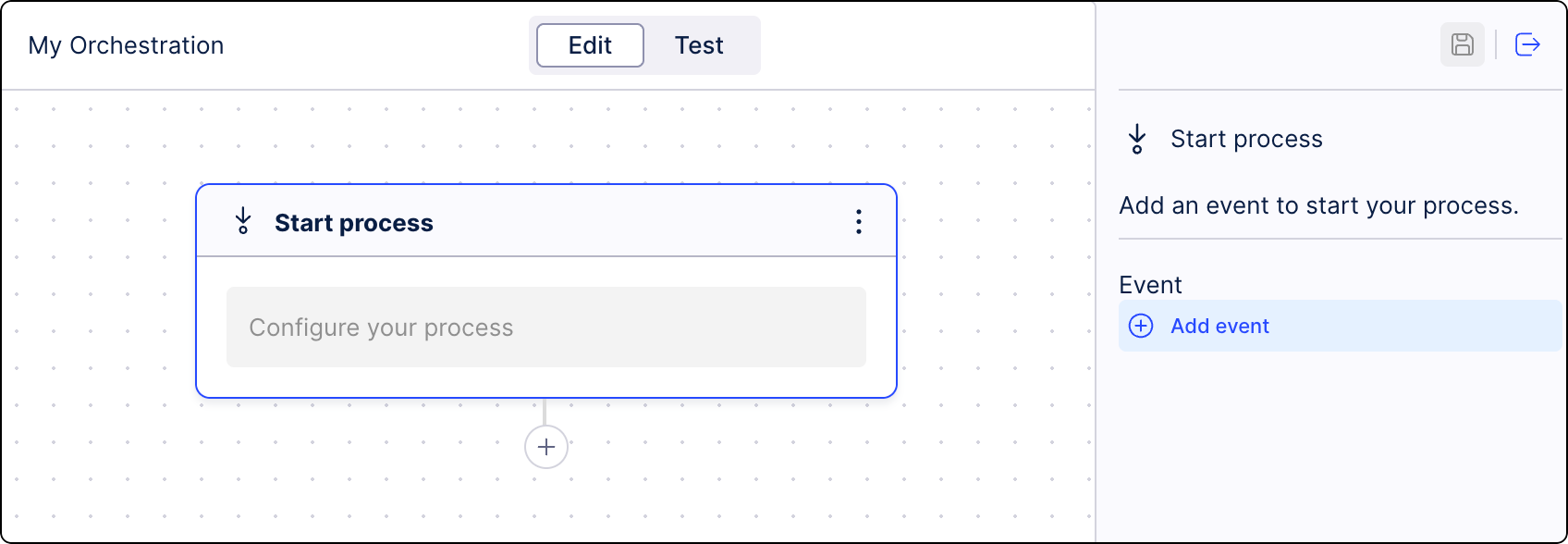
Select the Start process step and from the side panel, click Add event.
In the Start Step editor, click Add event.
Give your event a name (key) and a description (label) for easy identification in the event list.
(optional) Toggle Link asset to add extra assets that will be used as triggers for Process Orchestration.
These assets can only be used to start Process Orchestration. Each asset type can be linked to the event you're creating right now but also to already existing events on the list. See also, Starting Orchestration Engine using Annotation Builder.
Click Save.
The event is created and added to the process step.
Time events serve as a flexible mechanism to schedule and control executions of Process Orchestration. They support a variety of trigger configurations to manage diverse timing and scheduling requirements. Timer events can work both as starting triggers, when they initialize a Process Orchestration, and as the wake-up triggers placed between process steps.
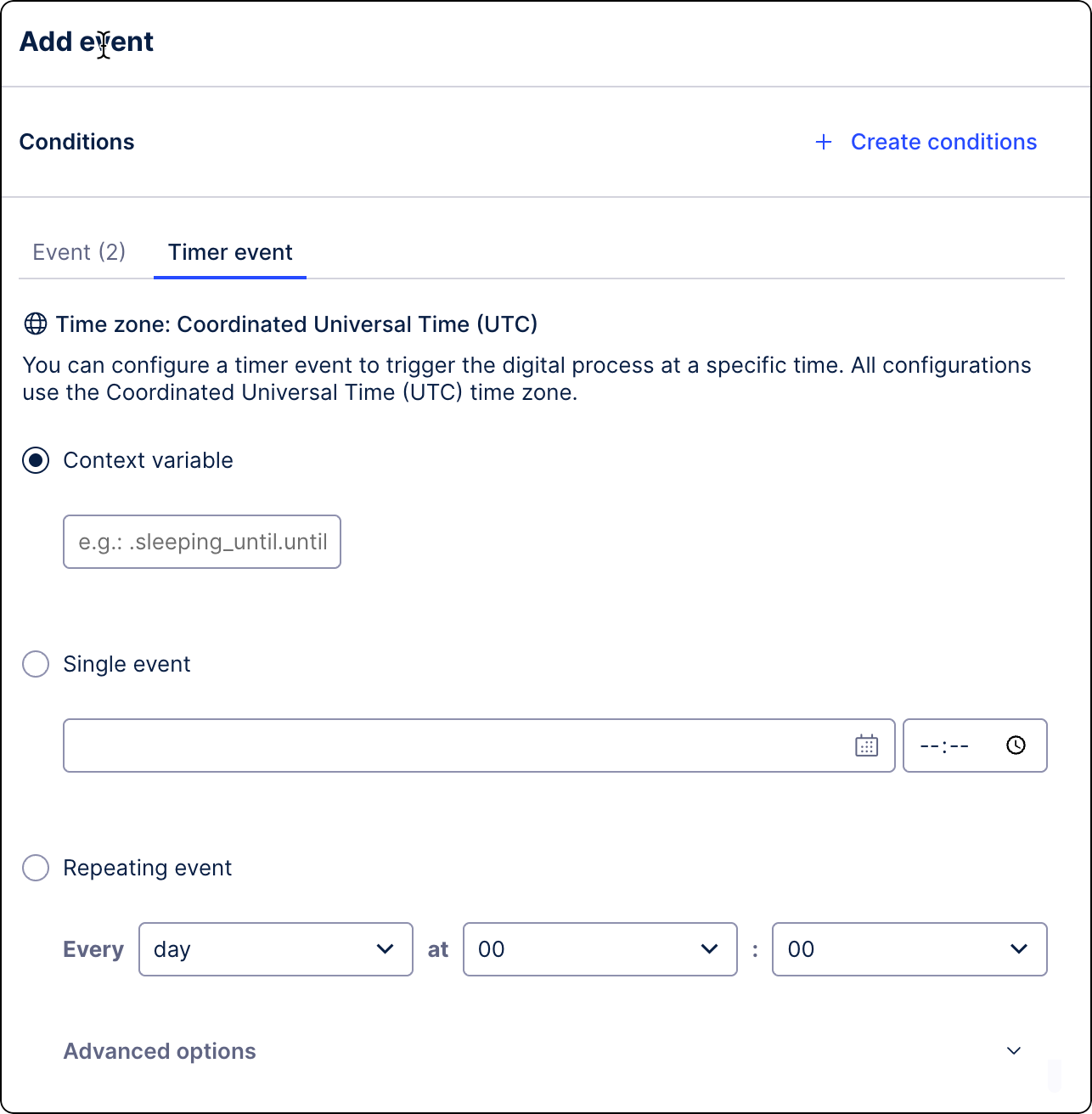
In Studio, go to your package and select Process Orchestration. If you haven't created any Process Orchestration yet, see Creating Process Orchestration.
Under a process step, click the plus icon and select Resume process.
(optional) Define specific conditions for running this step. Click Create conditions. For more information, see Conditional Process Orchestration run.
Go to the Timer event tab.
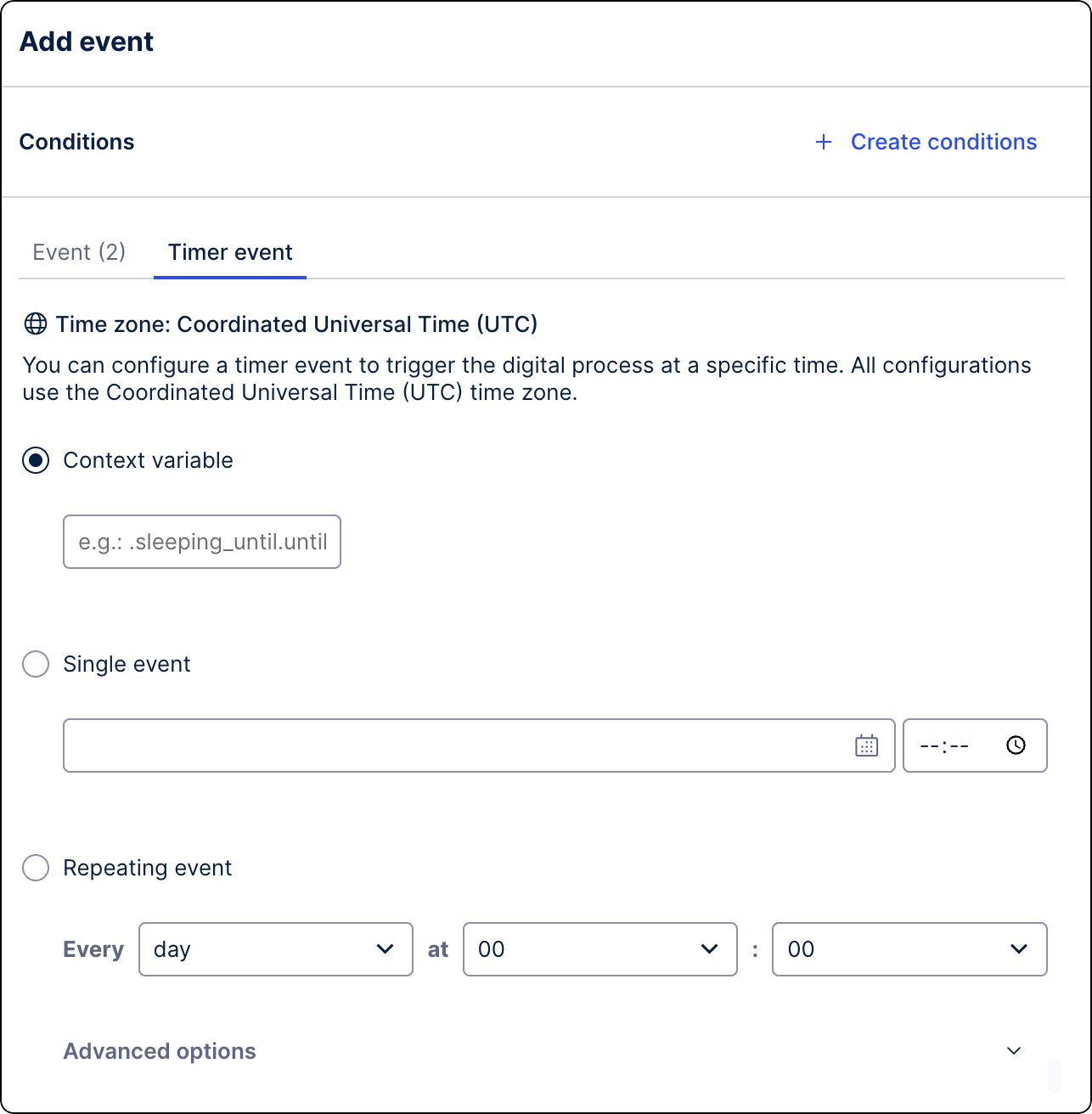
Select how you want the process to be resumed:
Using context variable
Use the variable stored in the Action Flow Process Context as information about when your Process Orchestration should be resumed.
The variable must be configured in the following format:
.sleeping_until.until
where the wake-up trigger is the
untilproperty in the.sleeping_until event.One time only
Select the date and time when the event should be resumed.
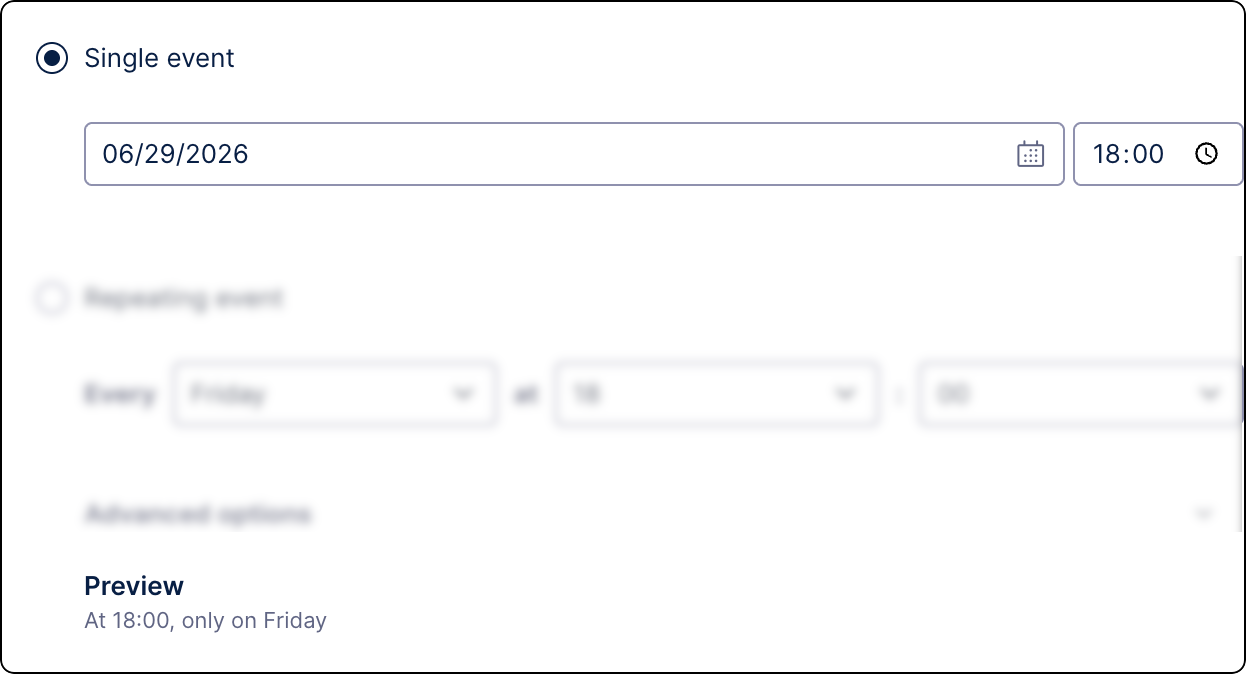
On a repeating schedule
Define recurring schedules using precise timing rules, such as every Tuesday, every 30 minutes or every month at a specified time.