Archiving activity logs
This feature is currently available as a Private Preview only
During a Private Preview, only customers who have agreed to our Private Preview usage agreements can access this feature. Additionally, the features documented here are subject to change and / or cancellation, so they may not be available to all users in future.
For more information about our Private Preview releases, including the level of Support offered with them, see: Feature release types.
To optimize performance, this feature automatically moves activity logs older than one year from the internal database to dedicated tables in your Data Model's Data Pool. Archiving runs daily at midnight; while enabled at the package level, it triggers a global cleanup of year-old logs across all packages in the team.
While you must enable archiving separately for each Studio package, activating it for any package triggers a global cleanup. Activity logs older than one year will be deleted from the internal database for all packages in the team.
To learn more about configuring an activty log for your Studio View, see: Activity history.
The following information is stored in an activity log:
Legacy Views | Enhanced Views |
|---|---|
|
|
Go to your Studio package.
Select Package Settings > Activity history.
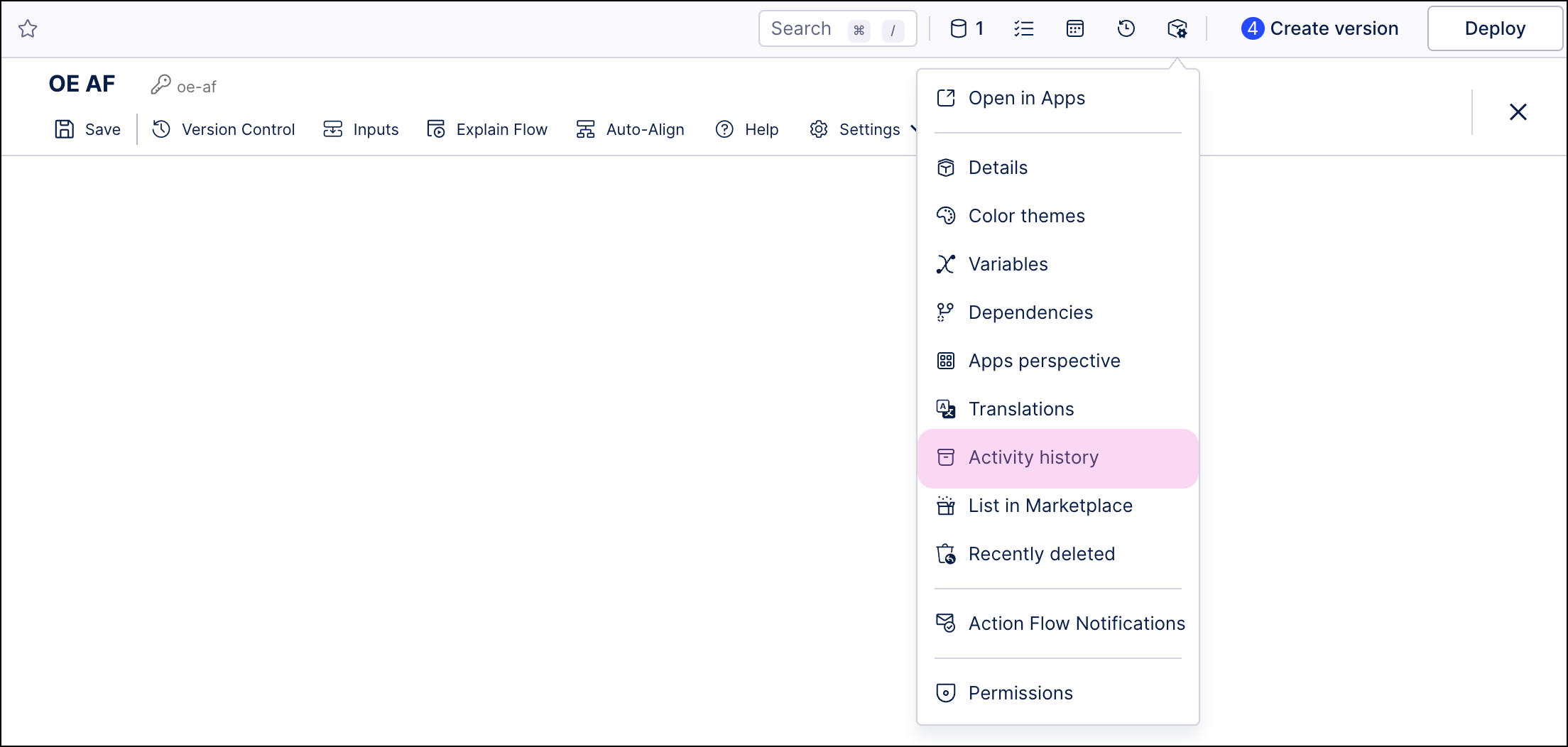
In the Activity history screen, select Enable.
Once the activity log archiving is enabled, logged data is written back to the Data Pool related to the Data Model in two tables:
ARCHIVED_ACTIVITY_LOGS_V2- stores logs for a variety of activities, encompassing both changes made by users and actions performed by automation.ARCHIVED_ACTIVITY_LOGS_${4 digit ID}- stores activity logs from legacy Views.
You can use this data in an analysis. To do so, after the table is created, go to Data Model where you want to add it as a table. Click on Add Tables and then select the archived activity log table. Archived data will be loaded to Data Model, and available for display in Views.