Editing Start process step in Process Orchestration

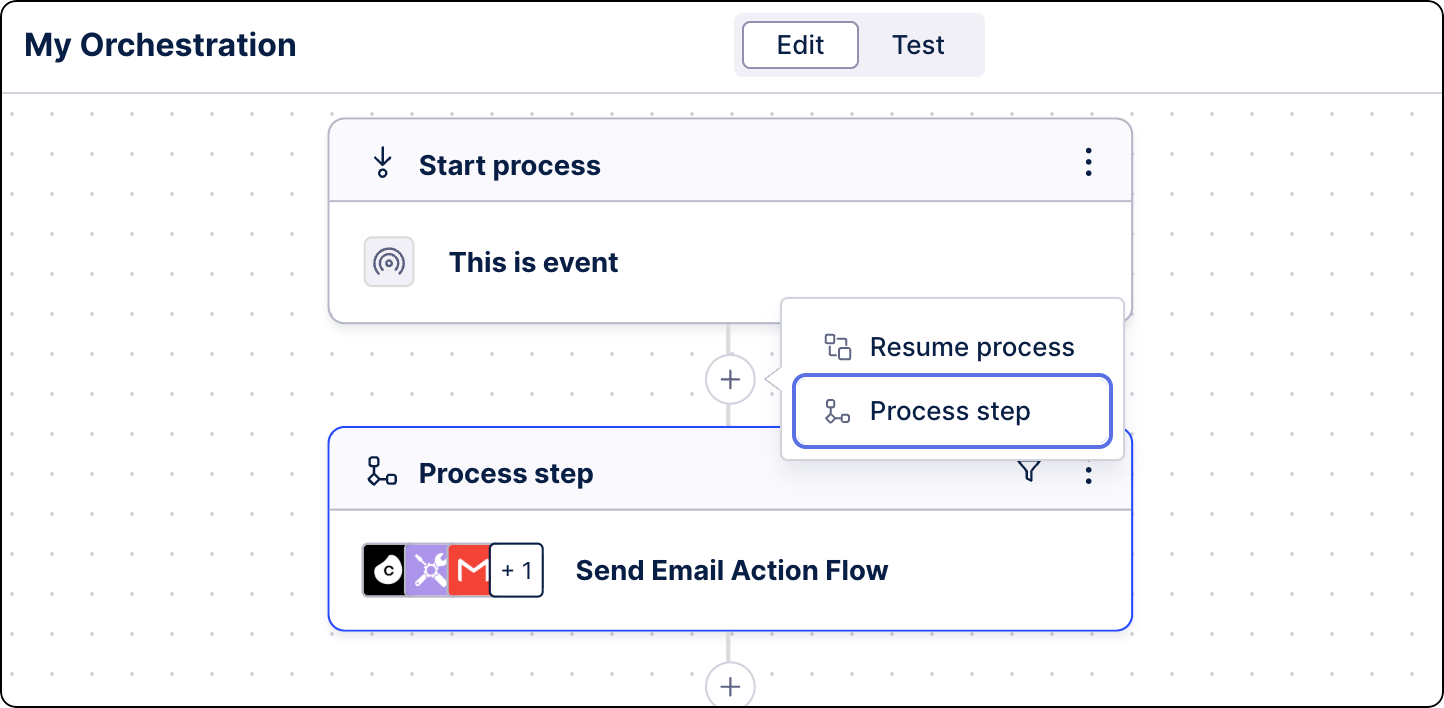
A Process Orchestration sequence begins with Start process step. These steps are activated by a defined event, which acts as the trigger for the subsequent steps.

  1. In Studio, go to your package and select your Process Orchestration.

  2. Select the Start process step and from the side panel, click Add event.

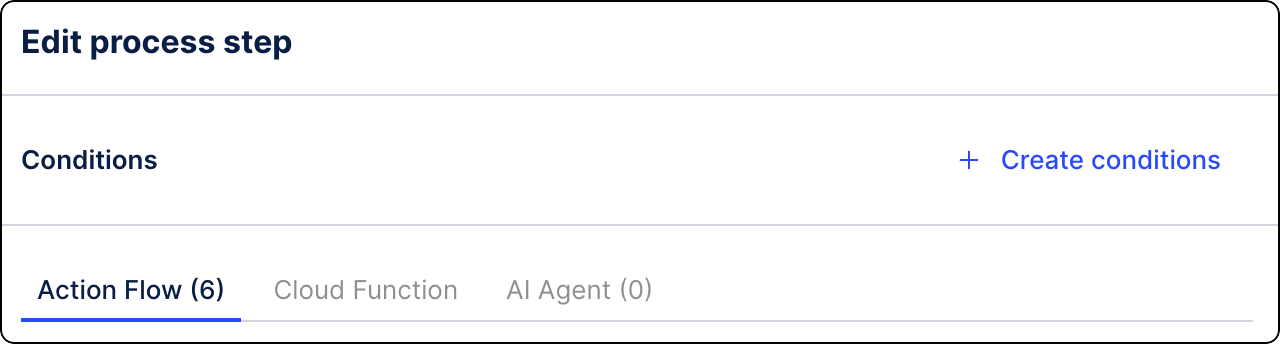
  3. (optional) Define specific conditions that must be met for this step to run. Click Create conditions. See Adding conditions to Process Orchestration step.

  4. Select an event in one of the following ways:

    • Select an event from the list.

    • Add a new event. Click Create event.

      1. Give your event a name (key) and a description (label) for easy identification in the event list.

      2. (optional) Toggle Link asset to add extra assets that will be used as triggers for Process Orchestration.

        These assets can only be used to start Process Orchestration. Each asset type can be linked to the event you're creating right now but also to already existing events on the list.

        From the dropdown list, select your asset. You can select from the following asset types:

        • Annotation Builder - this AI-enhanced Studio asset processes your data and generates informed guidelines based on your specific instructions. You can use the Annotation Builder logic as a starting point for your new automations. This can be helpful with, for example, dynamically routing workflows and automatically triggering correct further actions.

      3. (optional) Add a schedule based on which this step is going to be run. See Adding timer events to Process Orchestration.Adding timer events to Process Orchestration

      4. Click Create.

      Your event is created and available in all Process Orchestrations in the package. Once you're satisfied with your Process Orchestration setup, you can test it to see its outcome and logs. To do so, in the edit mode for your Process Orchestration, select Test at the top.

You’ve added an event to your start step.

Related topics