Event processing rules
Event processing rules define the events, attributes and screenshots that are captured for a Task Mining project. Rules may be based on your use case or legal or privacy requirements so, for example, screenshots might be activated for some applications but not for others where user information may be displayed.
Each event processing rule includes an event, a condition (optional) and an action. If the event and condition meet the criteria specified by the rule, the action is performed.
Where an event and condition match multiple event processing rules, only the action associated with the first event processing rule that matches will be performed. The order you define event processing rules in is therefore important. You should define more specific event processing rules before more general event processing rules.
For example, if you want screenshots to be taken for Microsoft Excel only, the event processing rule specifying this should be ordered before the event processing rule that specifies applications where screenshots will not be taken. A default rule is always included and is applied if none of the actions in the previous event processing rules is performed. The default rule includes an action only.
Note
Event processing rules are applied by the Task Mining Client software on the user’s desktop. This means if an event processing rule includes data redaction, for example, the Task Mining data is redacted before it is sent to the Celonis Platform or via the Task Mining Gateway. If you are running the Task Mining Client software over a secure gateway server, you can also run your own data processing logic before data is sent to the Celonis Platform.
Before you begin, ensure you have completed the following steps or meet the requirements listed below:
Chrome browser extensions installed
You can create event processing rules in the Configuration Editor using the:
The logic explained in Defining event processing rules, Boolean expressions in event processing rules and Event processing rule examples applies.
Tip
We recommend using the Visual Editor as it’s easier to use and will cover most common use cases. You can, however, switch to the Text Editor at any point although we recommend the Text Editor for more expert users only.
In the Task Mining Configuration Editor, select Event Processing Rules > Visual Editor.
Select New Rule.
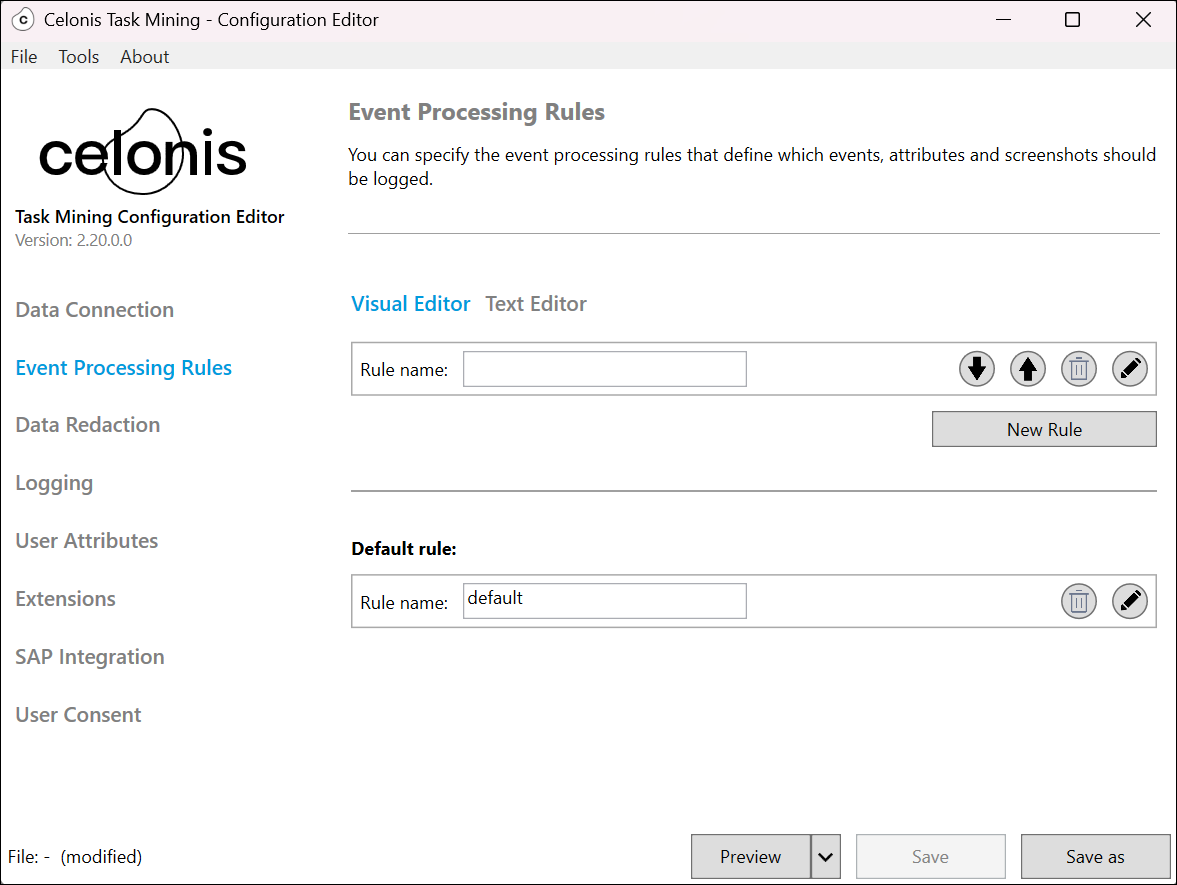
Enter a name for your rule in Rule name.
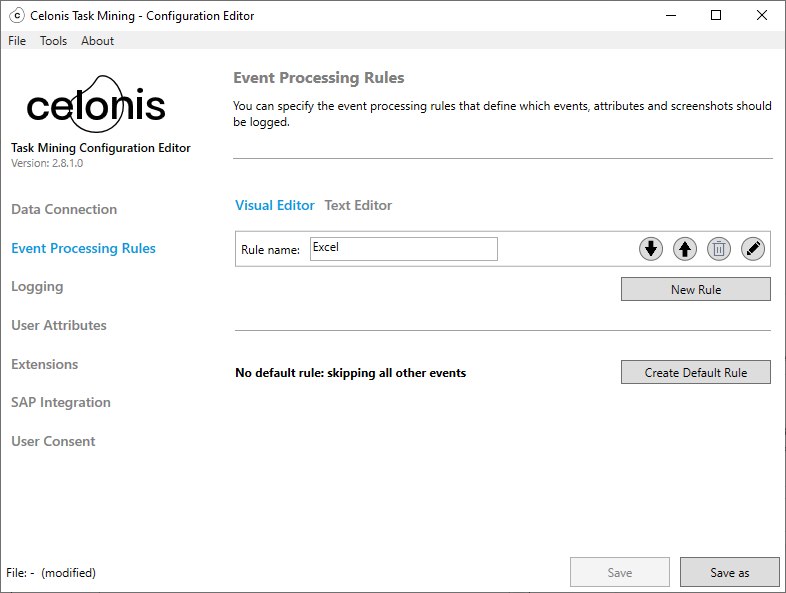
Select the Edit button
 to open the Description screen.
Add information about the rule in the Description field.
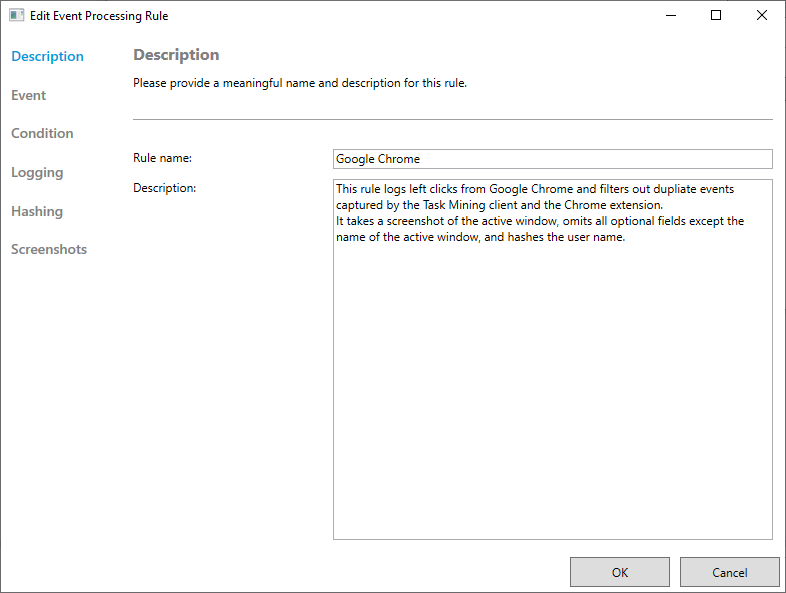
In the sidebar, select Event, Condition, Hashing and Screenshots in turn and specify your rule, using the dropdown menus to help add specific options.
Tip
See Defining event processing rules for more information.
Select OK.
Repeat steps 2 to 7 for each event processing rule you want to add.
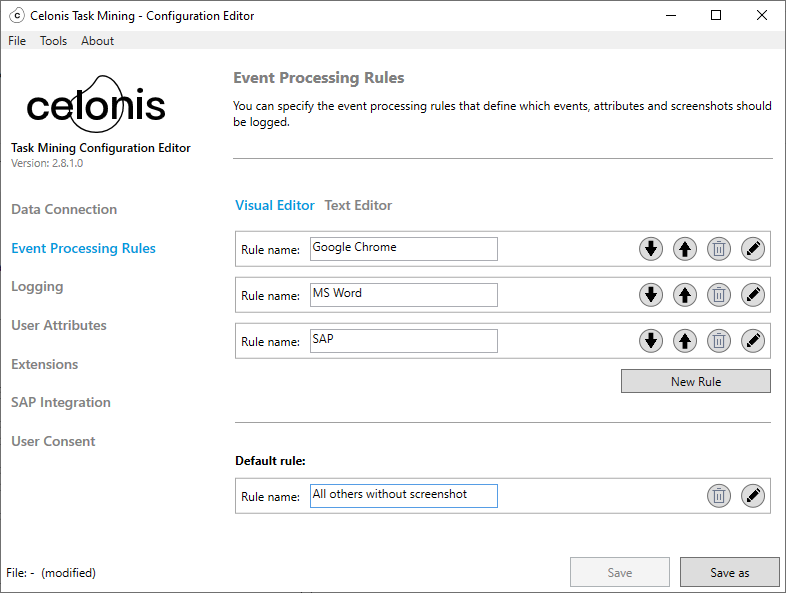
Use the Up button
 and Down button
  to specify the order of your event processing rules.
Add a default rule.
In the Task Mining Configuration Editor, select Event Processing Rules > Text Editor.
The Text Editor opens.
Add event processing rules in the text field.
See Defining event processing rules for more information.
Important
Event processing rules are case sensitive.
Name | Description | Syntax | Example |
|---|---|---|---|
| Consists of:
The action is performed when the event and condition meet the criteria defined in the event processing rule. Multiple event processing rules can be specified .If no actions are performed because none of the events and conditions meet the event processing rule criteria, the default rule is applied. A default rule starts with the keyword
If an action is defined in the default rule, it will be performed. If the S |
| The most simple event processing rule consists of the default rule only. This effectively switches off logging for all events:
|
| Consists of:
FROM 1.2.7 |
|
|
| Defines which events will trigger the rule. The rule can be triggered for:
The keyword |
| Trigger the event processing rule for all events:
Trigger the event processing rule for click events only:
Trigger the event processing rule for all events except click events:
|
| Defines a constraint that must be fulfilled for an event to meet the event processing rule criteria. Conditions are defined using Boolean expressions. |
| Trigger the event processing rule only if the event came from the Google Chrome browser:
|
| Defines how an event that matches the rule should be processed. Consists of a definition for:
|
| |
| Defines the event attributes that are logged. All attributes or specific attributes defined in a list of attribute names can be logged. The keyword Note If an attribute isn’t included, the default value (usually null) is used. Mandatory attributes cannot be excluded and will be automatically included even if not specified in the attribute list. For information about mandatory attributes, see the Task Mining attribute reference. |
| Log all attributes:
Log the URL and KeyboardCommand attributes. Mandatory attributes are also logged:
|
| Defines the attributes that are hashed before logging. Can be excluded if hashing of attributes is not required. The hash function used is SHA256. Note Attributes that are excluded from logging are also implicitly excluded from hashing. Adding attributes to the attribute list that are not hashable will cause errors. Mandatory attributes are not hashed. For information about hashable attributes, see the Task Mining attribute reference. |
| Log the
|
| Defines the screenshot capturing mode, with these options:
Can be omitted if screenshots are not required. |
| Take a screenshot of the active window:
Take a screenshot of the active desktop:
Take a screenshot of all desktops:
|
Boolean operator | Description | Syntax | Example |
|---|---|---|---|
| Compares two expressions and evaluates to a Boolean depending on the comparison operator. Both input expressions must be of the same data type and can be attributes or constant values. Available comparison operators are:
|
| Compare the URL attribute to a string constant for equality:
Check if the
|
| Checks if an expression evaluates to one of the given values. Note All values in the value list must be of the same data type. Supports |
| Check if the
|
| Inverts a Boolean expression. |
| Check whether the URL is not https://www.celonis.com/:
|
| Checks if an expression evaluates to null. The |
| Check if the
Check if the A |
| Computes the logical |
| Check if both comparisons evaluate to true:
|
| Computes the logical |
| Check if at least one of the comparisons evaluates to true:
|
| Allows the logical structuring of Boolean expressions. |
| Logically structure the statement to evaluate the
Evaluate the
|
| Converts the given Supports |
| Convert the value of the
|
| Evaluates if a string expression matches the given pattern. Two different wildcard symbols can be used to define the patterns:
The wildcard symbols can be escaped by a preceding backslash ( \ ), e.g. \% or \_ . The backslash itself is escaped by a double backslash ( \\ ). The comparison is case-insensitive so the patterns |
| Match if the ActiveWindow LIKE '%Unread Messages%' Match if the
Match if the
|
| Maps a URL string to its domain, removing the paths, ports and protocol of the URL. |
| Trims the URL to its domain community.celonis.com:
|
Important
Event processing rules are case sensitive.
Example | Example syntax | Example description |
|---|---|---|
Denylist Slack and do not capture any data. |
| Note The process name for Slack is lower case. If written with a starting capital letter, events from Slack will be captured. |
Collect all events without any restrictions and take a screenshot of the active window. |
or
| -- |
Avoid duplicate events from Google Chrome. |
| Logs all events with all attributes and takes screenshots of the active window, but filters out events from Google Chrome that were not captured by the Chrome browser extension. This avoids duplicate events (like left clicks) that are detected by both the Task Mining Client software and the Chrome browser extension. Tip You can use the same syntax for the Task Mining browser extension for Microsoft Edge by replacing |
Log events from specified applications only. |
| Logs events from Google Chrome, Microsoft Windows Explorer and Slack only. The application name must exactly match the process name displayed in Windows Task Manager without the .exe extension. The application name is case sensitive. |
Don’t log events from specified applications. |
| Events from Google Chrome, Microsoft Windows Explorer and Slack are not logged. The application name must exactly match the process name displayed in Windows Task Manager without the .exe extension. The application name is case sensitive. |
Log events for specified URLs only. |
| Logs events from www.celonis.com and related subdomains (like community.celonis.com) only and takes a screenshot of the active window. |
Collect all events and take screenshots. |
or
| Collects all events without any restrictions and takes a screenshot of the active window. |