Running transformation data jobs
Custom transformation data jobs convert raw source system data into object-centric event logs within the Celonis Platform. Running these data jobs applies your preconfigured business rules to generate or update objects and events—such as tracking late payments in Accounts Payable or identifying delivery bottlenecks in Order-to-Cash—ensuring your data model accurately reflects live operational changes.
When you publish custom transformations, Celonis stores them in test:ocpm-data-job for development environments and ocpm-data-job for production. Simple transformations without complex joins or filters optimize automatically into Views, with the executed SQL included as a comment.
Run transformations only after deploying at least one version of your object-centric data model to development or production.
To learn more about versioning and deployment, see: Versioning and deploying OCDM.
Choose between full and delta loads depending on your data volume and testing phase:
Full load: Extracts and transforms all data within the source table. Use this option when testing new data connections or executing the initial extraction from a source system.
Delta load: Extracts and transforms only the net-new data added since the last execution. Use delta loads to minimize processing overhead and reduce execution times.
For detailed information on delta configurations, see the Data Integration reference: Executing delta extractions.
Tip
This procedure demonstrates executions using the Objects and Events dashboard. Alternatively, open your object-centric data pool from Data → Data Integration and continue from step 3.
To manually run your data transformation jobs from the Objects and Events dashboard:
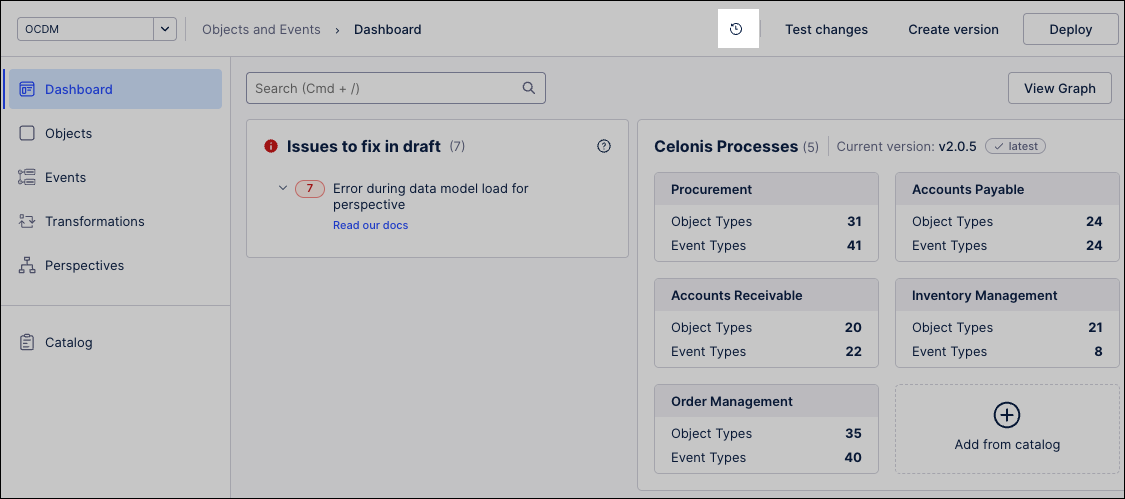
Click Version history.
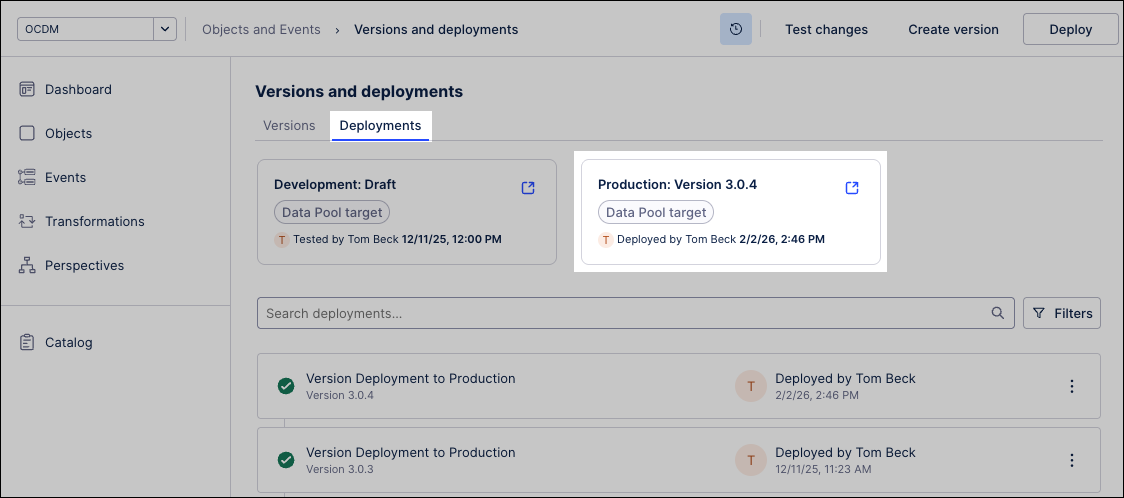
Click Deployments and then click to open either the development or production data pool.
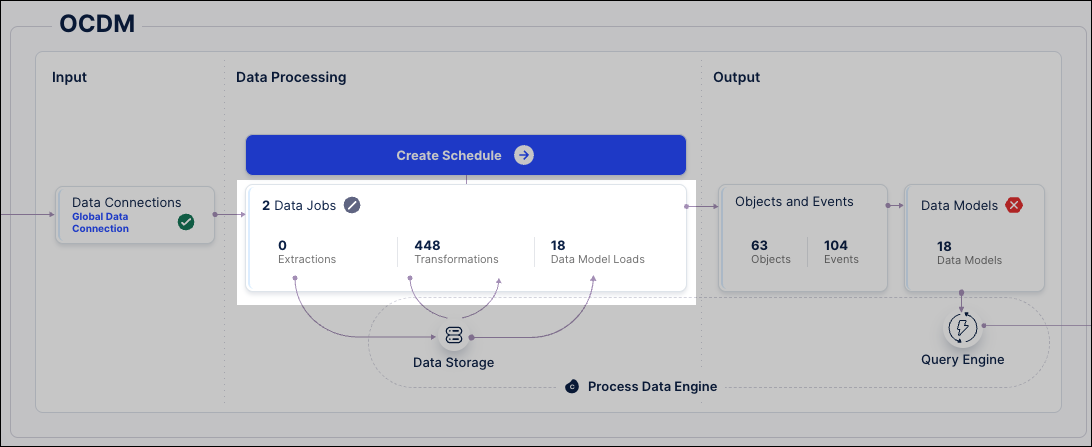
The object-centric data pool opens.
With your object-centric data model displayed, click Data Jobs.
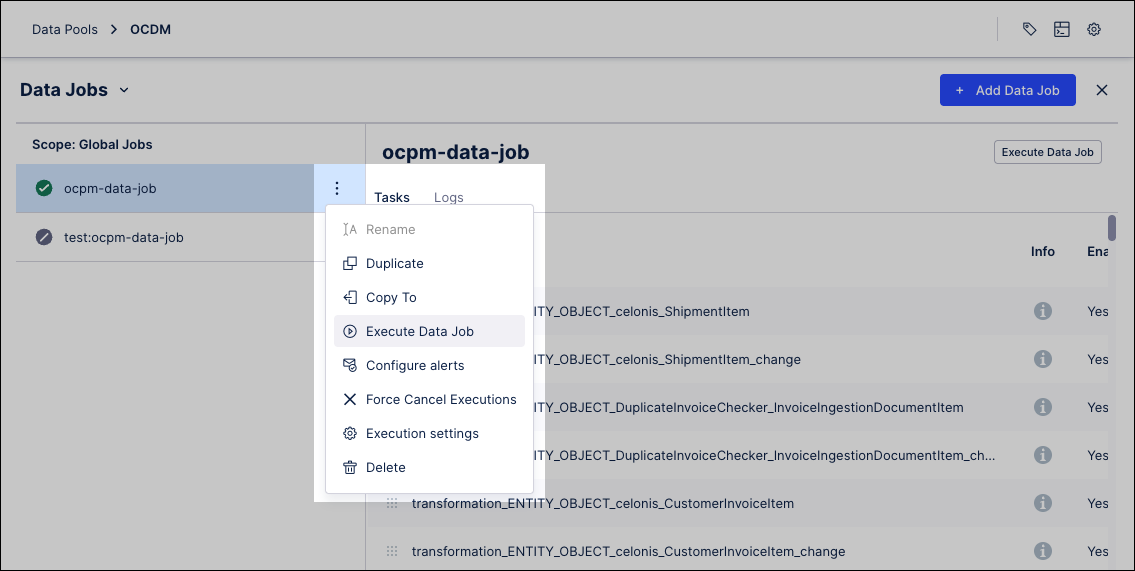
For either the development or production data jobs, click Options - Execute Data Jobs.
Development: Labeled as
test:ocpm-data-job.Production: Labeled as
ocpm-data-job.
Select the perspectives to include in the data job - for example, select the Order-to-Cash perspective to process sales orders and customer invoices.
Notice
Simple transformation scripts that do not include a join or WHERE clause, are unchanged, or have already executed will be replaced with a view to optimize performance.
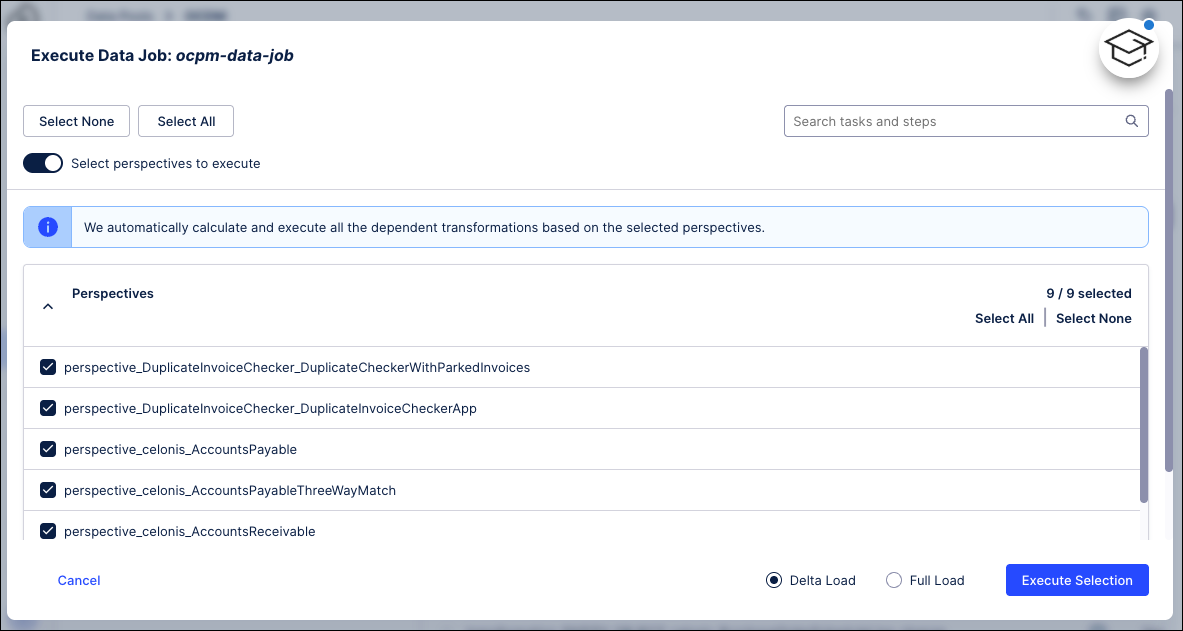
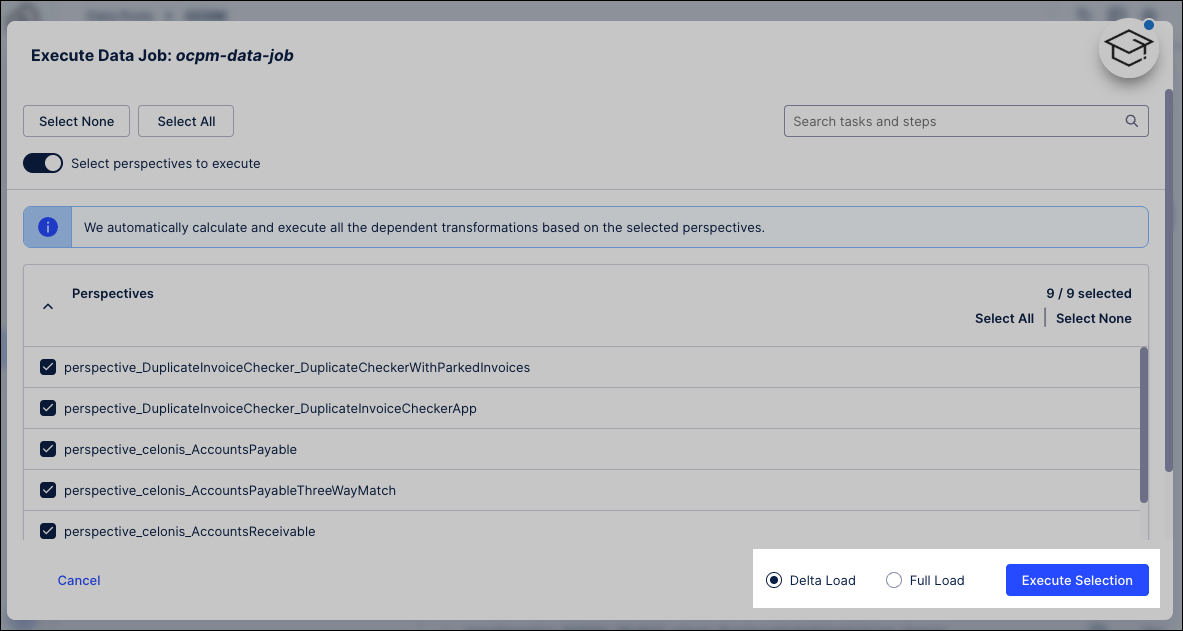
Select either Delta Load or Full Load.
For example, select Delta Load to transform only the invoice line items ingested since yesterday's sync.
Click Execute Selection.
The data job runs and the log screen displays the real-time status of the execution.
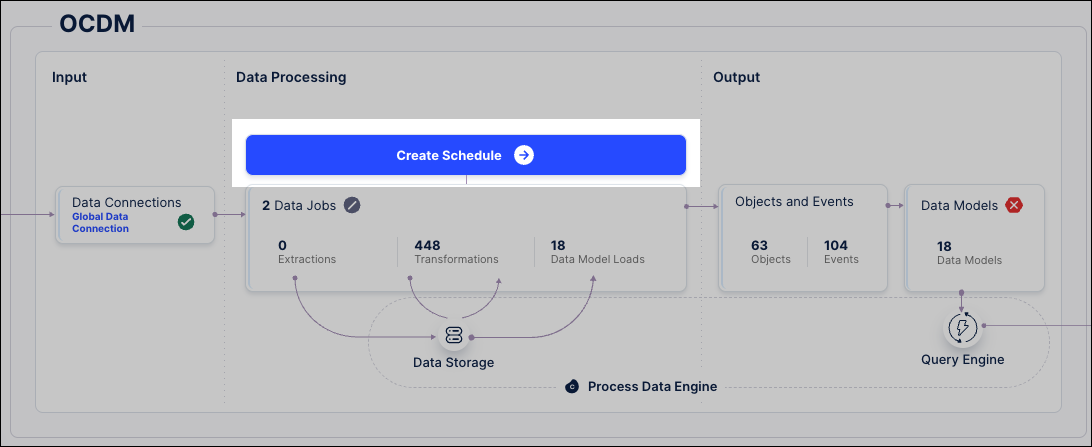
Schedules automate data job executions on a predefined basis, controlling the day, time, and recurrence patterns. By default, schedules run sequentially, ensuring each task executes successfully before moving to the next. If a task fails, Celonis cancels all remaining tasks in the sequence.
To configure an automated execution plan, see: Scheduling the execution of data jobs.
 |