Prerequisites for the Platform Adoption Monitor app
Review the following system requirements, user permissions, and service configurations required in sequential order to successfully install and run the Platform Adoption Monitor app.
Before starting the technical setup, ensure you have the required administrative rights and that the core tracking services are active within your Celonis team. These services provide the foundational data that the Platform Adoption Monitor app analyzes.
Permissions: You must have Administrator permissions in your Celonis team to complete the setup. See: Permissions
Login History: Ensure this is enabled under Admin & Settings - Login History. Celonis recommends a 2-year log retention period for the best insights.

Studio Tracking Service: Ensure this is enabled under Admin & Settings - Platform adoption. Verify that the "Tracking service" toggle is switched to On.
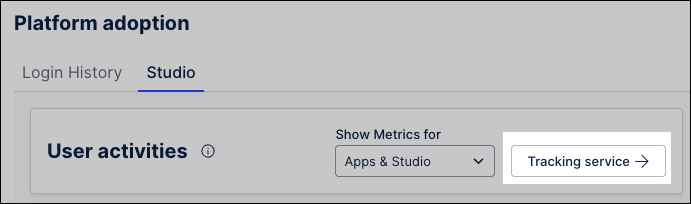
Audit Logs: Another data source for the Platform Adoption Monitoring Appis the Audit Log. You can see this log under Admin & Settings - AuditLogs. Celonis recommends a 2-year log retention period for the best insights.
To securely connect the app to your team's data, you must register an OAuth 2.0 client. This process generates the specific credentials (Client ID and Secret) required by the data extractor to access protected usage statistics via the Celonis APIs.
To create an OAuth 2.0 client, see: Using OAuth 2.0.
And then use the following settings:
Name: celonis-platform-adoption application
Settings: Set Grant Type to "Client Credentials" and Authentication Method to "Client secret basic."
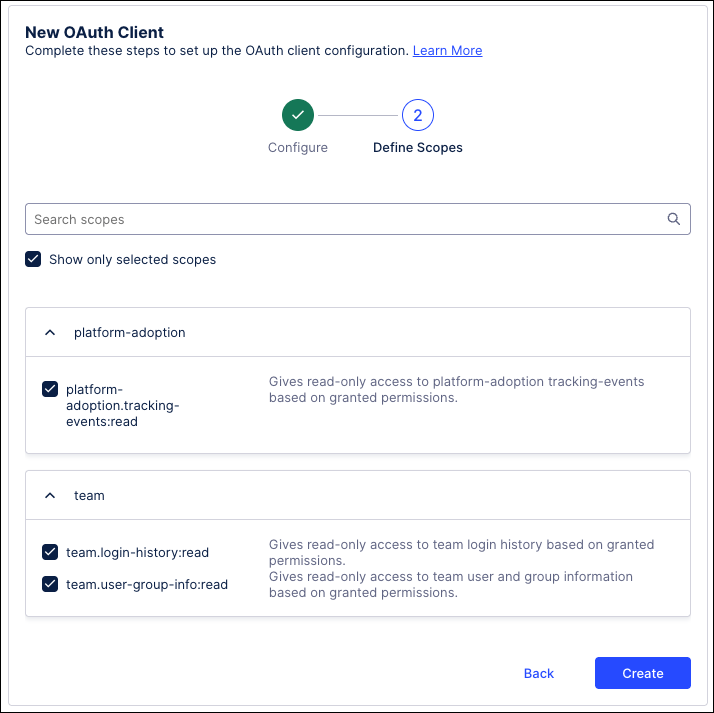
Scopes: Select the following three scopes:
platform-adoption.tracking-events:readteam.login-history:readteam.user-group-info:readaudit.log:readauthorization.permissions:read
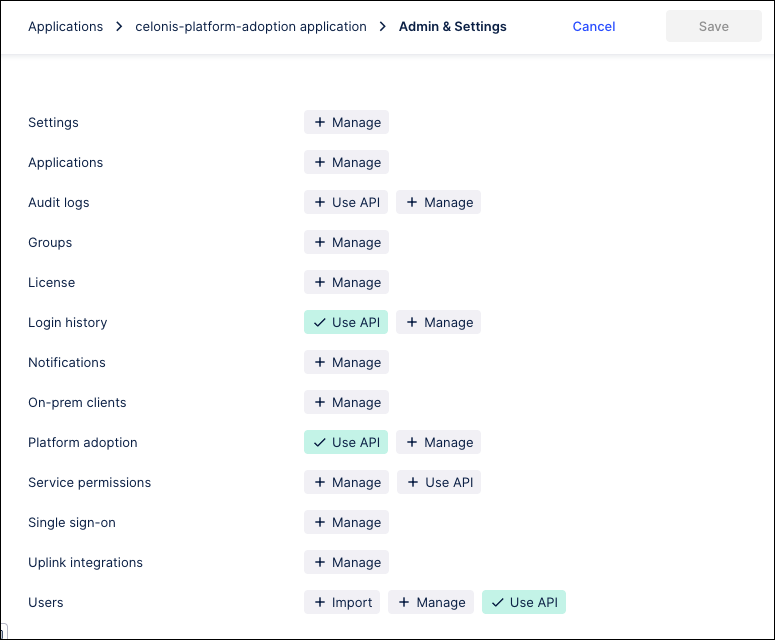
Permissions: After creating the client, search for celonis-platform-adoption application (the name you gave to your OAuth client) in the list of applications and click on it. Then assign these specific permissions to it:
Admin & Settings – Login history – Use API
Admin & Settings – Platform Adoption – Use API
Admin & Settings – Users – Use API
Admin & Settings – Audit logs - Use API
Admin & Settings - Service permissions - Use API
The final step involves setting up the Celonis Platform Adoption extractor. By linking the extractor to your previously created OAuth client, you enable the automated, hourly data pulls that keep your adoption insights accurate and up to date.
Extractor installation: You must have the Celonis Platform Adoption extractor configured in your Data Integration environment. See: Celonis Platform Adoption.
Connection credentials: The extractor requires the Client ID and Secret generated from your OAuth 2.0 client to authenticate with the Celonis APIs.
Update frequency: Ensure the extractor is scheduled to run every hour to provide up-to-date statistics in the app.
Next steps
After meeting the prerequisites, you can then install the app: