Celonis Platform Connector for Power BI
The Celonis Platform Connector for Power BI bridges the gap between process intelligence and executive reporting. It allows you to natively stream AI-powered process KPIs and Knowledge Model records directly into Microsoft Power BI, transforming complex process data into actionable, familiar visualizations.
By integrating Celonis with Power BI, you gain the best of both worlds: the deep-dive analytical power of Process Mining and the broad reach of Microsoft’s reporting suite.
Single source of truth: Import pre-defined, standardized KPIs from your Knowledge Models to ensure consistency across all corporate dashboards.
Full PQL power: Leverage the full Process Query Language (PQL) experience within Power BI to display complex process metrics that standard BI tools can't calculate alone.
Seamless automation: As a Microsoft-certified connector, enjoy effortless setup and automatic dashboard refreshes via the Power BI Service.
Hybrid insights: Combine high-level financial or operational overviews in Power BI with the ability to "click-through" into Celonis for root-cause analysis.
Scalability: Efficiently handle large datasets with support for up to 200,000 rows for case-centric data and even higher limits for object-centric models.
This image visualizes the architecture and data pipeline of the Celonis Platform Connector for Power BI. The white box shows the Celonis Platform data integration. As only manually generated records from a Knowledge Model can be loaded into Power BI, this has to be set up before connecting Power BI to Celonis Platform.
The black box shows the architecture of the Celonis Platform Connector for Power BI. This connects to a Power BI (PBI) Gateway Service which uses a proxy to connect to the Knowledge Model API in Celonis Platform.
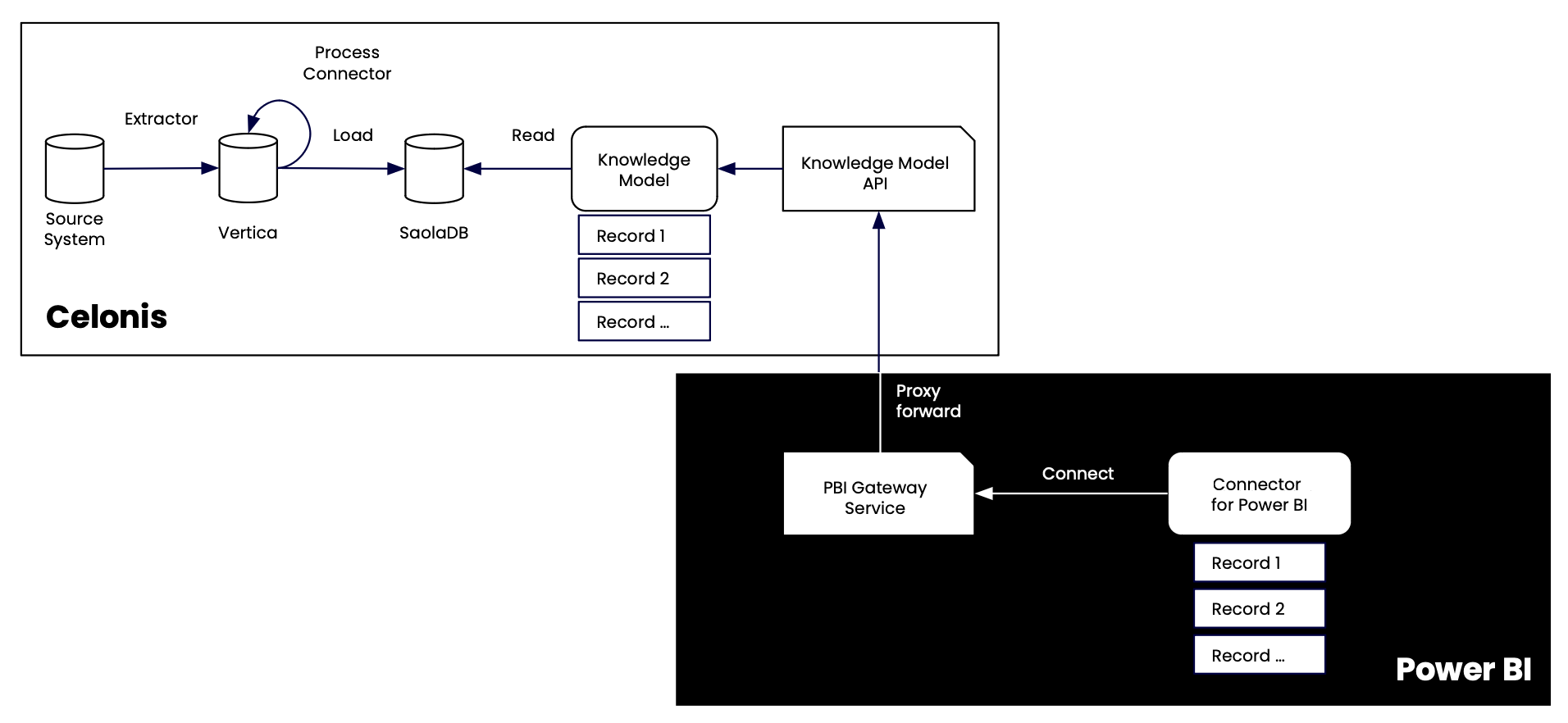 |
The Celonis Platform Power BI Connector connects to the Celonis Platform Knowledge Model API using a REST pull action. This HTTPS method is encrypted over TLS 1.2.
To configure the Celonis Platform connector for Power BI, you must meet the following technical and commercial prerequisites:
A Celonis team with:
A data model that has been loaded into Celonis Platform and is ready to use.
Access to Studio so you can create knowledge models.
Power BI Desktop (May 2023 or later):
Download from Microsoft Store (recommended: Monthly updates are installed automatically).
Download from Microsoft Power BI page (advanced download options).
Admin rights on the local machine that is running Power BI Desktop.
Supported Knowledge Model objects:
Records
Record attributes
Augmented record attributes.
Personal API key used for authentication. See API keys.
Limitations:
Customers with process-based subscriptions for Celonis Platform:
No limitations
Customers with APC-based subscriptions for Celonis Platform:
Max. 200,000 rows per record request.
Max. 20 columns per record request.
An appropriate Celonis Platform license with Microsoft Experiences feature. For further details please contact your Celonis Account Executive.
A Microsoft Power BI license is not required to use the connector, as Power BI Desktop and Service is currently free of charge. However, a Power BI Pro license is recommended to enable you to use the full power of Power BI also in terms of collaboration. Read more at Power BI pricing and licensing.
Setting up the Celonis Platform Connector for Power BI is a multi-step process that involves preparing your data in Celonis first, as the connector pulls "Records" specifically from a Knowledge Model.
Here is the step-by-step guide to getting it up and running:
The connector requires authentication to "talk" to your Celonis team.
Log in to your Celonis Platform team.
Go to Admin & Settings - Applications.
Click New Application Key.
Give it a name (e.g., "Power BI Connector") and save the key immediately.
Note
You will not be able to see this key again once you close the window.
To learn more about generating application keys in the Celonis Platform, see: Application keys.
Your new Application Key needs permission to see your data models and studio content.
Data Permissions: Go to Data Integration, find your Data Pool, click the three dots (⋮), select Permissions, and grant your Application "Use All Data Models."
Studio Permissions: Go to Studio, find the Space containing your Knowledge Model, click (⋮), select Permissions, and grant your Application "Use Package" rights.
To learn more about assigning permissions in the Celonis Platform, see: Available permissions.
The connector does not pull raw tables; it pulls defined Records.
In Celonis Studio, open your Knowledge Model.
See: Knowledge Models
Ensure you have defined Records (e.g., "SalesOrder_Record") and their associated attributes/KPIs.
See: Records
Deploy your Knowledge Model. The connector can only see published versions.
Since May 2023, the connector is built directly into Power BI.
Open Power BI Desktop (ensure you are on the latest version).
Click Get Data > More... and search for Celonis Platform.
Enter your Team URL (e.g., https://your-team.eu-1.celonis.cloud/).
When prompted for authentication, select Account Key and paste the Application Key you created in Step 1.
In the Navigator window, you will see a list of your Studio Spaces. Expand them to find your published Knowledge Model and select the Records you want to load.
If you want to share your dashboard and enable automatic refreshes:
Publish your report to the Power BI Service.
Go to the Dataset Settings in the Power BI Service.
Under Data Source Credentials, click Edit Credentials.
Re-enter your application Key to ensure the cloud service can refresh the data without your local machine.