Creating and assigning permission sets
Permissions are granted by:
Creating permission sets
Assigning these permission sets to users as global fallback permissions OR user groups as local permissions
Assigning these user groups to hierarchical element nodes as inheritable local explicit permissions
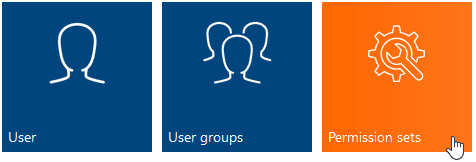
User permissions can be found in the Admin area, under the Permission sets tile.
Before you begin, ensure you have completed the following steps or meet the requirements listed below:
You must have the Administrator role to activate this feature.
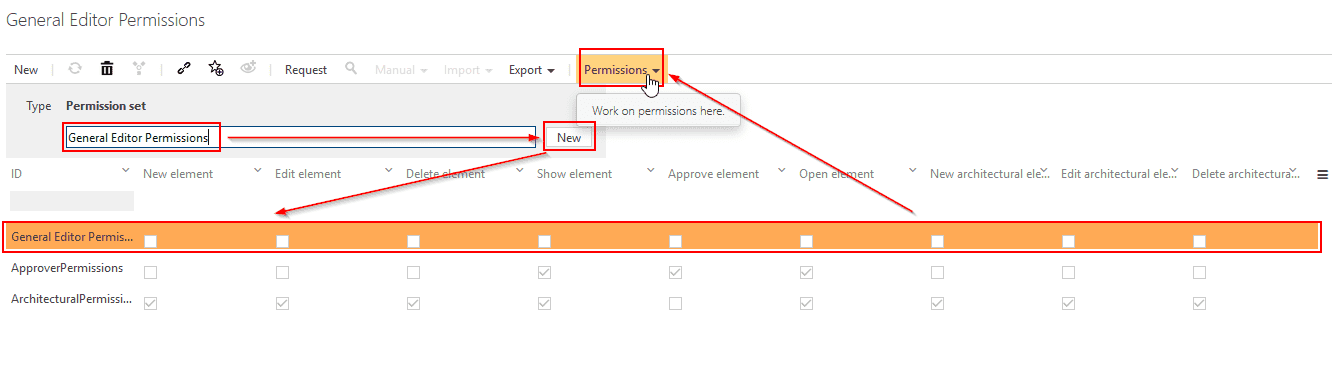
To create a new permission set:
Enter a name and click New.
Select the newly created permission and click Permissions in the toolbar:
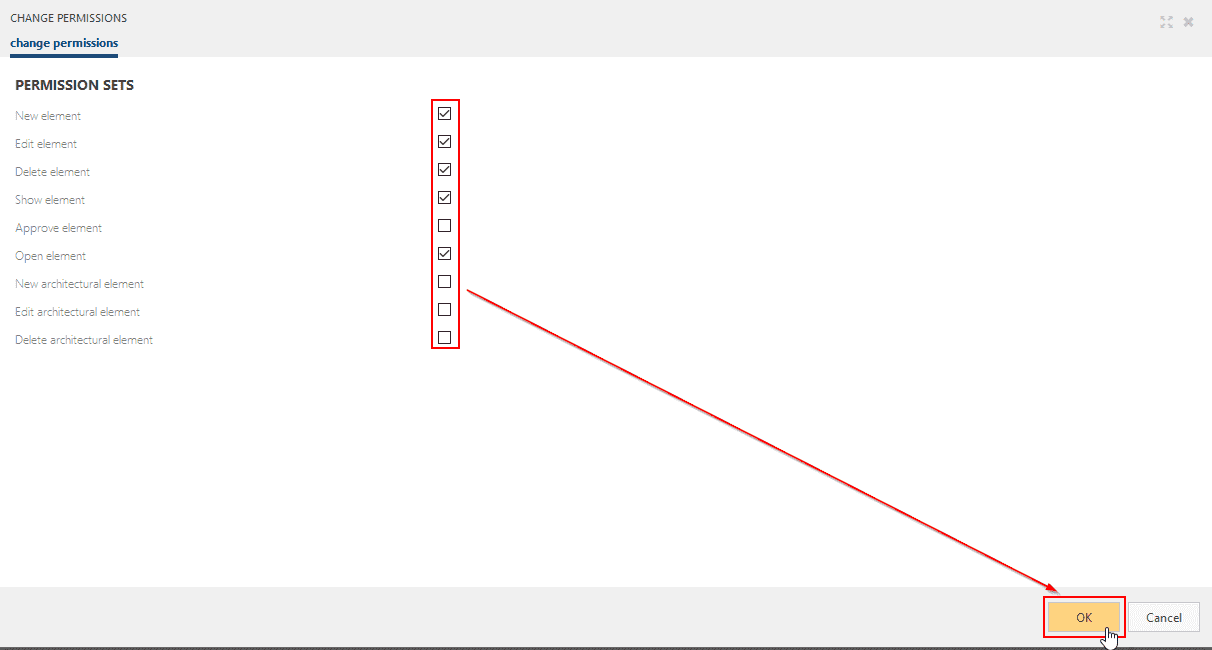
When setting permission levels select the desired permissions and then click OK.
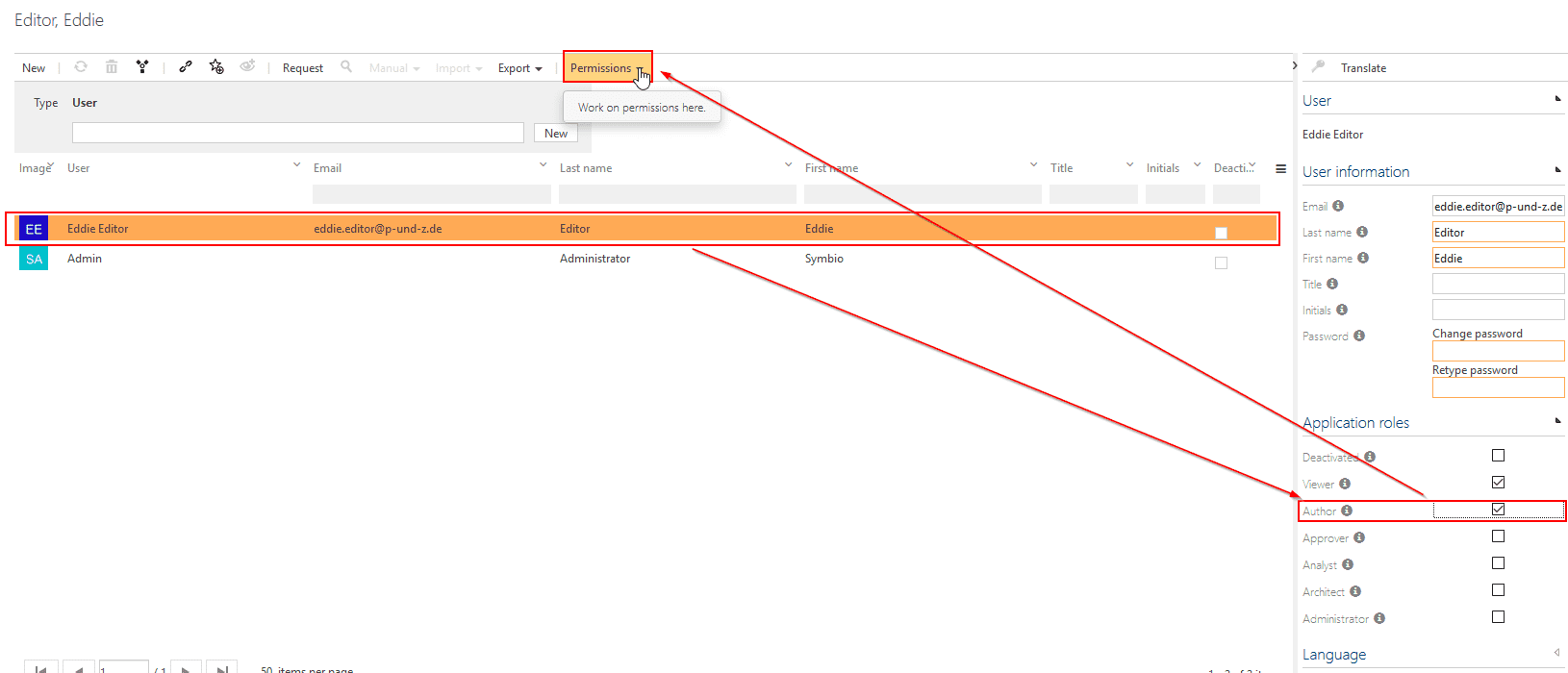
To assign default permissions to a user:
Select the user and ensure that the correct role is set (e.g. to be able to actually Edit element you must be able to switch into Editor mode), then click on Permissions:
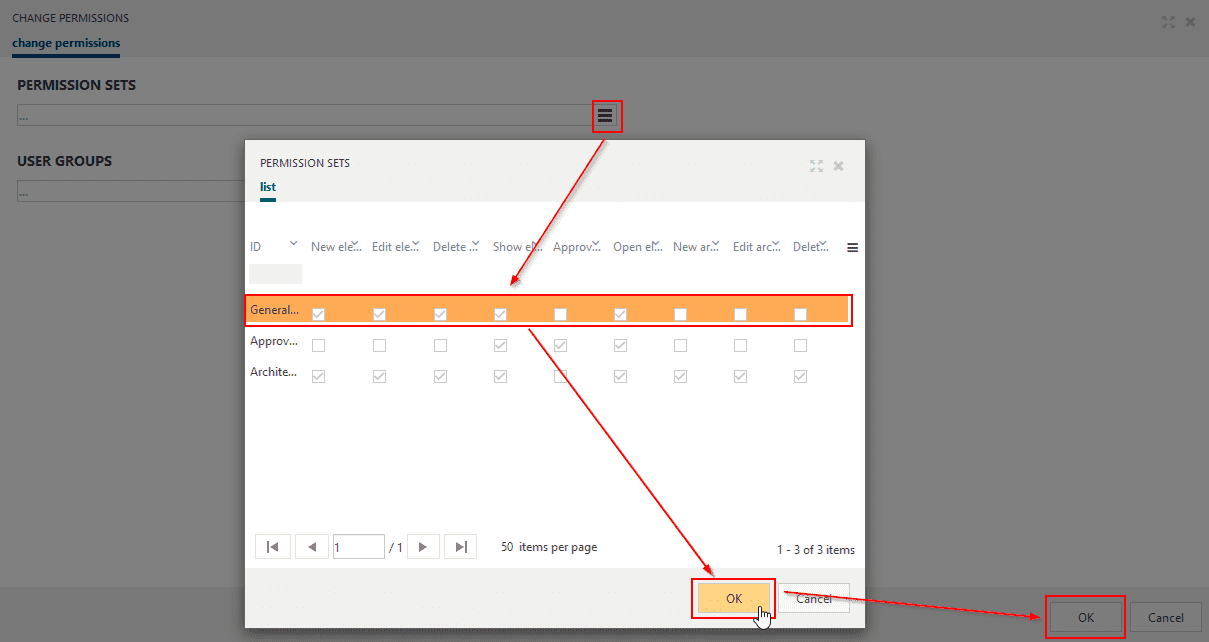
In the Change Permissions modal, select the burger icon next to Permission Sets. Select the permission set to add; click OK to add the selected permission set and OK again to apply the changes to the user:
Concerning permissions, user groups are the binding element between users and actual elements.
To authorize users on specific elements you will have to:
assign appropriate permission sets to a dedicated user group (see below)
assign users to this dedicated user group
assign this dedicated user group to elements to protect (see next sections)
Create the dedicated user group, select it, and click Permissions in the toolbar.
In the Change Permissions modal, select the burger icon next to Permission Sets. Select the permission set to add; click OK to add the selected permission set and OK again to apply the changes to the user group:
To actually secure a hierarchical subtree:
Select the desired facet, the node to protect, and then Permissions in the toolbar.
In the Change Permissions modal, select the burger icon next to Permission Sets. Select the permission set to add; click OK to add the selected permission set and OK again to apply the changes to the selected node: