Conditional branching in Orchestration Engine
This feature is currently available as a Private Preview only
During a Private Preview, only customers who have agreed to our Private Preview usage agreements can access this feature. Additionally, the features documented here are subject to change and / or cancellation, so they may not be available to all users in future.
For more information about our Private Preview releases, including the level of Support offered with them, see: Feature release types.
Conditional branching expands your orchestration capabilities by allowing you to build parallel process flows in a single Process Orchestration. By creating branches with custom conditional logic, you can build more complex and scalable orchestrations and reduce the number of orchestrations for a single business scenario. This way, you can reduce manual interventions and limit troubleshooting of your processes.
You can add branches to the steps of your Process Orchestration. For more complex use cases, you can also create branches within existing orchestration branches.
In your Process Orchestration, select the + icon > Flow control.
Right now, this area only allows you to add Gateway as the only flow control mechanism. However, other flow control mechanisms are coming soon.
From the side panel, select Gateway.
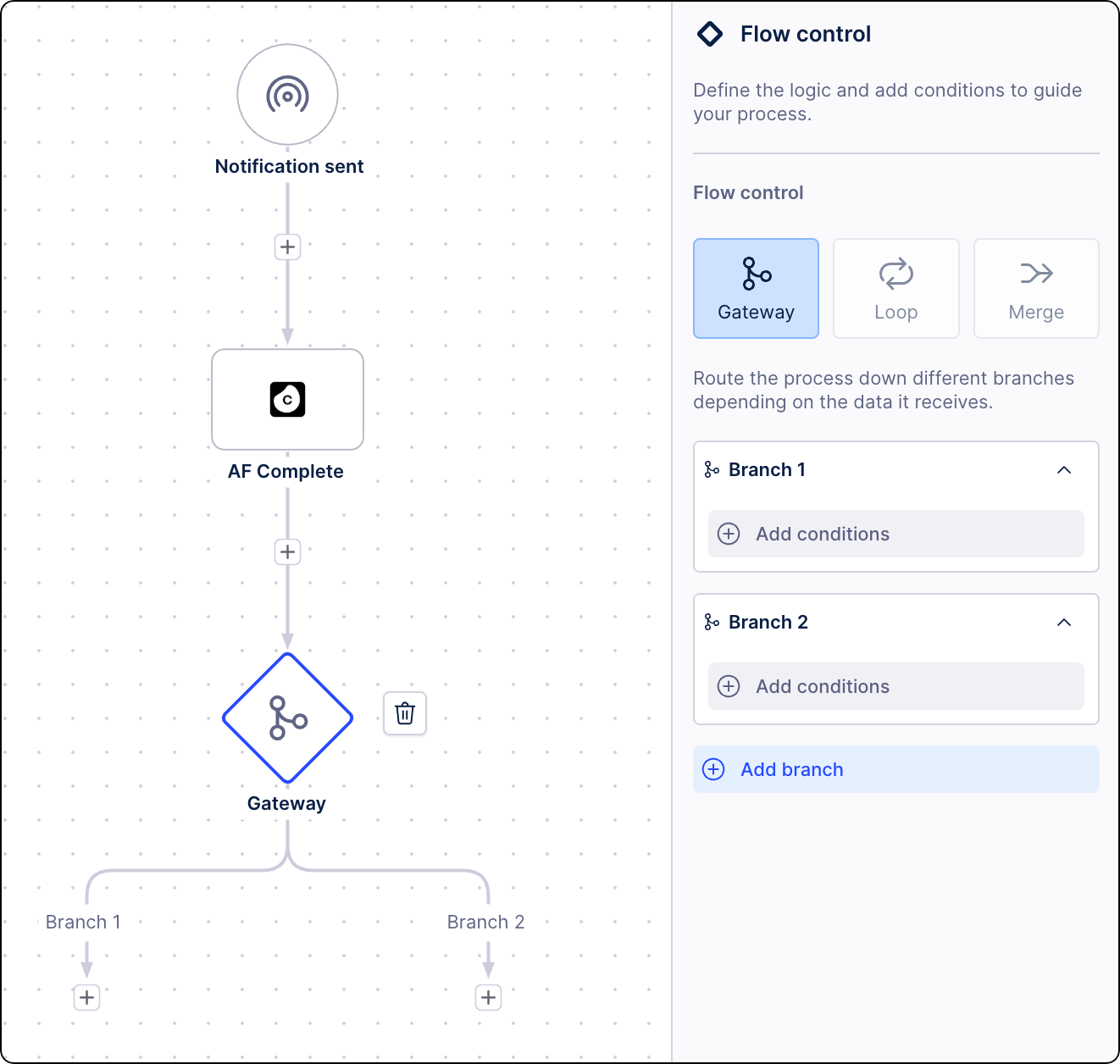
Gateways allow you to define conditions that will guide your process through specific flows depending on the criteria you set. For example, you want to set a purchase order request to different approvers depending on their value; orders below 100USD should go to person A and orders above 100USD to person B. By default, two branches are created for you. You can add more if needed.
From the Flow control panel, select the first branch to define conditions for routing the orchestration through it:
Give your branch a distinct name.
(optional) Decide if you want to make this a fallback branch. A fallback branch is the default branch to use when conditions specified in other branches can’t be met. For example, in the purchase order flow, this could be a branch where invoices with errors, like missing PO numbers, go to.
Note
You can only have one fallback branch in your Process Orchestration.
Define conditions for this branch.
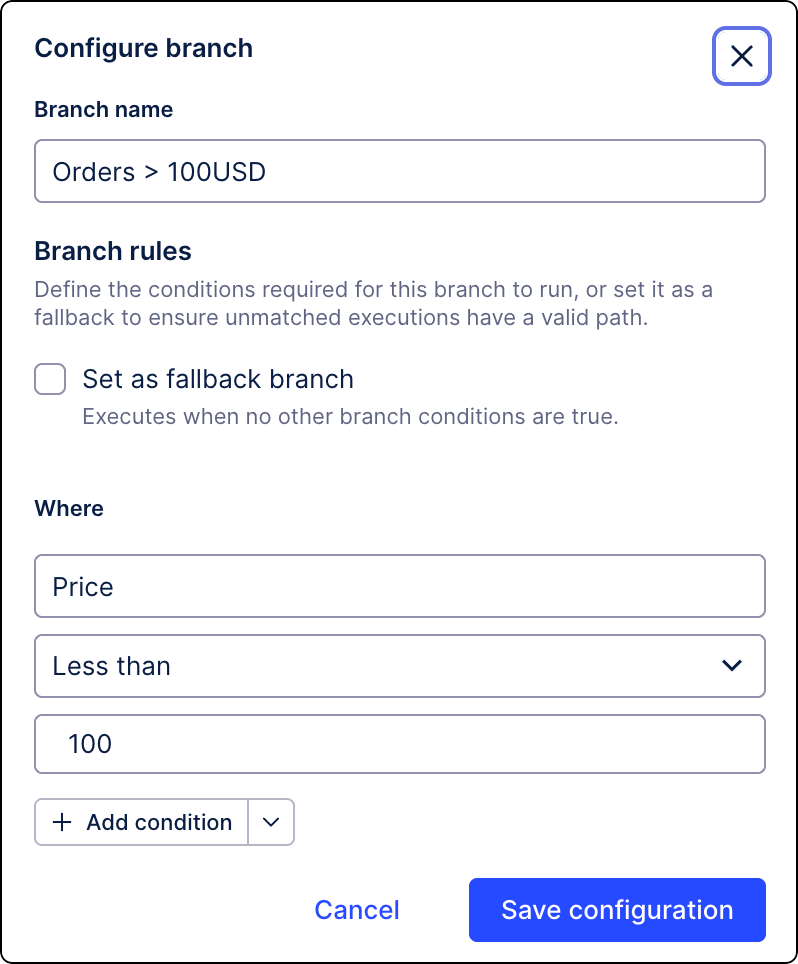
There are a few things to consider before you start creating conditions:
Condition rules for Process Orchestration branches only accept Common Expression Language (CEL) format. Here are some basic rules for creating expressions in CEL. For Celonis-specific examples, see CEL expressions. For more information on CEL, see cel.dev.
Static text must be wrapped in double quotation marks (“ “). For example:
request.payload.status == 'APPROVED'
Values not wrapped in double quotation marks (“ “) are treated as variables.
You use context variables from other steps in this field. When you start defining your condition for the first time, there is no output you can reference. You must start a test run to see the values available for mapping. Alternatively, you can map these values manually using the following:
contextEventPath("event-name:property")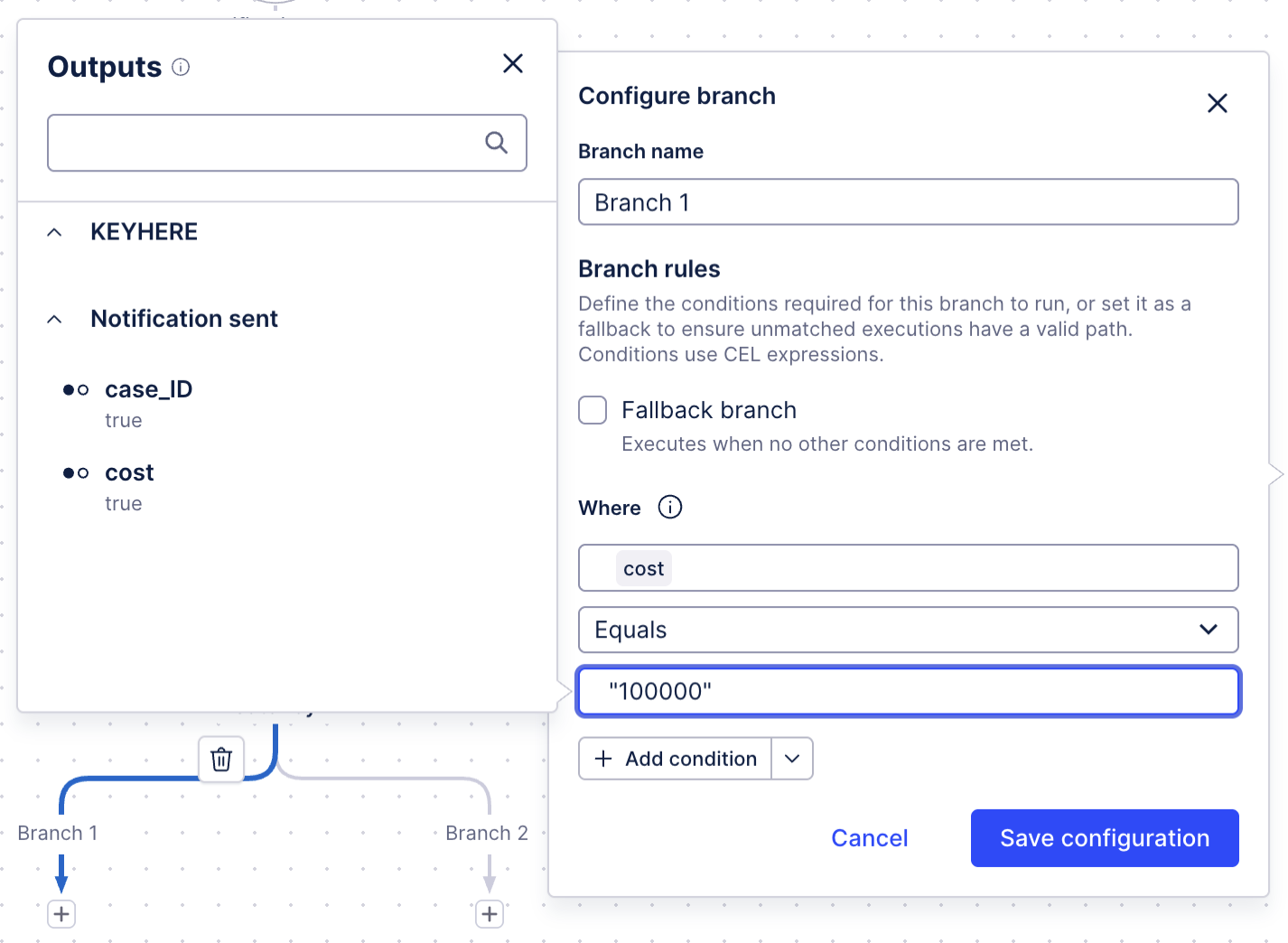
You can use nested conditions.
Configure all remaining branches.
Your conditional branches are configured. You can continue building your orchestration. Depending on your scenario, you can continue building your orchestration with separate branches OR you can decide to merge branches into single flows. To do that, see Merging conditional branches. When you’re done, we recommend testing your setup.
Merging conditional branches allows you to combine two or more flows in your orchestration into a single branch.
Note
You can only merge sibling branches. You can’t merge branches coming from different gateways.
Select the first branch you want to merge. Click the + icon > Flow control.
From the side panel, select Merge.
From the Flow control panel, select Edit merge.
Select the branches you want to merge and click Merge.
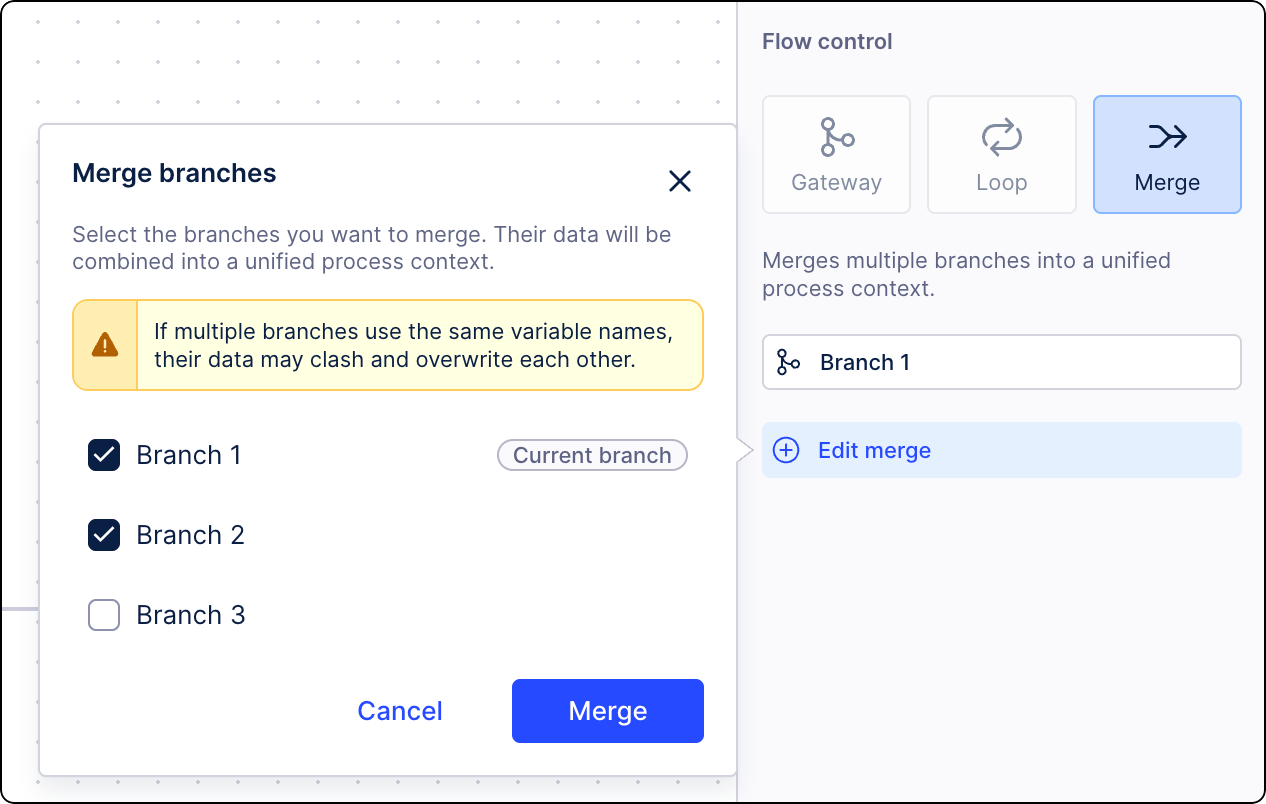
Your conditional branches are now merged. You can continue building orchestration. When you’re done, we recommend testing your setup.
Parallel branching allows multiple process paths to execute simultaneously when their branching conditions are met.
Parallel branches can be forced to run by setting branching conditions on each path that evaluate to true. When a process context splits into parallel paths, each path receives an identical copy of the process context from the output of the previous step.
If parallel branches are listening for the same resume event (such as a form submission), only one branch will receive the event and proceed. The branch that reaches its waiting point first is the one that proceeds. The other branch will remain at its waiting node until a second instance of that event is emitted.
In Process Orchestration, when branches merge, the process context is combined. This might occasionally lead to conflicts. Merge conflicts happen if two events from different branches share the same event key.
In the event of a conflict, the system resolves it by replacing the data with the event key from the rightmost branch. The output of the merge is a single large process context where all events are "stacked" on top of each other.