Quickstart for SAP ECC and Oracle EBS
Extract, model, and load operational data from SAP ECC or Oracle EBS instances into an object-centric process mining (OCPM) data pool. Connecting these source systems standardizes transactional event pipelines into a single data layer, delivering end-to-end process visibility across enterprise ecosystems.
Verify your environment meets the following technical requirements before starting the configuration pipeline:
Admin permissions in the target Celonis team.
An active Celonis Marketplace subscription with installation privileges.
Valid host URL, client credentials, and access tokens for the target SAP ECC or Oracle EBS instances.
Connecting a source system to the Celonis Platform extracts operational data and shares it directly with the destination object-centric data pool.
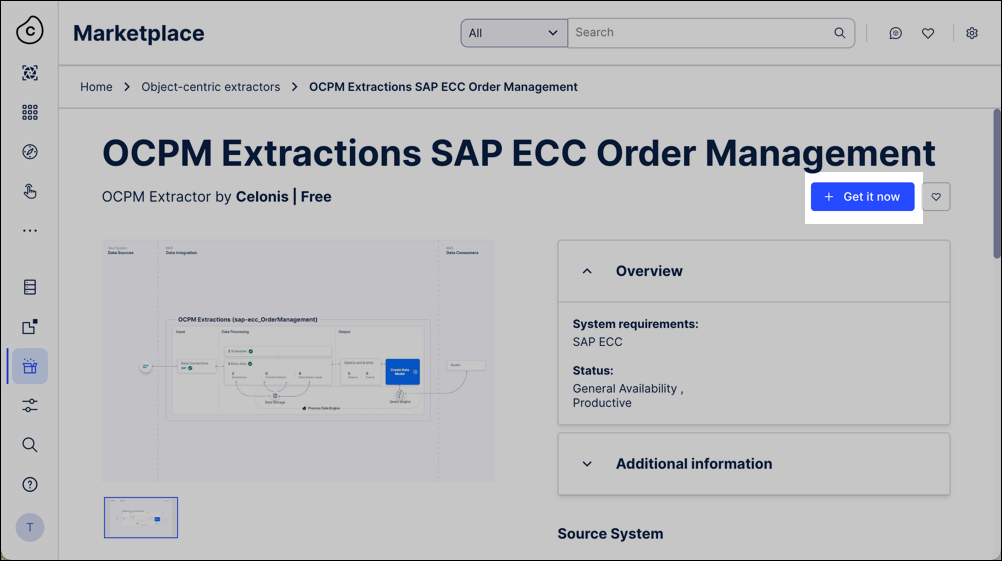
Open the Celonis Marketplace, locate the object-centric extractor for your source system, and click Get it now.
For example, select the OCPM Extractions SAP ECC Order Management component:
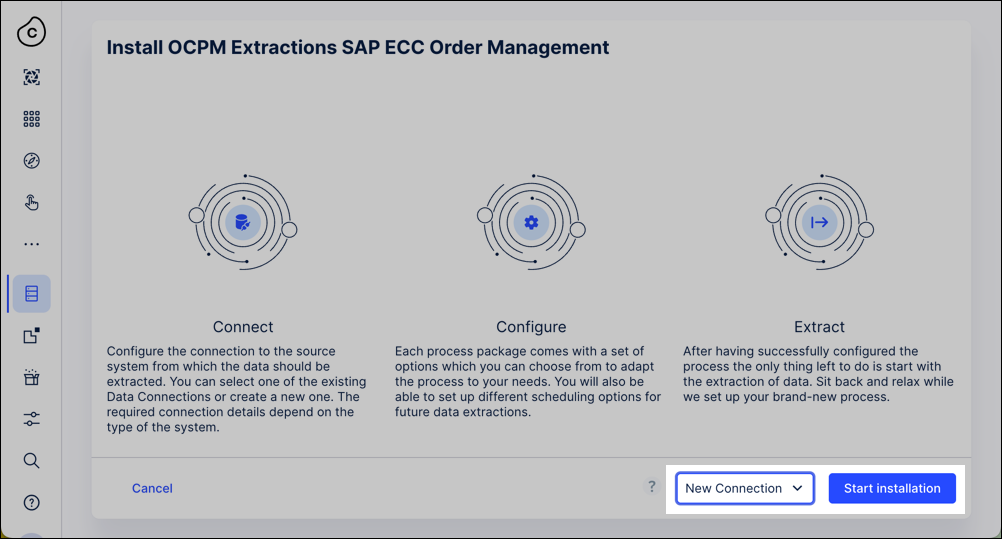
Select your installation mode in the setup wizard and click Start installation to configure the data infrastructure:
With a data connection: The system automatically provisions an extraction data pool, connects to the source system, and populates pre-defined data jobs from the Celonis catalog.
Without a data connection: The system creates an empty OCPM data pool structure requiring manual data connection setup.
For manual SAP ECC setup, see: SAP ECC and S/4 HANA (on-prem + private cloud).
For manual Oracle EBS setup, see: Oracle EBS.
Optional: Click Data Connections - Add Connection to integrate additional source systems for multi-system data configurations.
Click Data Jobs and execute the extraction tasks to pull raw records into the extraction data pool. For core configuration details, see: Executing data jobs.
Share data from the extraction data pool into your active target OCPM data pool:
Click Data - Objects and Events - Dashboards - OCPM Data Pool to initialize the OCPM environment inside your team.

Click Data - Data Integration and choose your target OCPM data pool.
Enabling core catalog processes applies associated object types, event types, relationships, and perspectives to your OCPM data pool.
Click Data - Objects and Events and select your data pool.
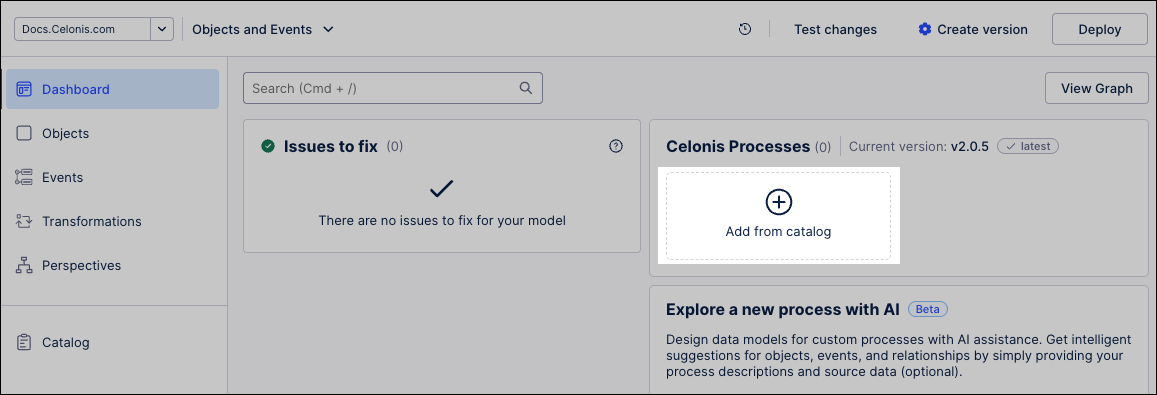
Click + Add from catalog.
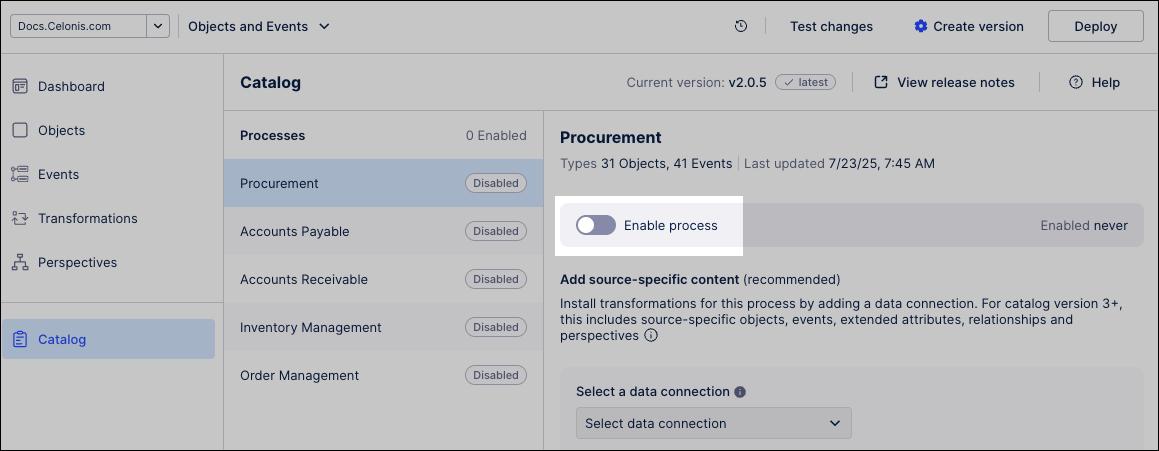
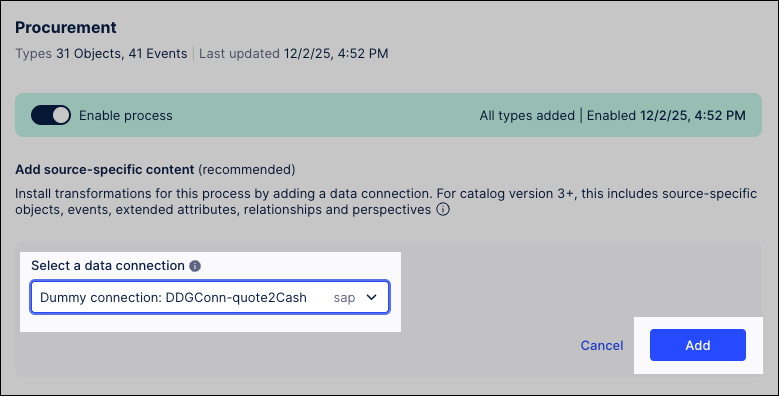
Select the target business process (such as Procurement) and toggle the Enable process slider to the active position.
Select your data connection from the dropdown menu and click Add to apply the corresponding Celonis data transformations.
Important
Enable either SAP ECC or Oracle EBS transformations per process. Do not mix both source system configurations on a single data connection. Create separate data connections for separate source systems.
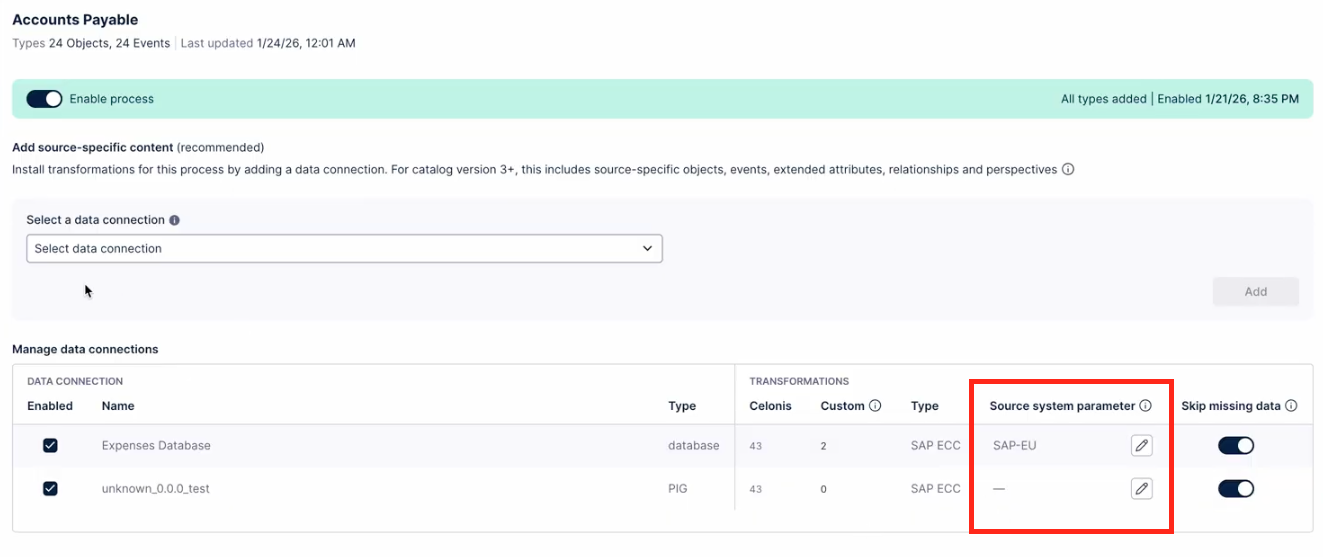
Optional: Select your specific target from the Source system parameter dropdown menu. This configuration applies globally and overrides local parameters inside individual transformations.
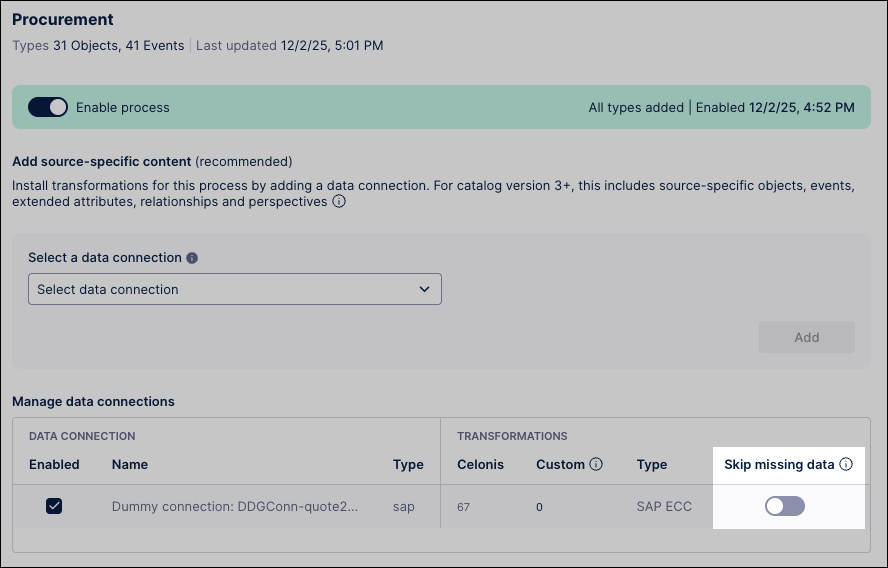
Optional: Toggle the Skip missing data switch to allow transformations to run despite source system structural gaps:
Missing columns: Generates objects and events with null values within missing fields.
Mismatched data types: Automatically parses and casts columns to the expected OCPM schema format.
Click Data - Objects and Events - Create version to generate an immutable snapshot of your data model. For version deployment workflows, see: Versioning and deploying OCDM.
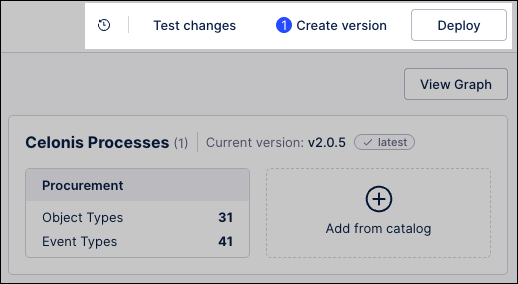
Click Deploy and complete the deployment wizard to push the data model version to production environments.
Execute your pipelines to extract raw source data and convert it into unified event logs inside the Celonis Platform.
Click Data - Data Integration and select your deployed object-centric data pool.
Click Data Jobs to view your active pipelines.
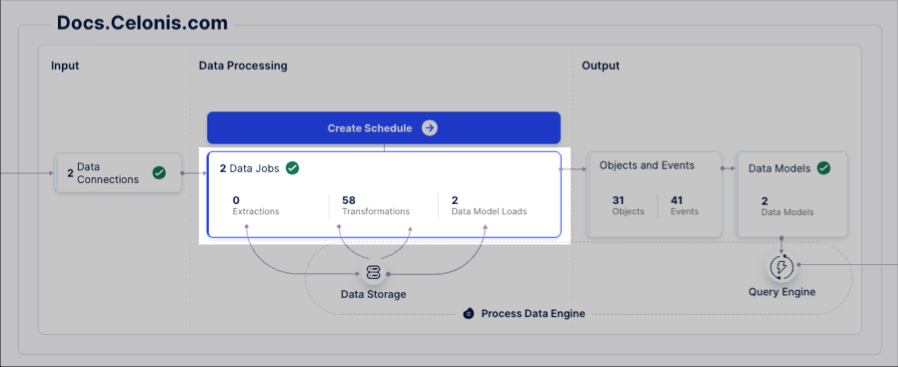
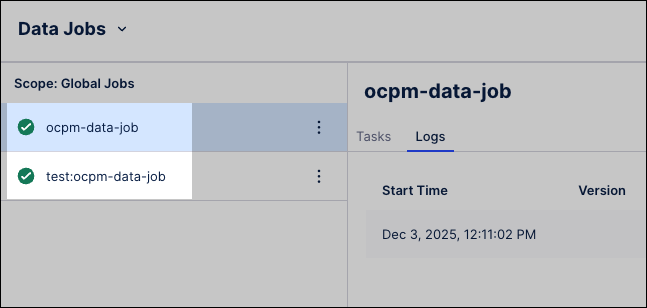
Verify the pipeline options match your target environment:
ocpm-data-job: Contains predefined transformations designated for production workloads.
test: ocpm-data-job: Contains transformations designated for development and testing environments.
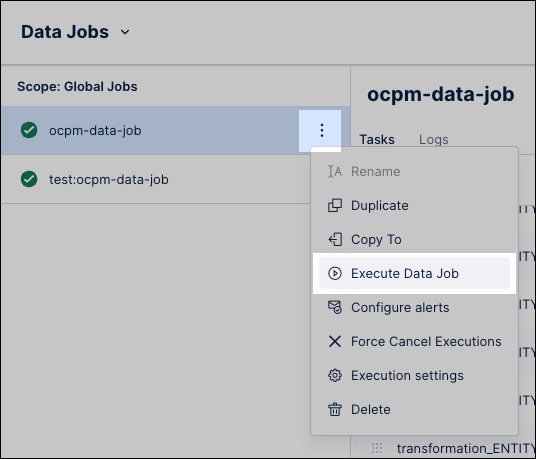
Click Options - Execute Data Jobs next to your target data job. Repeat this action for each active source system connected to the pool.
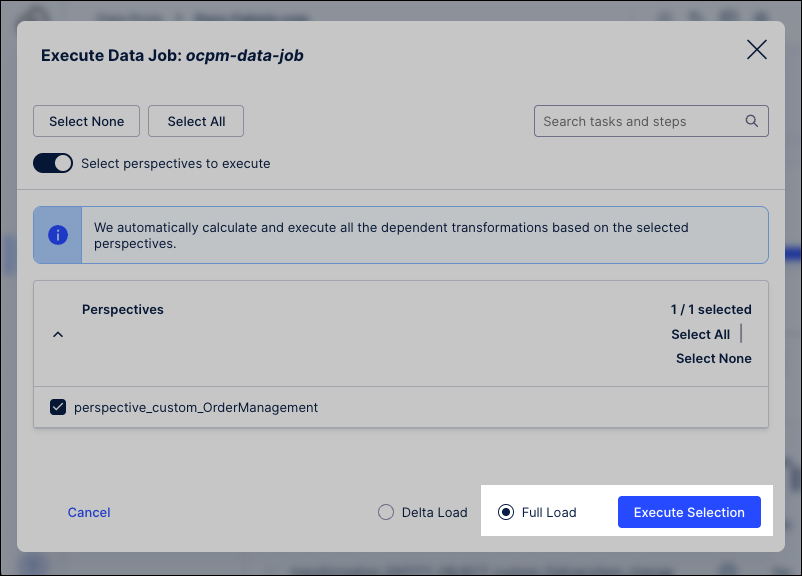
Click Full Load and select Execute Selection to populate your object-centric data model. Monitor the status view to confirm the conversion completes successfully.
Set up a schedule to run your data pipeline regularly. See: Scheduling the execution of data jobs.
When available, apply updates to the object types and event types that you've installed from the Celonis catalog. See: Core process catalog.
Customize and extend the object-centric data model for your business’s specific needs. See: Extending or editing existing objects and events.
Analyze your business processes using the objects and events you’ve built. See: Views.