Adding timer events to Process Orchestration
Time events serve as a flexible mechanism to schedule and control executions of Process Orchestration. They support a variety of trigger configurations to manage diverse timing and scheduling requirements. Timer events can work both as starting triggers, when they initialize a Process Orchestration, and as the wake-up triggers placed between process steps.
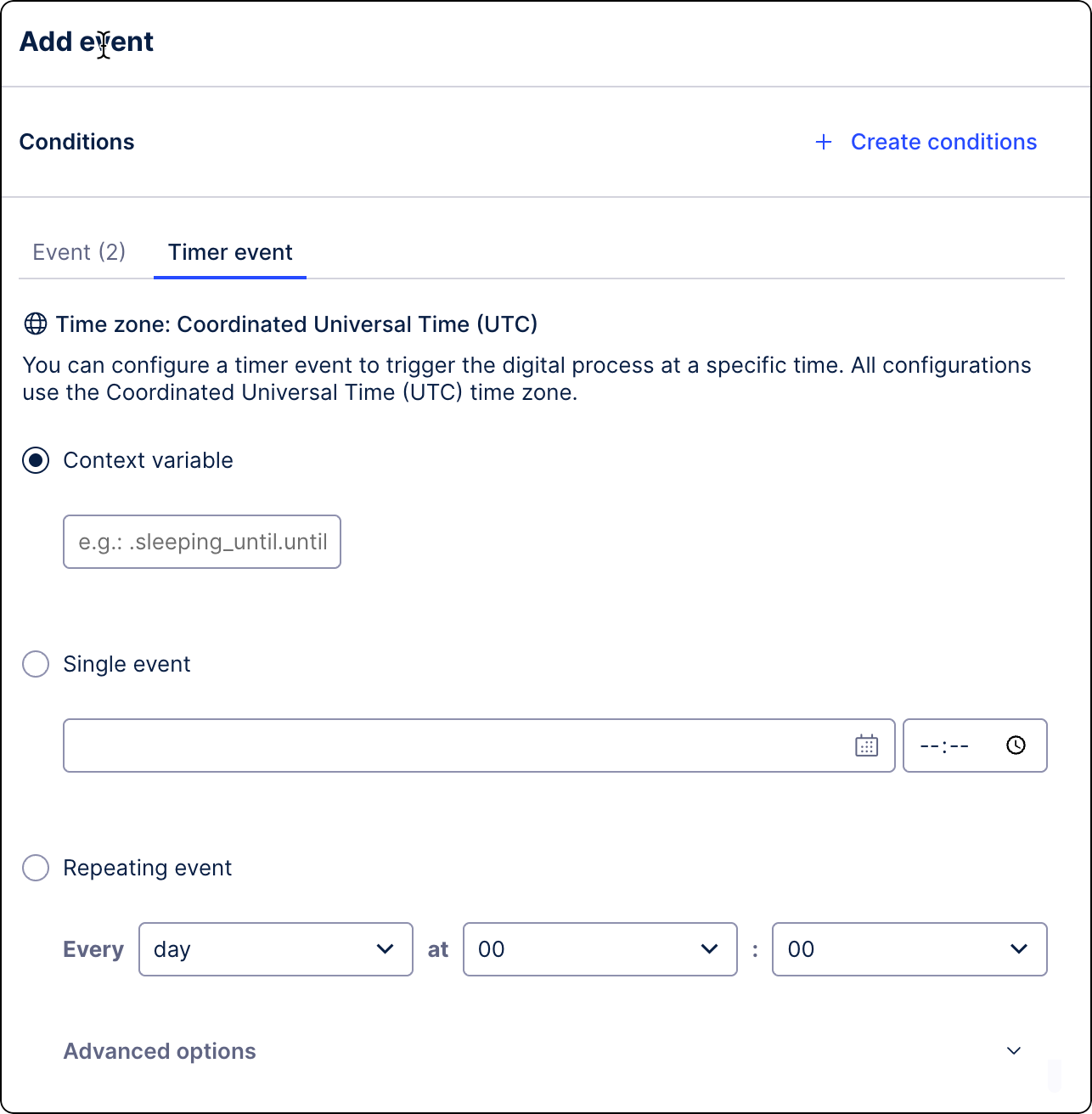
In Studio, go to your package and select Process Orchestration. If you haven't created any Process Orchestration yet, see Creating Process Orchestration.
Under a process step, click the plus icon and select Resume process.
(optional) Define specific conditions for running this step. Click Create conditions. For more information, see Conditional Process Orchestration run.
Go to the Timer event tab.
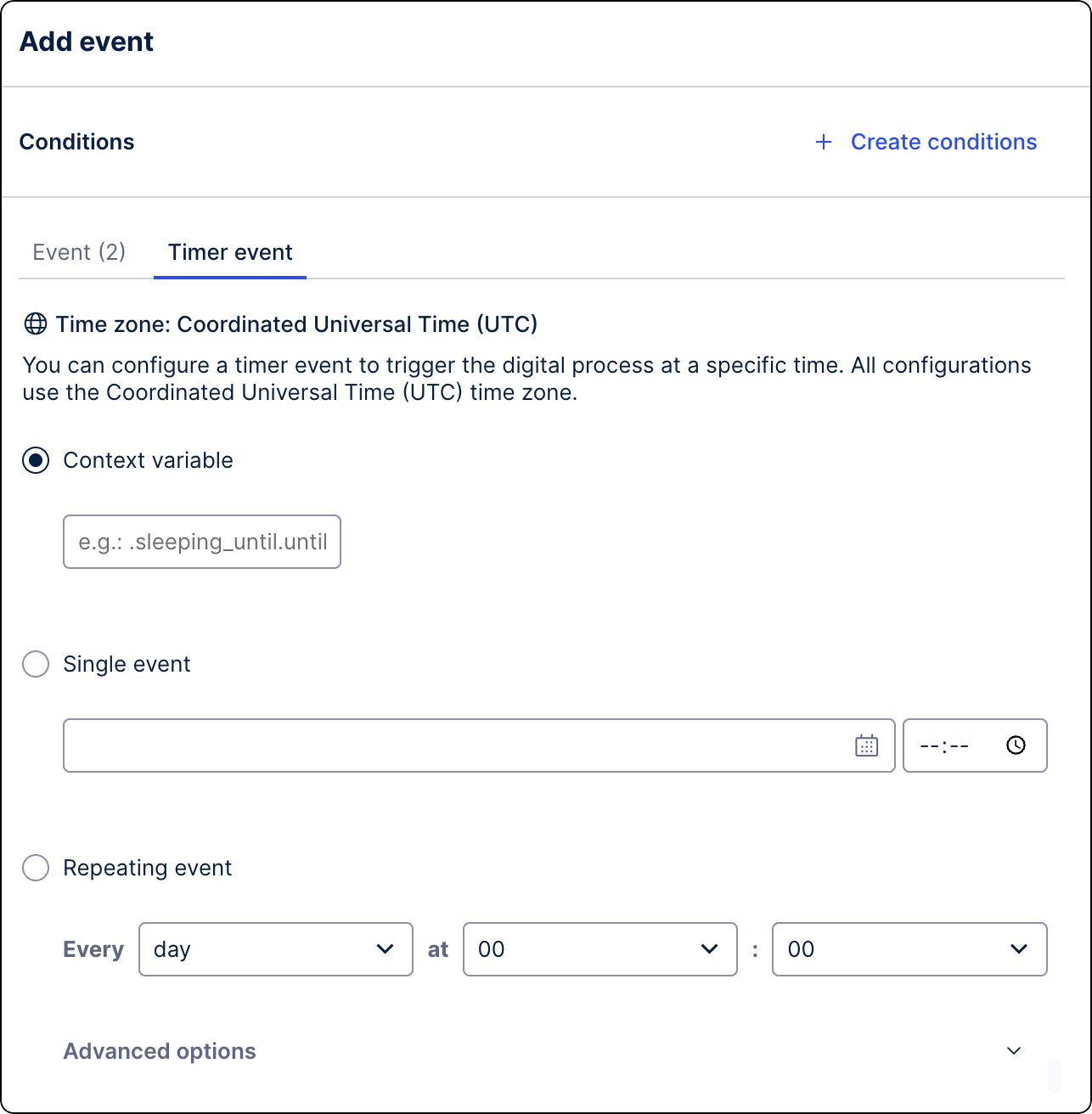
Select how you want the process to be resumed:
Using context variable
Use the variable stored in the Action Flow Process Context as information about when your Process Orchestration should be resumed.
The variable must be configured in the following format:
.sleeping_until.until
where the wake-up trigger is the
untilproperty in the.sleeping_until event.One time only
Select the date and time when the event should be resumed.
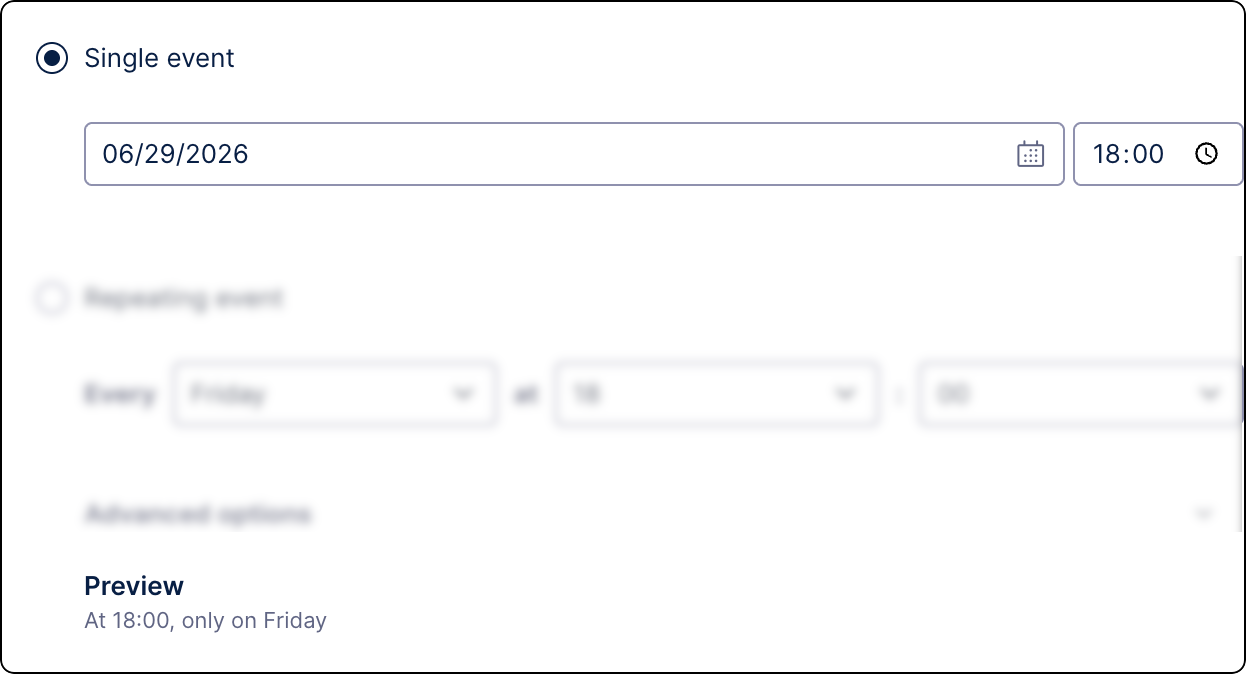
On a repeating schedule
Define recurring schedules using precise timing rules, such as every Tuesday, every 30 minutes or every month at a specified time.