Translation service
The translation service allows localization of content for different languages. It is enabled for all customers by default. It can be configured to use either Microsoft Azure Translation Service or DeepL. Celonis can provide access to these services, or customers may use their own licenses. No other translation services are supported.
Before you begin, ensure you have completed the following steps or meet the requirements listed below:
An administrator must have already set up languages in the database
To access the translation service:
Navigate to a model of your choice.
On the right side you will see the Detail Content, it is used to provide detailed information for the selected elements, including name and descriptions.
At the top of the Detail Content you can click “Translate” to translate the attribute values.
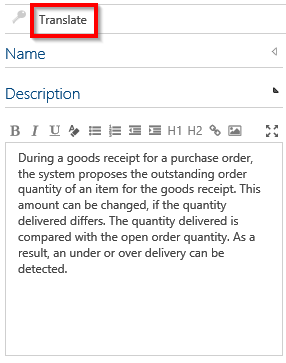
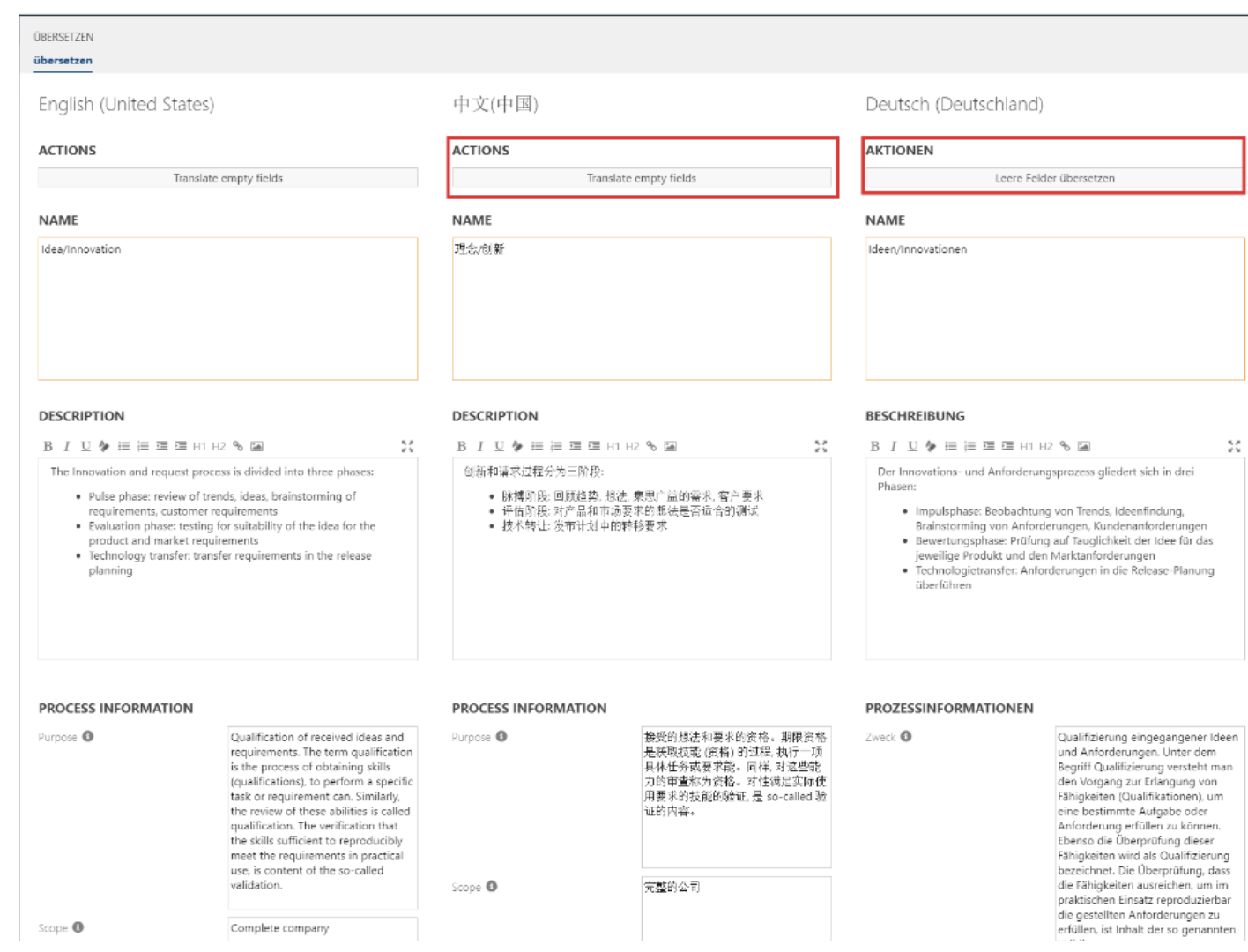
It opens a window. On the left side you will see the primary language, followed by secondary languages.
Using the “Translate empty fields” button will make use of the provided translation in the primary language and automatically translate and apply translations to the secondary languages.
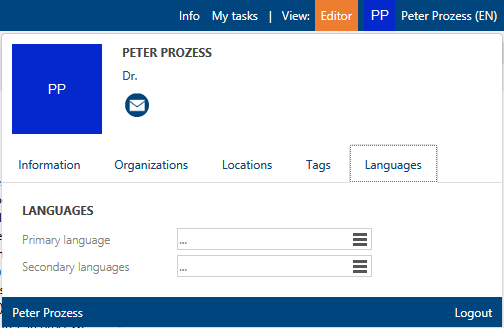
The available languages can then be selected in the user’s user dropdown/settings.