Configure dimensions
The app allows the flexibility of showing the value realized data by dimensional drill downs. The dimensions are listed in the filter bars.
By default, there are three dimensions provided - Country, City and Company Code. These are example dimensions and can be changed to be the ones you picked as attributes from the ‘Drilldown’ option in KPI Snapshots. In order to configure the dimension names, please follow the steps below:
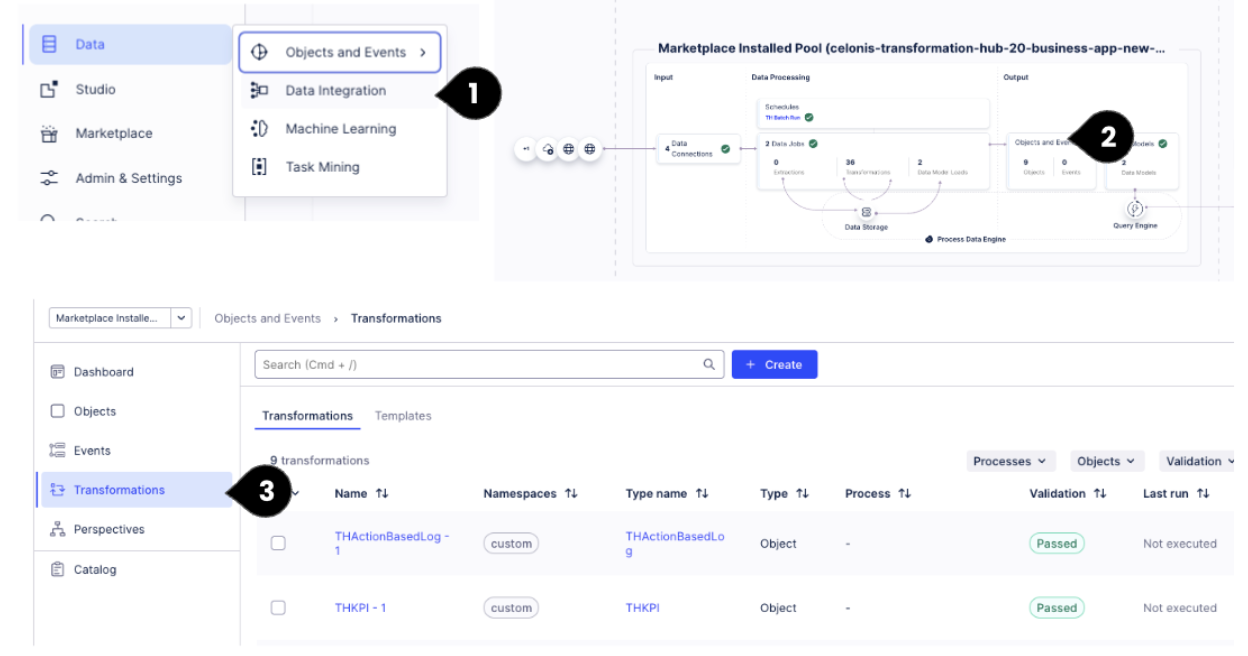
Go to ‘Data Integration’(1), access ‘Objects and Events’ (2) and select ‘Transformations’ (3).
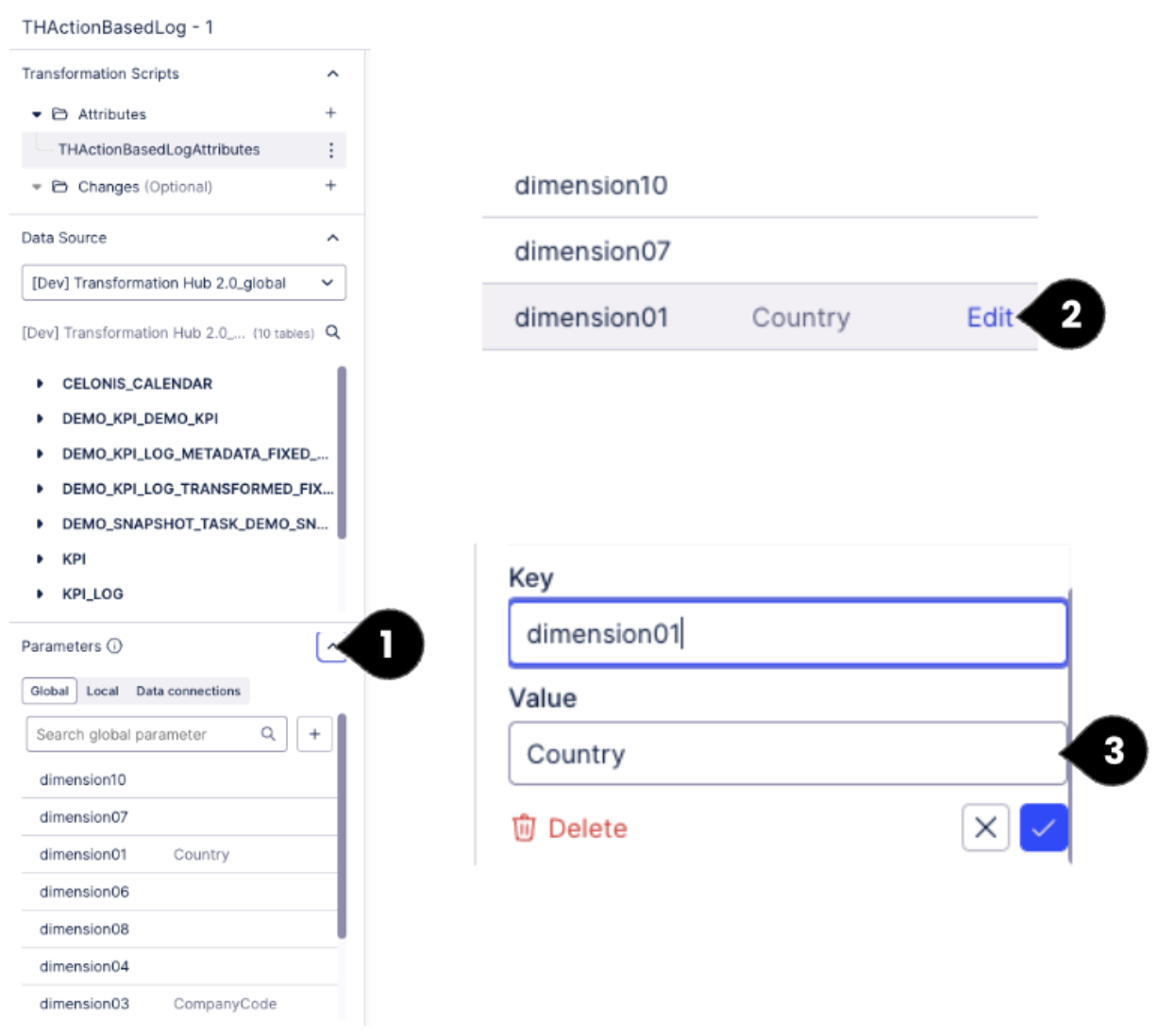
Click on any transformation. Go to the Parameters section in the bottom left (1). Expand the Parameters, click on Edit against the dimensions (2). Provide the name of the dimensional attribute that you picked from the KPI Snapshots in the ‘Value field’ and click the save option(3). Please do not change the key.
Once all the changes have been done, run the data job again to see the values of dimension names reflected in the filter bars.