Setting up remaining object transformations in OCDM
Access data integration and go to the OCDM pool related to the package.
Access the Transformation from THActionBasedLog - 1
Replace the Join mapping in line 4 as follows:
Existing mapping: "${{JmTAcx_THWriteback}}"."OpportunityMapping"
Replacement: <%=DATASOURCE:TH_WRITEBACK%>."OpportunityMapping"
Similarly, replace the Join mapping in line 17 as follows:
Existing mapping: "${{JmTAcx_THWriteback}}"."KPIMapping"
Replacement: <%=DATASOURCE:TH_WRITEBACK%>."KPIMapping"
Select the Data Source as KPI Logging - Combined Data Pool and Save with Validation.
Access the Transformation from THRateBasedLog - 1
Replace the Join mapping in lines 4 as follows:
Existing mapping: "${{JmTAcx_THWriteback}}"."OpportunityMapping"
Replacement: <%=DATASOURCE:TH_WRITEBACK%>."OpportunityMapping"
Similarly, replace the Join mapping in line 13 as follows:
Existing mapping: "${{JmTAcx_THWriteback}}"."KPIMapping"
Replacement: <%=DATASOURCE:TH_WRITEBACK%>."KPIMapping"
Select the Data Source as KPI Logging - Combined Data Pool and Save with Validation.
Access the Transformation from THNonMonetaryLog - 1
Replace the Join mapping in lines 4 as follows:
Existing mapping: "${{JmTAcx_THWriteback}}"."OpportunityMapping"
Replacement: <%=DATASOURCE:TH_WRITEBACK%>."OpportunityMapping"
Similarly, replace the Join mapping in line 17 as follows:
Existing mapping: "${{JmTAcx_THWriteback}}"."KPIMapping"
Replacement: <%=DATASOURCE:TH_WRITEBACK%>."KPIMapping"
Select the Data Source as KPI Logging - Combined Data Pool and Save with Validation.
Access the Transformation for THOpportunities - 1
Replace the Join mapping in line 8 as follows:
Existing mapping: "${{JmTAcx_THWriteback}}"."OpportunityMapping"
Replacement: <%=DATASOURCE:TH_WRITEBACK%>."OpportunityMapping"
Select the Data Source as KPI Logging - Combined Data Pool and Save with Validation.
Access the Transformation for THLogEntry - 1
Select the Data Source as OCDM Schema and Save with Validation.
Select the following data connections for the remaining objects.
Once you have selected the right data connections, you should be able to view the KPI Logging Combined Data Pool as the data source for all the objects except THLogEntry, which should be blank.
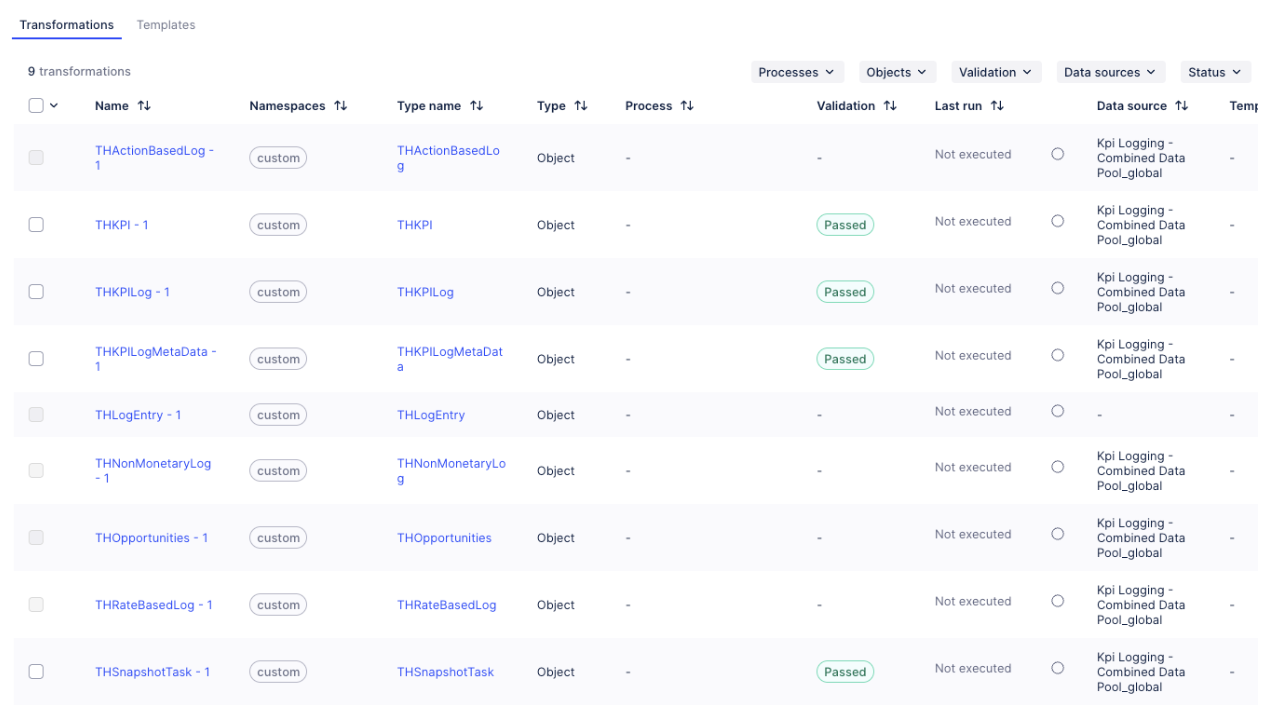
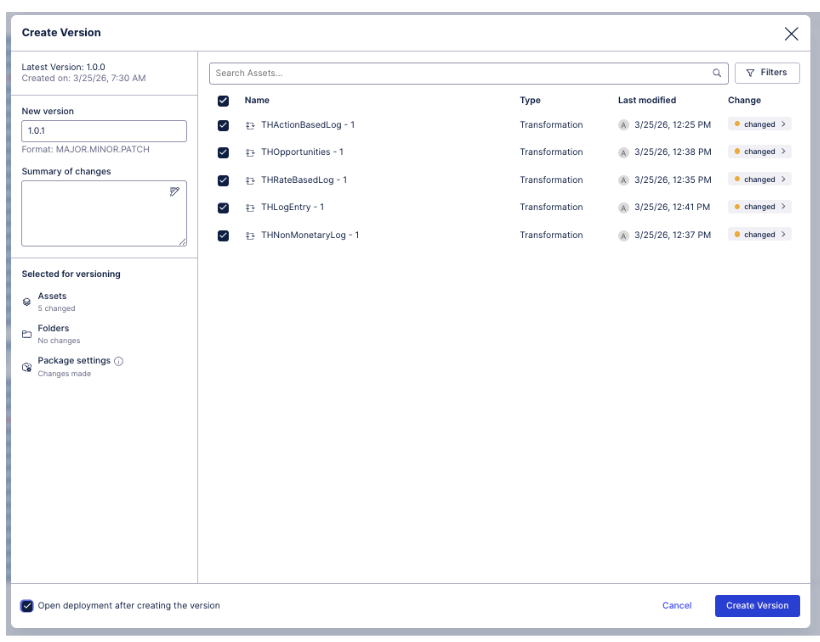
Ensure to enable all the transformations and create a version and deploy OCDM to development.
Access the Data Jobs, and execute the data job (all transformations, full load).