Passing data from Views to Action Flows
You can pass dynamic data from a Studio View to an Action Flow using a URL-triggered webhook. This configuration enables a View component, like a button, to trigger an Action Flow that instantly receives contextual data, such as the current user's name or a unique record ID
We will present this process using an example that focuses on passing the current user's name using a PQL query, the same methodology applies to any scenario requiring context-specific data transmission to an Action Flow.
First, you must create the Webhook module in your Action Flow.
In Studio, go to your package and click New asset > Action Flow.
Click Add module and from the list select Custom Webhook.
Add new webhook:
Next to the Webhook dropdown, click Add.
Give your webhook a name and click Save.
Select Copy address to clipboard.
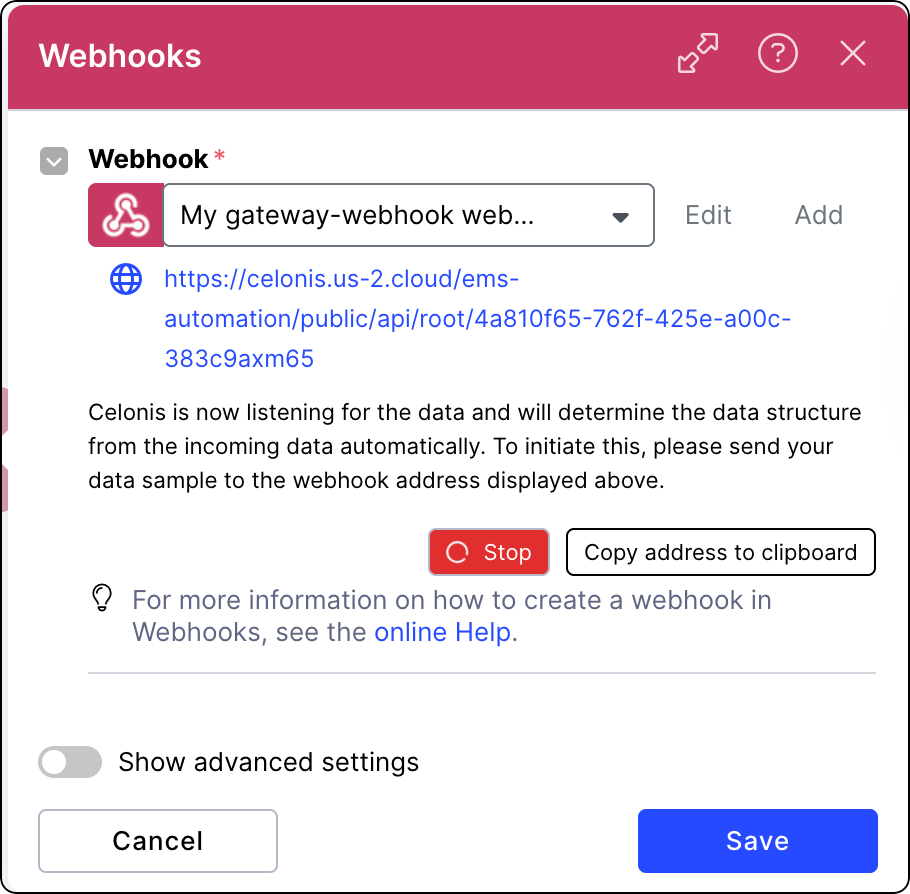
In a new browser tab, paste the copied URL and append the following to it:
?user_name=test-user
For example:
https://celonis.us-2.cloud/ems-automation/public/api/root/4a810f65-762f-425e-a00c-383c9axm65?user_name=test-user
Press Enter.
The browser sends an HTTP GET request to that URL. Celonis intercepts this request and should respond with Accepted. This allows the Action Flow to "listen" to an incoming request and automatically detect the keys/data structure being sent.
In your Action Flow, click the lightning bolt icon and set the scheduling to Immediately.
Click Save.
Version and deploy the package your module is in. See Versioning and deploying packages
Once the Webhook Action Flow module is configured, you can start preparing a Studio component you want to use to pass on data to your Action Flow.
In your Studio View, add a button component. See Buttons.
In button settings, go to Interactions and enable Go to view or URL.
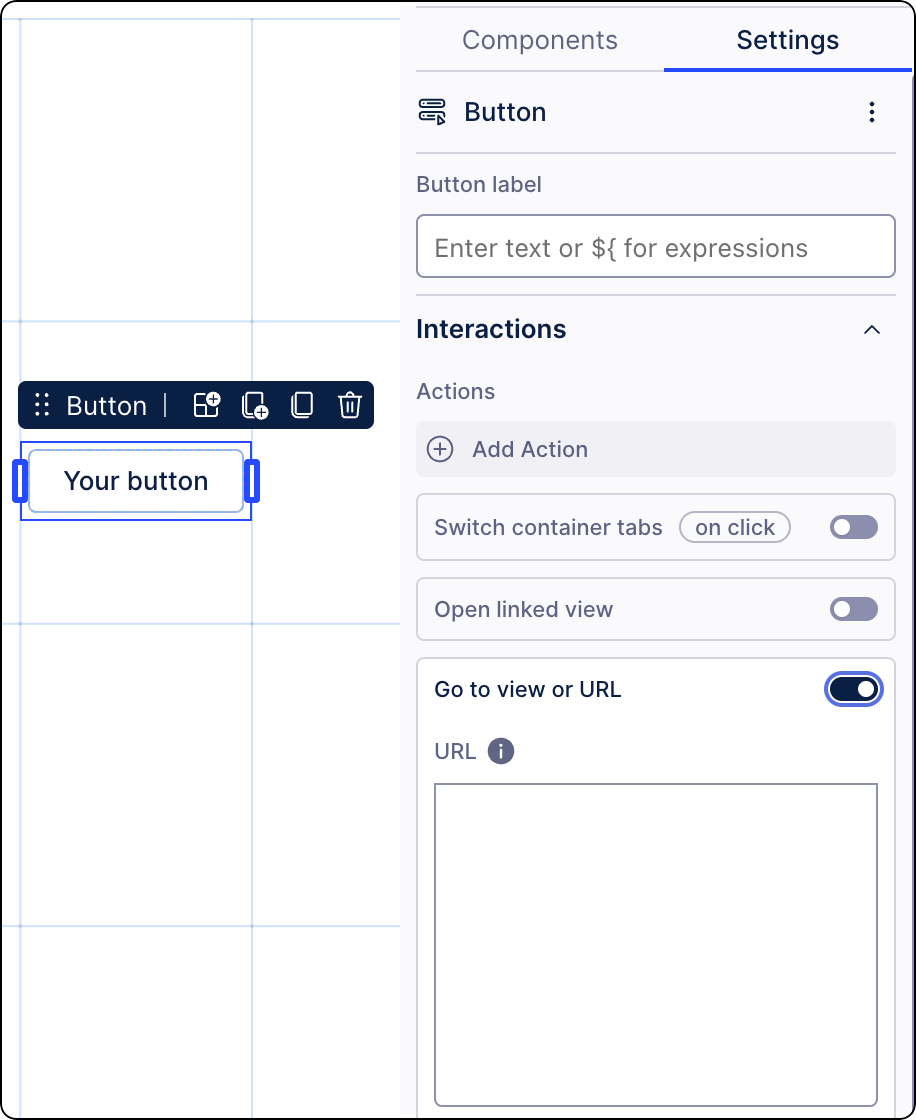
Click the URL field.
Enter the placeholder name, for example username.
Click Add Placeholder.
In the PQL editor, enter
USER_NAME()and select Done.Paste your Webhook URL and click Save.
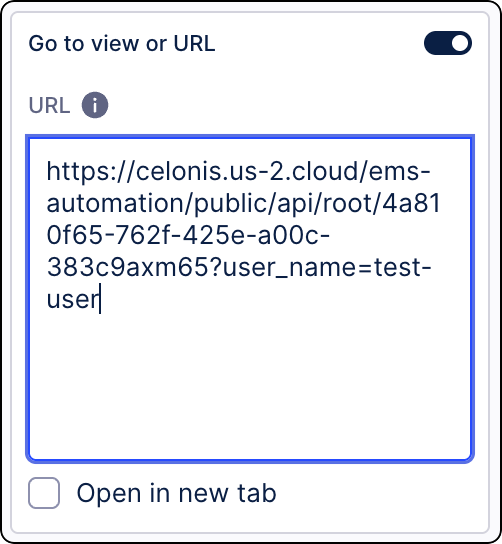
Save your changes and version and deploy the package your view is in. See Versioning and deploying packages.
Clicking the button will now send a request to your Action Flow's Webhook URL, with the current user's name appended as the user_name parameter.