Versioning and deploying object-centric data models
This feature is currently available as a Public Preview only
During a Public Preview, only eligible customers can access this feature. Additionally, there may be minor updates to the functionality and design of these features when they are released in General Availability.
If you would like to use this feature, create a Support ticket at Celonis Support.
For more information about our Public Preview releases, including the level of Support offered with them, see: Feature release types.
You can create and deploy numbered versions of your object-centric data models using built-in versioning and deployment tools. These tools let you test and deploy versions across development and production data pools, and easily review or roll back to previous versions when needed.
The same versioning and deployment workflow is available in Studio, offering consistent benefits when creating and managing Studio packages and assets. See: Versioning and deploying packages
The benefits of versioning data pools
Creating and managing multiple versions of object-centric data models in the Celonis Platform provides significant benefits, particularly around governance, reliability, and iterative development. These benefits include:
Safe development without impacting production: Teams can build and test data model updates in separate versions, ensuring that content using the latest versions in production remain stable.
Controlled release and governance: Using versions can support a draft, development, test, and production workflow with clear promotion and approval steps.
Rollback and version safety: Previous versions remain available, enabling fast recovery if new changes cause issues.
Parallel feature development: Multiple teams can work on enhancements simultaneously without overwriting each other’s work.
Example of object-centric data model versions
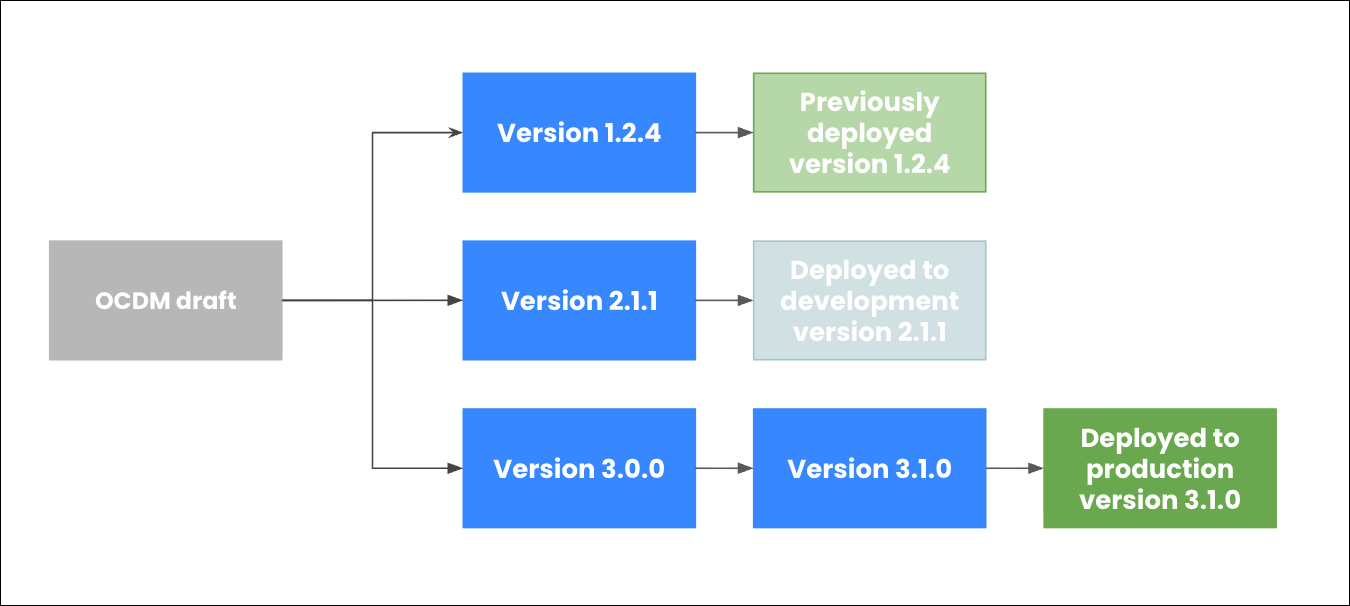
In this example diagram, you can see multiple versions of an object-centric data model have been created:
Version 1.2.4: Previously deployed to production, now superseded by version 3.1.0.
Version 2.1.1: Deployed to a development environment for testing.
Version 3.1.0: Upgraded from version 3.0.0 and then deployed to production, replacing the previously deployed 1.2.4. This is the latest version.
 |
You can create an object-centric data model (OCDM) version from the Objects & Events dashboard, generating a timestamped snapshot of its assets and settings. Versions can be reloaded for further editing and deployed to development or production. Creating a version doesn’t directly deploy anything to end-users, it provides a safe, documented, and shareable package of your content.
To create an OCDM version from your dashboard:
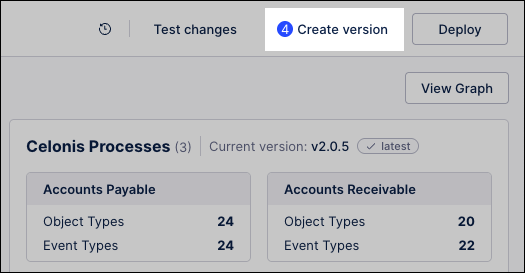
Click Create version, opening the versioning window.
The indicator shows the number of updated assets since the last version was created.
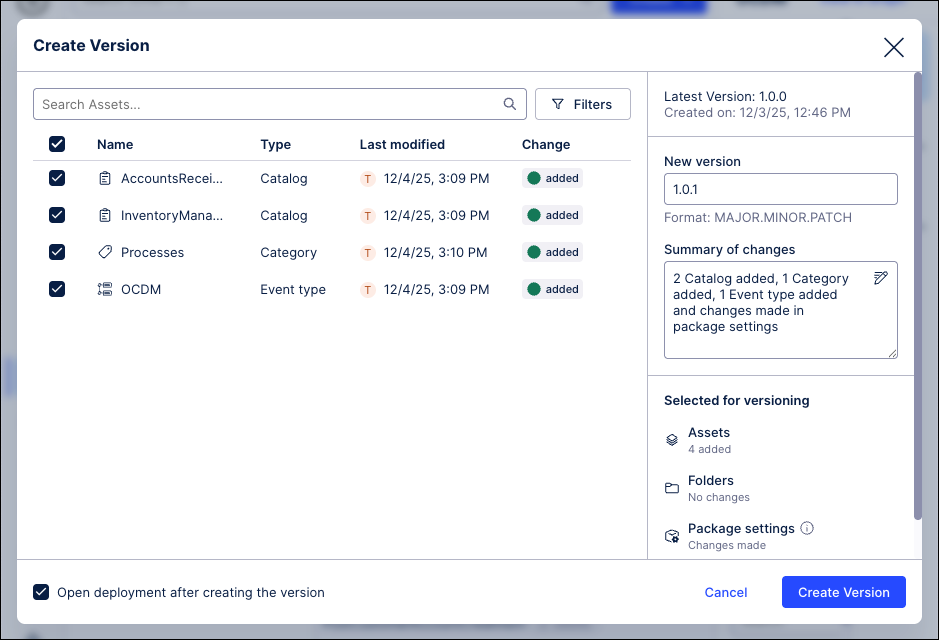
Configuring your version using the following features:
Include / exclude package assets: Manually select and deselect package asset states to include in this version, with plain text search and configurable filters available for more complex packages.
Version number format: Enter a version number, an internal reference for the package. We recommend using the format: MAJOR.MINOR.PATCH (e.g 1.0.0). See: .
Summary of changes: Add a summary of changes for the version for future reference, including an AI based summary generator if required. Best practice is to add a meaningful description. This helps your team understand what's included in this version without having to look at every single asset.
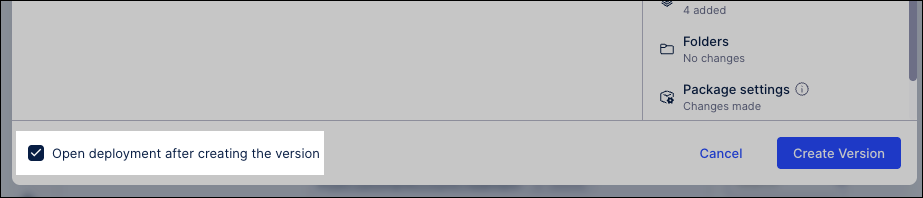
Open deployment after creating the version: If selected, the deployment phase opens after the version is created.
Click Create Version.
The OCDM version is created and available in the Package History area:
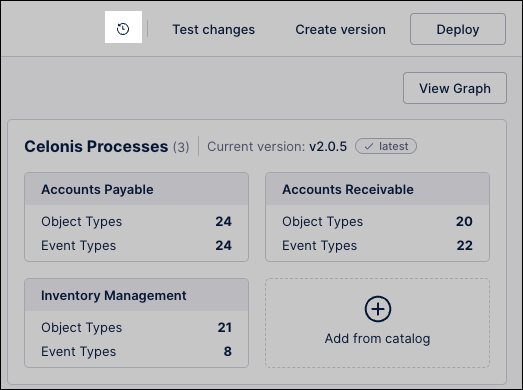
Optional: If you have selected to open deployment after creating this version, continue to the steps provided in
Data model version status
When creating, editing, or viewing data model versions, the following status are available:
Draft: This data model is currently being edited and the changes made are not yet visible to end-users. OCDM are considered as draft before they are first deployed and also when subsequently creating a new version of a deployed OCDM.
Version: This is a numbered and timestamped copy of the OCDM at the time it was created. Versions can be viewed, edited into new versions, compared to other versions, and then deployed.
Deployed version: This is a version of the OCDM that has been deployed to a production data pool, making it usable in other areas of the Celonis Platform.
Data model version number format
For the version number format, we recommend using: MAJOR.MINOR.PATCH (e.g 1.0.0)
Major: A complete update or shift in the current view. These changes would greatly affect your end-users if no communication was given in advance.
Minor: Tweaks in the objects and events that won’t necessarily require communication or messaging to your end-users. Examples include editing an object and adding a custom event.
Patch: Very small changes that may go unnoticed to your end-users. Examples include an update to the calculation of an event or changes in titles.
For example: 4.3.5 would be the 4th major version, the 3rd minor release of that version, and the fifth patch of that release.
After creating an OCDM version, you can then start the deployment process for both the development and production environments. You can start the data model deployment process in four ways:
Choose from one of the following options:
As part of the versioning workflow: When creating a version, you can select Open deployment after creating the version. This opens the deployment window after the version is created.
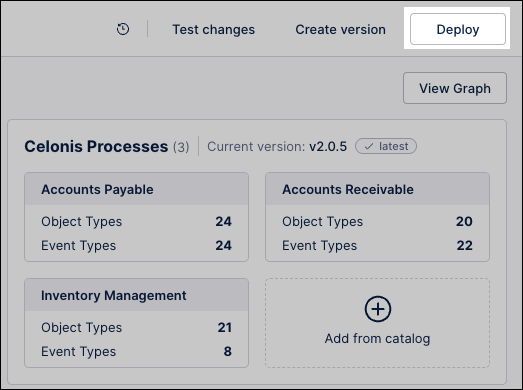
From the Objects & Events menu: While viewing any page, click Deploy:
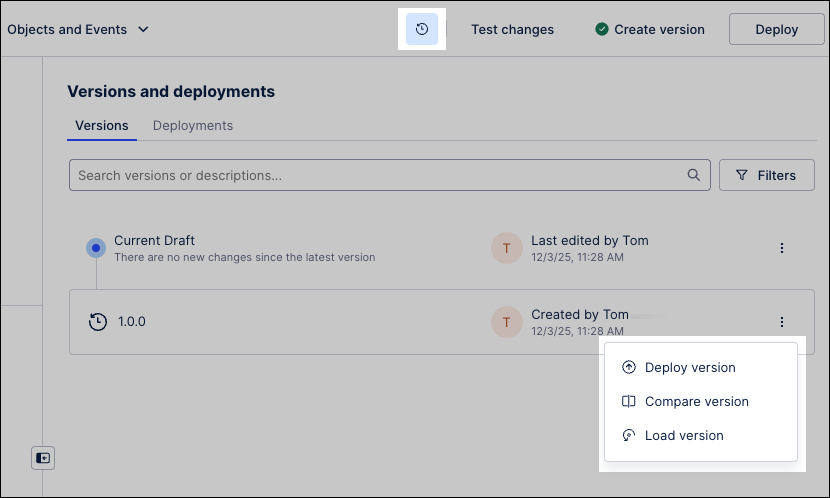
From the Package History area: When viewing any page, click Package History and then Options - Deploy version on the package version you want to deploy:
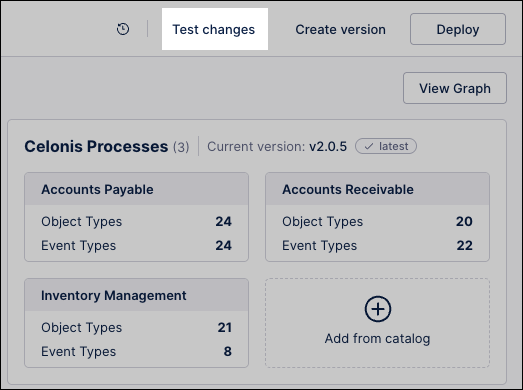
Draft version only - Test changes: To deploy the current draft version to the development area and run the test data jobs, click Test changes:
With the deployment window option, select from:
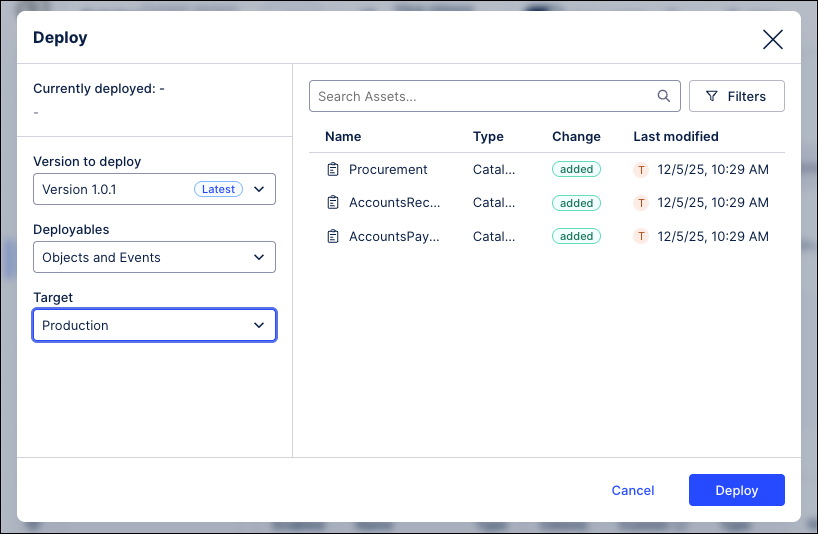
Version to deploy: Choose the numbered version to deploy.
Deployables: Choose whether to deploy the object-centric data model version or the Studio assets that use that data model.
Target: Choose from development and production environments.
Click Deploy.
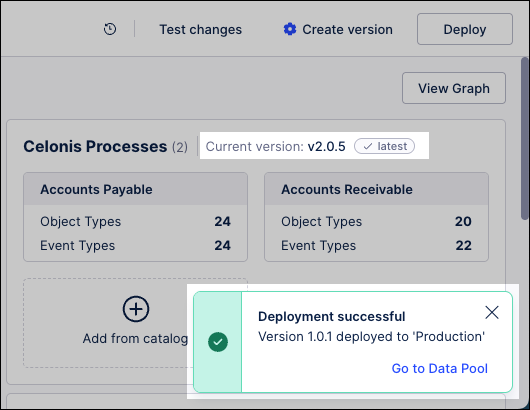
The deployment process starts, with the status displayed in a pop-up.
Once successfully deployed, click Go to Data Pool to see the latest version.
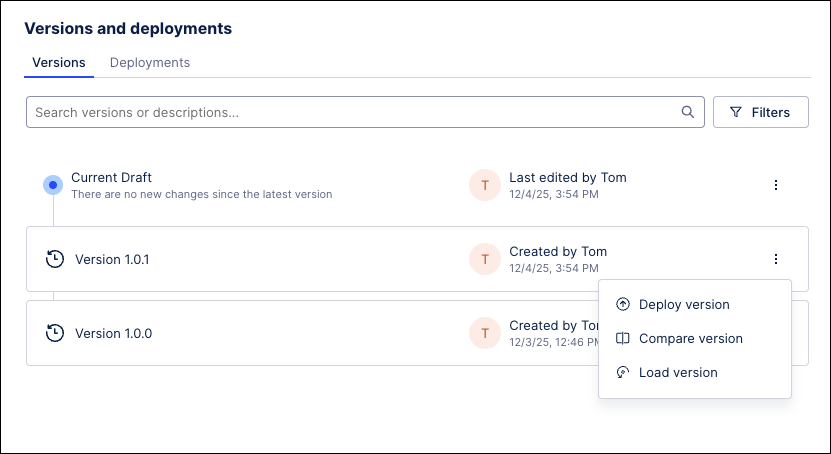
You can manage existing OCDM versions and deployments by clicking Package History:
In the Package History area, you then have the following management options:
Versions: Each version has the following options:
Deploy version: Make this version of the data model available to end-users in the data pool. See:
Compare version: Run a 1:1 comparison between available versions of this data model, showing you the differences between them.
Load version: Open a draft version of this data model, giving you the ability to make changes from the timestamped version you've selected.
Deployments: Each deployed package has the following options:
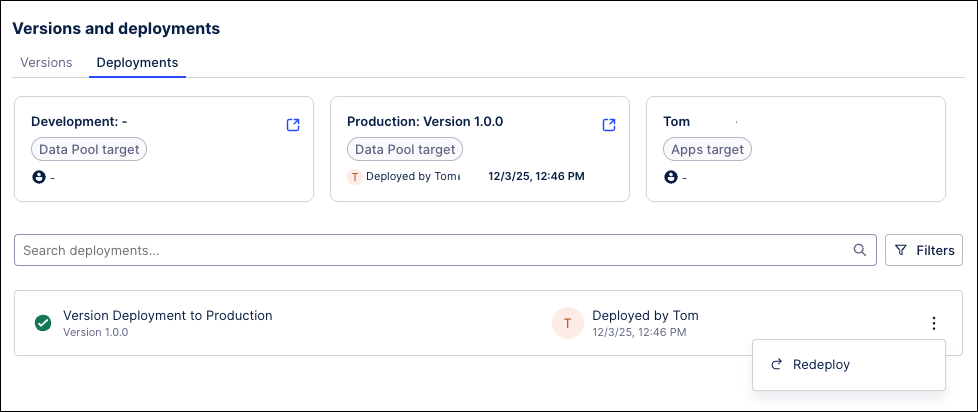
Re-deploy version: Choose a previously deployed version of the package to re-deploy to production. This feature is useful when you have incorrectly deployed a version or want to fall back to a previous one.
Open deployed version in Development / Production / Apps: Click Go to deployed target to open the deployed version of this OCDM.