Technical connection for View reports
This feature is currently available as a Private Preview only
During a Private Preview, only customers who have agreed to our Private Preview usage agreements can access this feature. Additionally, the features documented here are subject to change and / or cancellation, so they may not be available to all users in future.
For more information about our Private Preview releases, including the level of Support offered with them, see: Feature release types.
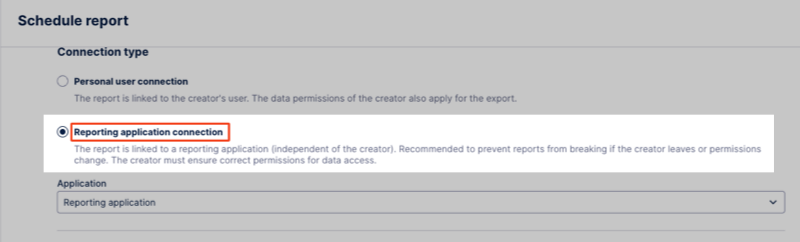
A technical connection allows you to link a report or report trigger to a team account instead of an individual user in the Celonis Platform. By assigning View permissions to this connection, the report or trigger remains accessible and active even if the original creator leaves the team or loses Celonis Platform access.
To configure a View report, see: View Reports.
Before you begin
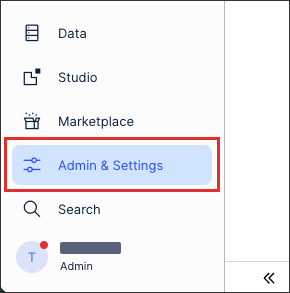
To configure a technical connection you need Admin access to your Celonis Platform team, giving you access to the Admin & Settings area of the platform:
Configuring a technical connection for View reports
With Admin access to the Celonis Platform team, create a technical connection by following these steps:
Click Admin & Settings.
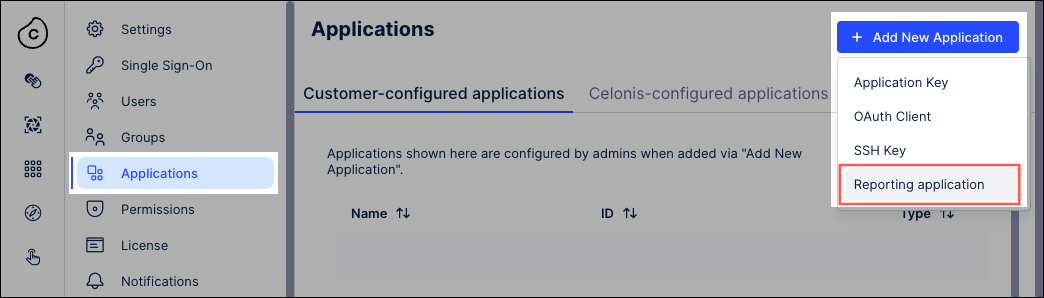
Click Applications.
Click + New Application and select Reporting application.
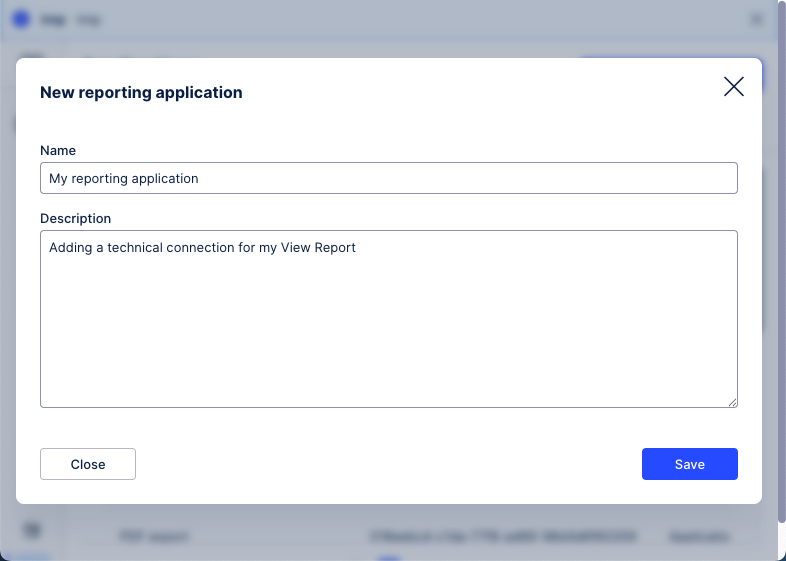
Add a name and an optional description and then click Save.
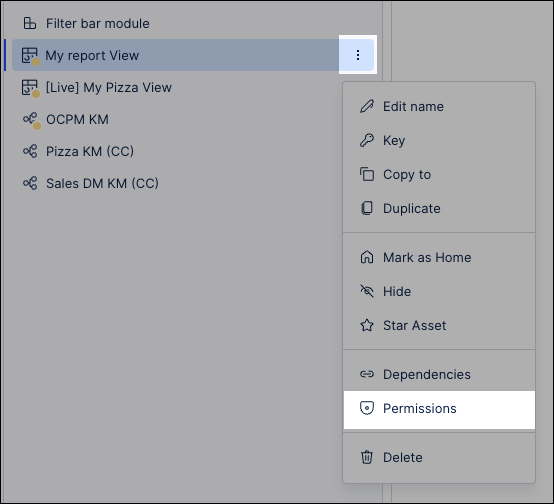
With the reporting application created, return to the View that the report is being configured for and click Options - Permissions.
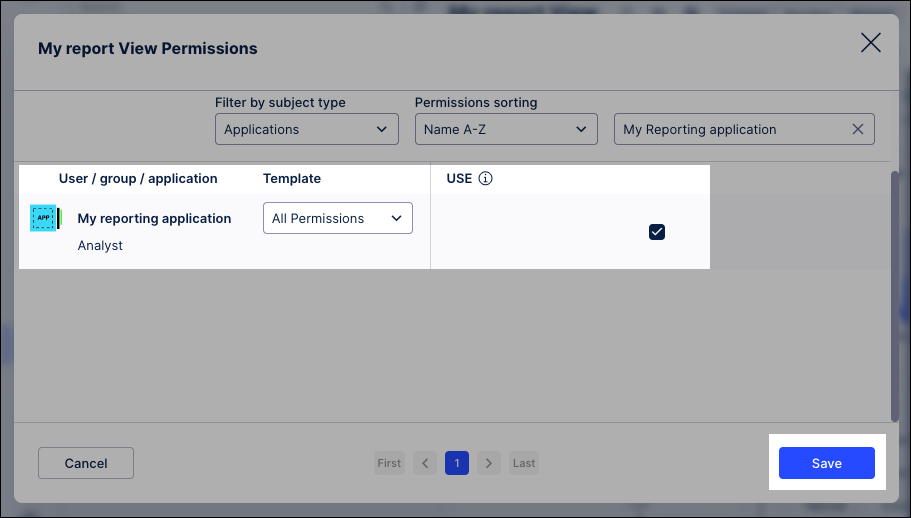
Locate the reporting application created in step 3, assign it Use permissions, and click Save.
The technical connection has been established and can now be used when creating and scheduling View reports.