Troubleshooting Action Flows failing in Orchestration Engine
A common issue you can observe when using Action Flows in Process Orchestration is when an Action Flow fails midway while the Process Orchestration is still running. This page will help you investigate this cause of the failure, apply the necessary fix to the Action Flow, and successfully resume the Process Orchestration to ensure normal operation.
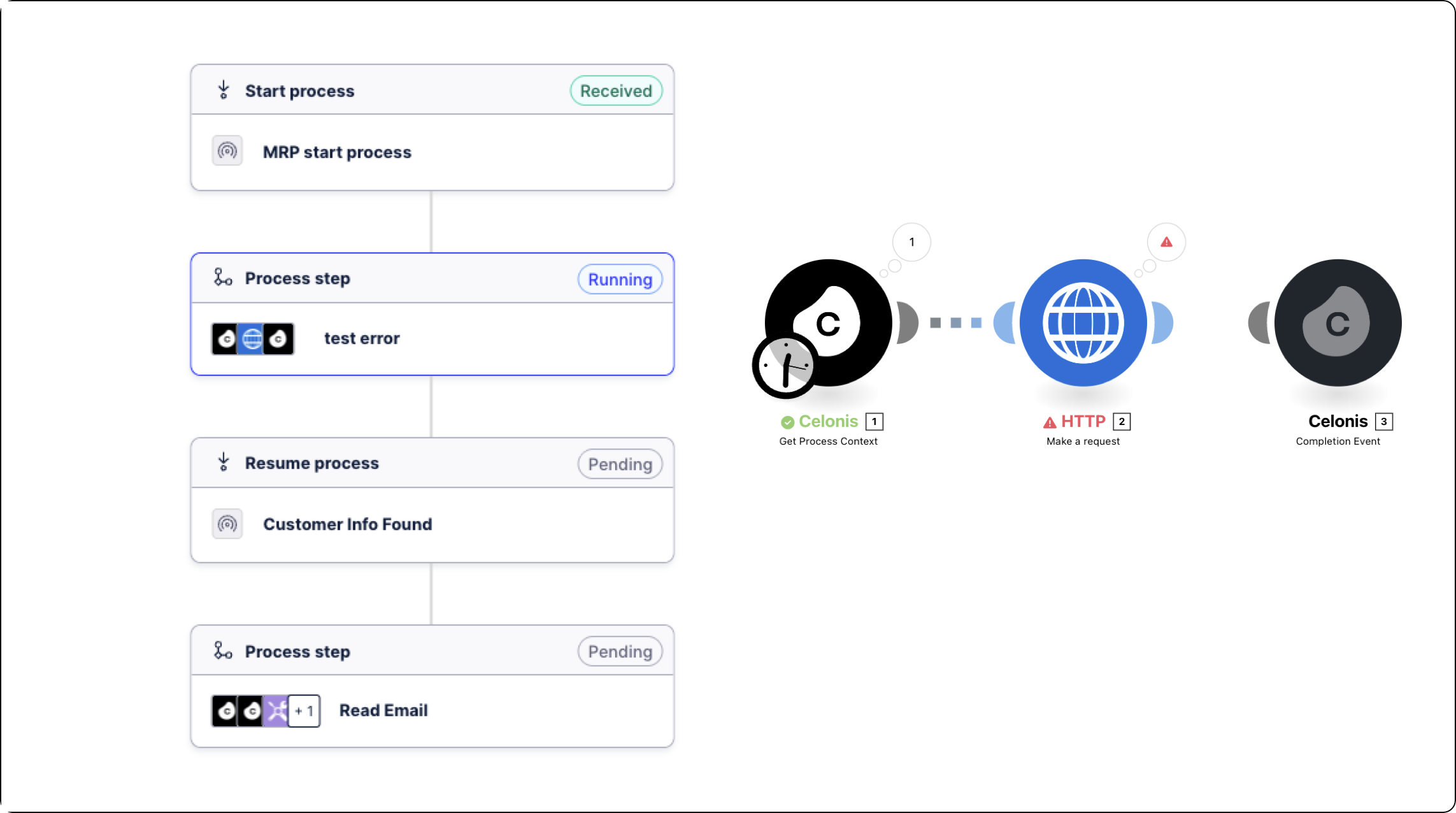
Identify the Stuck Process step: In the Process Orchestration, locate the specific action flow where the process is stuck in a running state. Review the flow to determine which step is not completing as expected.
Review and Correct the Action Flow: Open the identified action flow and pinpoint the exact step where the failure occurred. Investigate the cause of the error within that step. For example, an incorrect URL or configuration.
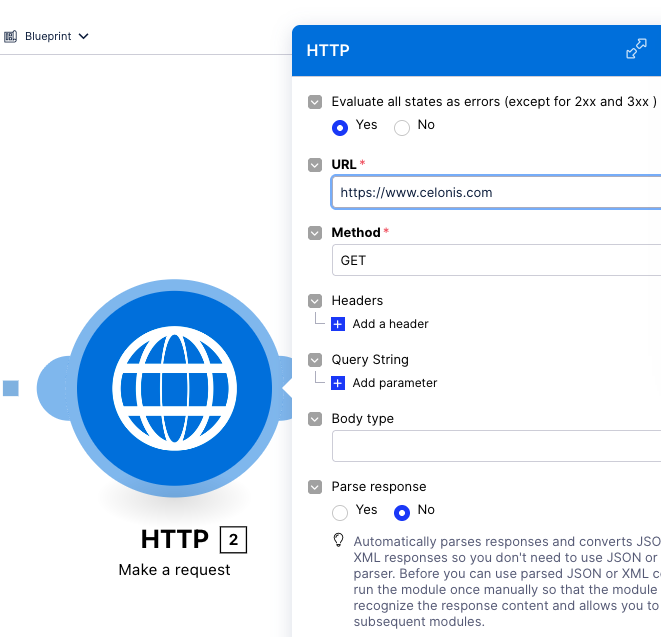
Save, Test, and Publish the Changes: After implementing the necessary corrections, validate the fix by running tests to ensure the action flow executes successfully. Once the results are satisfactory, proceed to save and publish/deploy the updated changes.
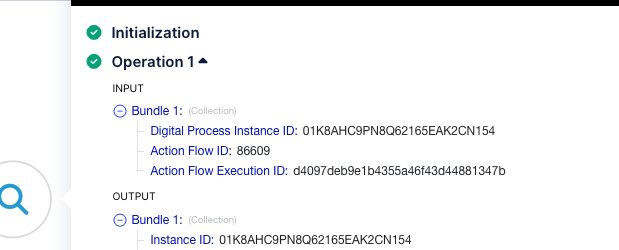
Retrieve Action Flow Details from History: Navigate to the Action Flow History for the failed instance. Open the Get Process Context module and capture the following key details:
Digital Process Instance ID
Action Flow Execution ID
These details will be used to resume the failed Process Orchestration.
Update the Action Flow Execution ID: Open the action flow in Edit Mode, then select the Get Process Context module. Expand the Advanced Settings section and update the Action Flow Execution ID with the value from the failed execution.
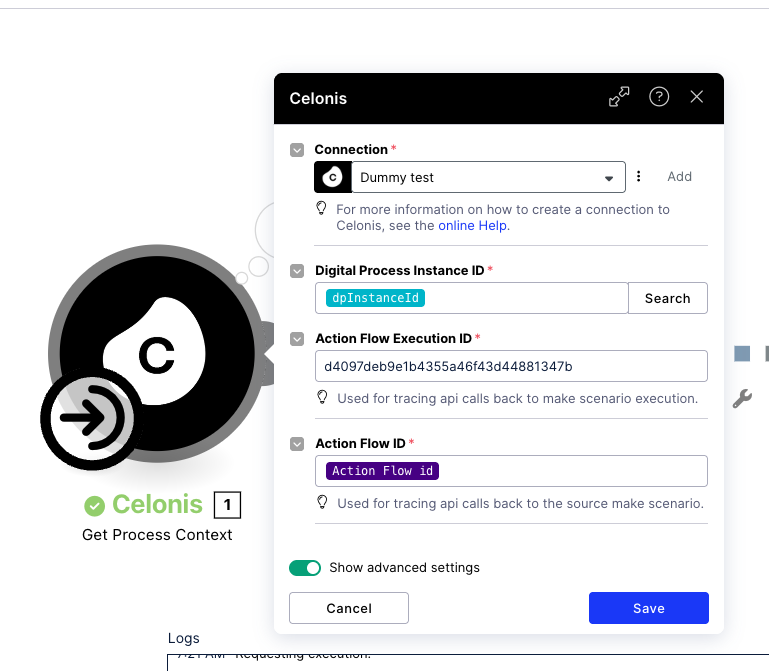
Apply Changes to Other Orchestration Engine Modules: Repeat the same procedure for other relevant modules of Orchestration Engine, such as Completion Event modules. Open each module, enable Advanced Settings, and update the Action Flow Execution ID with the value from the failed execution.
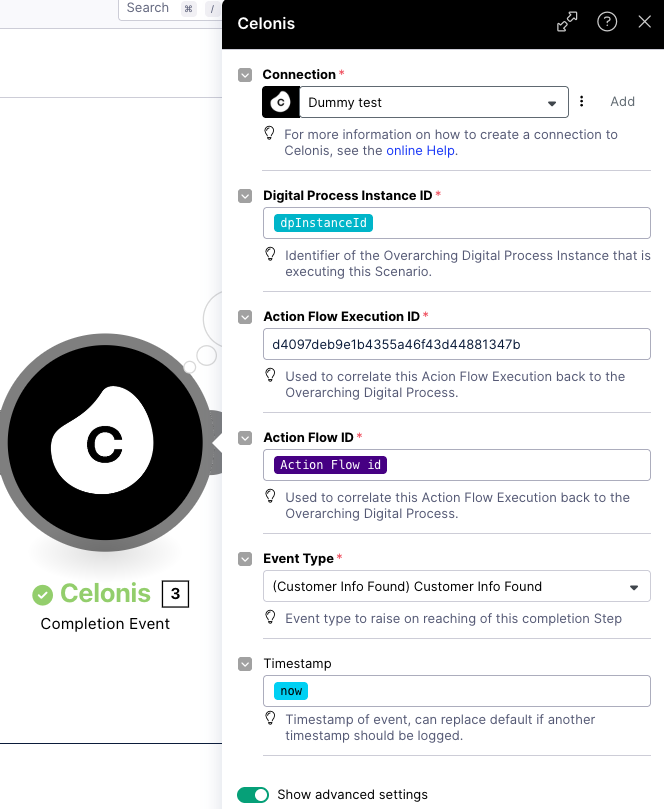
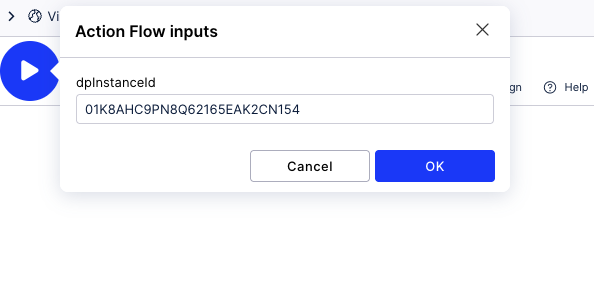
Manually Run the Action Flow: Execute the action flow manually by providing the Digital Process Instance ID (dpInstanceId). Verify that the flow runs successfully and that all previously failed steps complete as expected.
Verify Completion in Process Orchestration Logs: After successfully running the action flow, open the Process Orchestration Log to confirm that the previously failed process step has completed. This ensures that the orchestration has resumed and is functioning as expected.
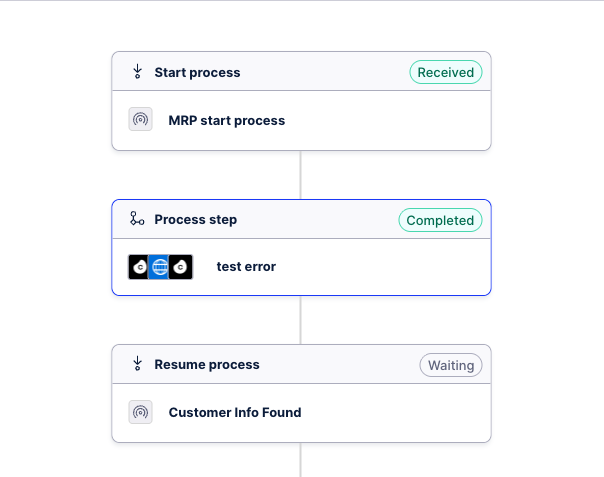
Once all steps have been completed and the issue has been resolved, no further action is required. The process orchestration should now be running as expected, and the action flow has successfully resumed.