Making changes to event logs
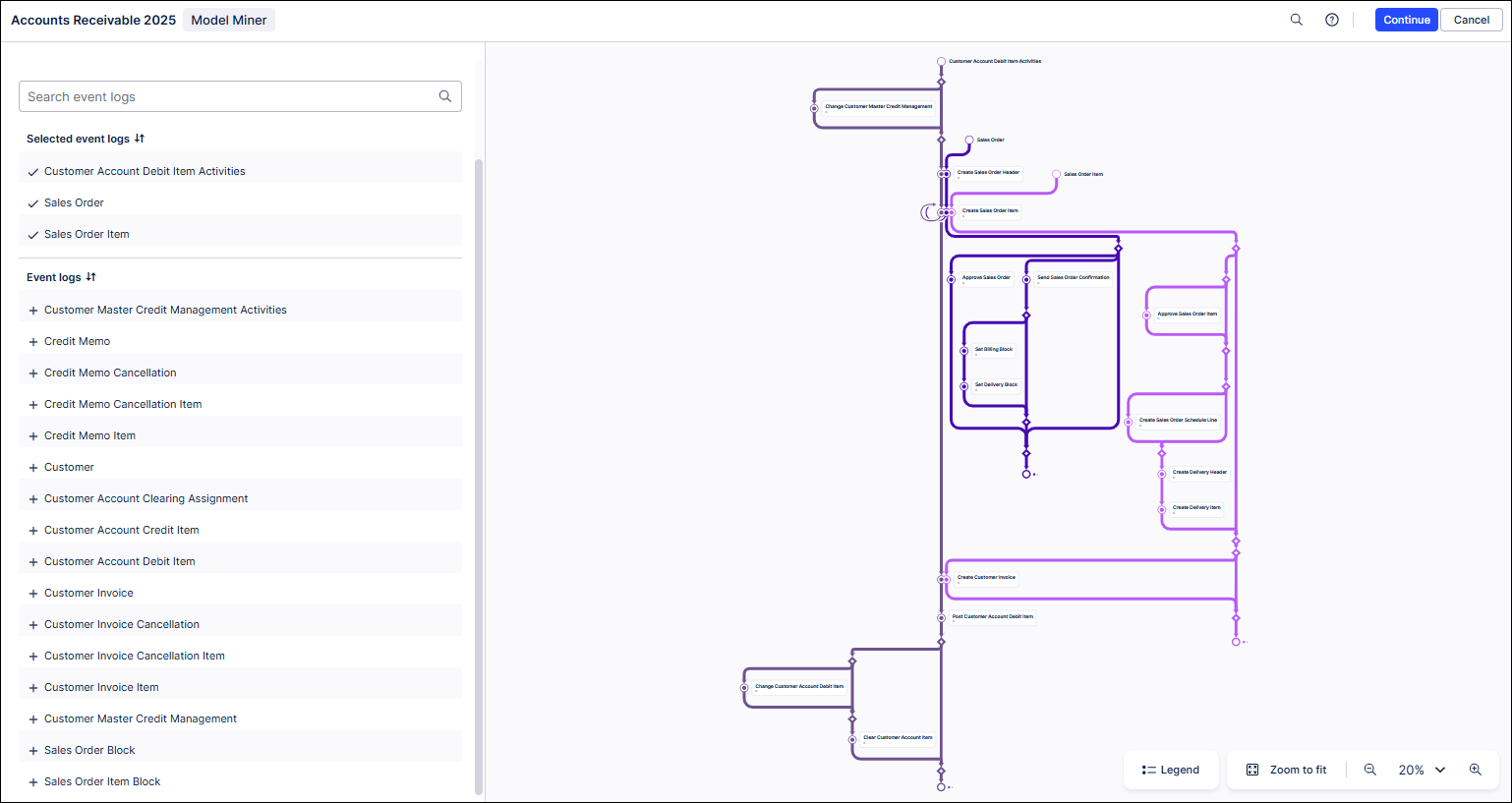
The process graph displayed in Model Miner gives you a visual representation of how your baseline process actually looks. Any changes you make to your baseline model will be automatically updated in the process graph. For information about how to read your process graph, see Working with the process model.
Before you begin, ensure you have completed the following steps or meet the requirements listed below:
Create a baseline model in PAM
You may experience issues if your event log is too big. For optimal performance, we recommend your event log contains a maximum of:
100 million events
10 thousand variants
To review and edit event logs, follow these steps:
In Model Miner, select the Select event logs tab.
The event logs associated with your process display.
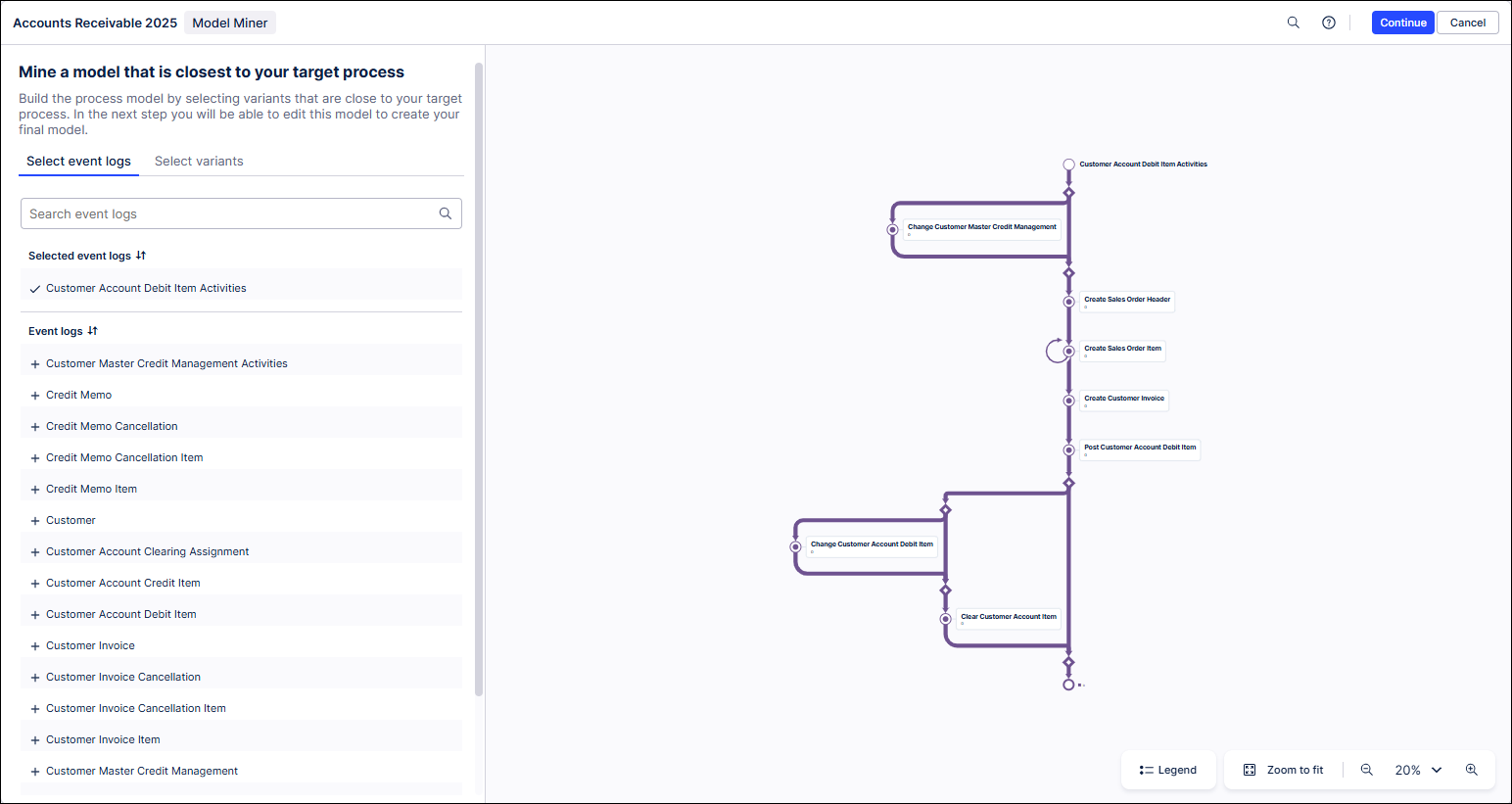
Select any event logs you want to add to your process.
Tip
You can also add dynamically-generated or relabelled events to get a more detailed view of your process.
We recommend reducing event log size during creation as the size of the event log is reduced at source. However, you may find it easier to filter your event log after creation instead.
To filter your event log, follow these steps:
Open your knowledge model.
Select Event Logs and then choose Create Event Log.
In the PQL Formula field, generate your event log using a query containing the CREATE_EVENTLOG operator.
For example, your query may look like this:
CREATE_EVENTLOG ( <object_table_name> FILTER <lead_object_filter> ).”ACTIVITY”
In your query, replace:
<object_table name>with your object table name.<lead_object_filter>with a filter that reduces the size of the event log.For example, include events in the event log only if they are created after the 1st of January, 2025 using:
<object_table_name>."CreationTime" >= {d '2025-01-01'}
Use your event log in PAM.
To filter an existing event log, follow these steps:
Open your knowledge model.
In the PQL Formula field, enter this query:
CASE WHEN <object_table_name>."TIMESTAMP" >= {d '2025-01-01' } THEN <object_table_name>."ACTIVITY" ENDReplace
<object_table_name>with your object table name.Adjust the date in your query so only events created after that date are included in your event log.
Tip
You could use any filtering condition here to determine which events are included in your event log.
Use your event log in PAM.