Managing Service level permissions
Improved permissions management experience
On February 4th, we're releasing an improved permissions management experience that enhances how administrators view and manage access across the platform. On this date, the content displayed below will be updated, reflecting the changes in our admin interfaces.
For more information, see: Updated Permissions (from Feb 4, 2026)
Services are the highest level of feature and content organization, giving user permissions across a service within your Celonis Platform. Services can contain multiple containers and objects, whereas a container and its object are stored within a service.
All service permissions can be assigned and managed by team admins by clicking Admin & Settings - Services permissions. This takes you to the Services permissions page.
You then have the following service level options:
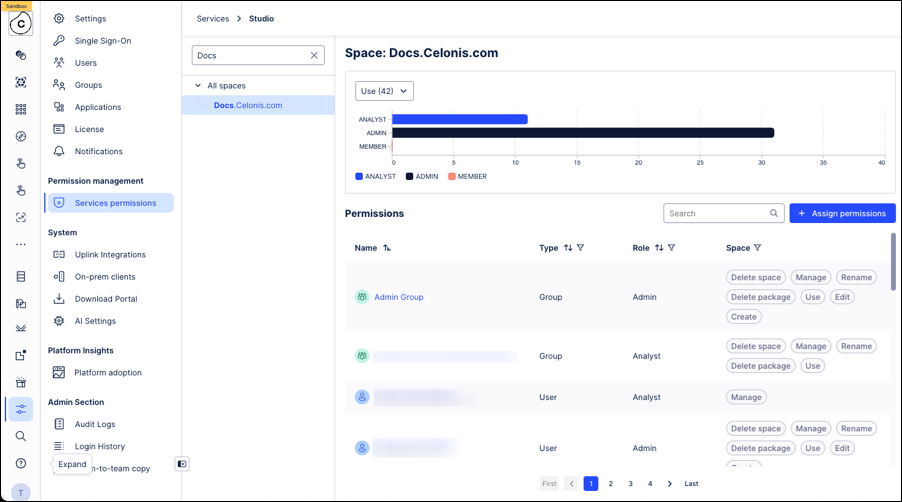
Managing individual Services: Click into a Service to view existing granular permissions, see an overview of team roles, and then assign permissions to existing team members.
In this example, the Studio service allows team admins to view all users that have access to the Studio service and individual Studio spaces.
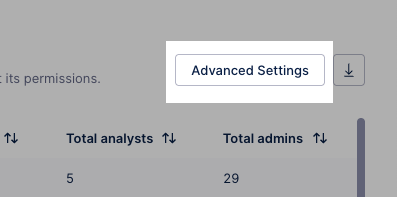
Advanced settings: These settings allow you to control who can change permissions in the Celonis Platform asset.
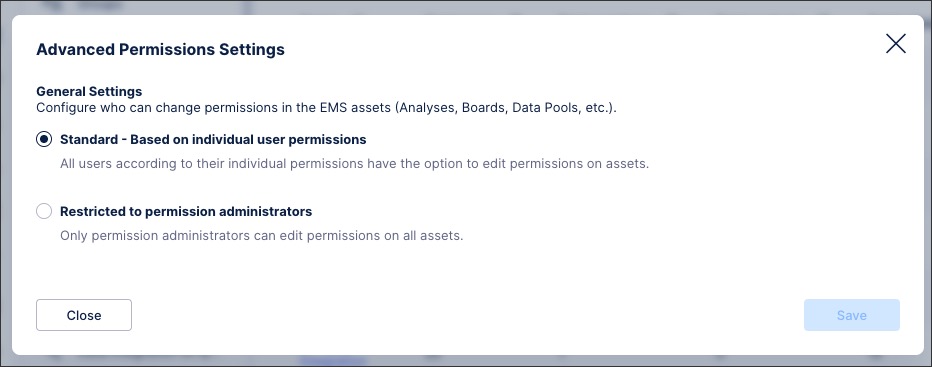
You can choose between:
Standard: All users have the option to edit permissions on assets according to their individual permissions
Restricted to permission administrators: Only permission administrators can edit permissions on all assets.
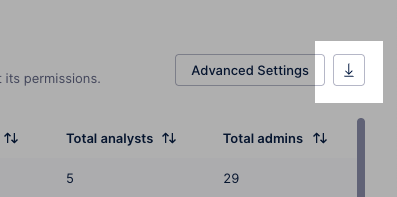
Exporting CSV of existing permissions: You can view and export (CSV file) your existing Celonis Platform permissions based on users, groups, applications, and a complete export of all permissions.
For more about exporting Celonis Platform permissions, see: Existing permissions.
Assigning service levels permissions for individual users, groups, and apps
You can assign service-level permissions to individual users, groups, or apps, granting them access only to that specific service. You’ll need to repeat this process for each service you want to assign permissions to.
To assign service level permissions:
Click Admin & Settings - Service permissions.
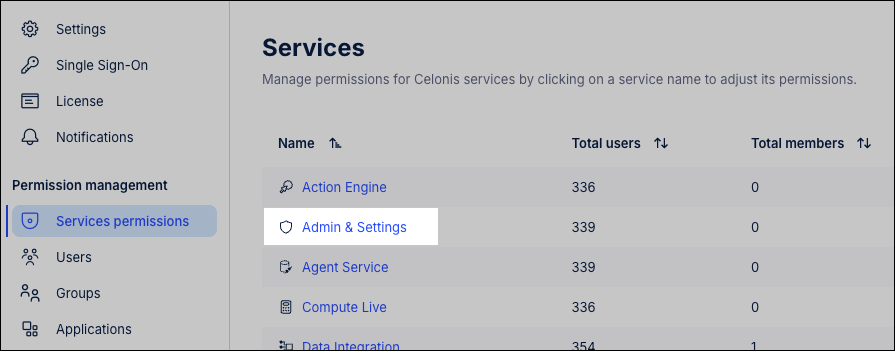
Select the service you want to assign permissions to and click Assign permissions.
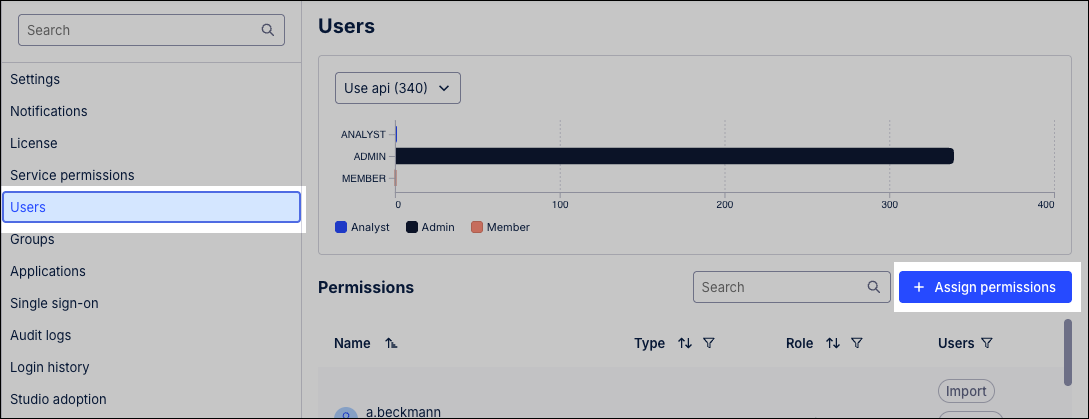
Select the subjects you want to assign permissions to and click Next.
The available subjects are limited to only those that don't currently hold permissions to this service.
Select whether the subject should be granted with all permissions to this service or only the permissions you select.
Click Assign permissions.
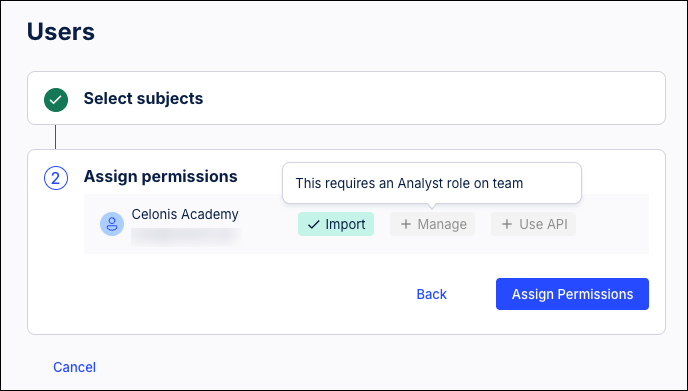
The subject now holds the assigned permissions to this service.
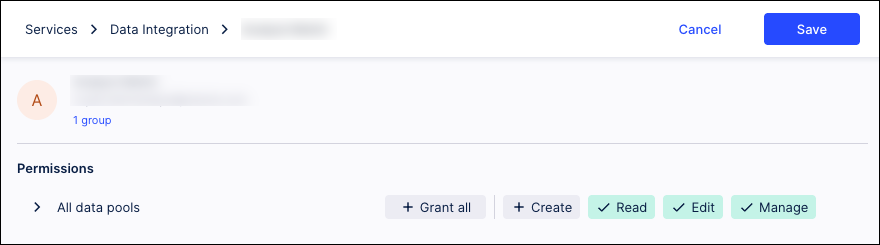
You can manage these permissions, including revoking access to that service, by returning to the service permissions page and clicking into the subject's individual permissions.
Managing existing service level permissions
You can manage these permissions, including revoking access to that service, by returning to the service permissions page and clicking into the subject's individual permissions.
To manage existing service level permissions:
Click Admin & Settings - Service permissions.
Click the subject that you want to manage the permissions for, loading their individual permissions page.
Edit the permissions as required.
Click Save.
The permissions for that service have been updated.